






CapCut AI Video Generator: Things You Should Know
CapCut AI Video Generator is a game changer for anyone who wants to generate videos easily. CapCut make video making easier for beginners and professionals alike. CapCut makes editing fun and easy by automatically producing videos based on your content and adding unique effects and captions with few clicks. This is a detailed guide of everything you need to know about utilizing CapCut's AI Video Generator to make beautiful videos.
Part 1. What Is CapCut AI Video Generator?
CapCut AI Video Generator is a tool that turns unprocessed audio, images and video clips into polished productions. It contains automatic capabilities that expedite the video creation process and make it ideal for users who want professional looking output without investing hours in editing. With CapCut's AI capabilities creating social media material, family films or marketing pieces is quick and simple.

Main Features of CapCut AI Video Generator:
- CapCut can automatically make a smooth video with transitions and effects when you just upload your media.
- It produces precise captions instantaneously and is ideal for raising engagement and accessibility.
- With AI background remover, you can quickly and easily edit movies without having to do any human editing to make your topics stand out.
- The AI makes recommendations for aesthetic effects and filters that complement your video's style and give it a polished appearance.
- CapCut creates dynamic and captivating video cuts that follow the beat of your music by using audio analysis and beat syncing.
Function
- Automated Video Creation: CapCut's AI will automatically analyze your audio, photos, and video clips to create a finished film with music, effects, and transitions in a matter of minutes.
- Makes Things Simpler Editing jobs: By handling intricate editing jobs including synchronizing, trimming and effect addition, it eliminates the need for human editing.
- Smart Recommendations: You can concentrate on telling stories rather than technical details by using the AI to recommend filters, effects, transitions and music that best suit your video.
- AI-Enhanced Post-Production: Time and effort are saved by features like automatically removing backgrounds and using AI to generate subtitles, which makes post-production simpler and quicker.
Part 2. How to Use CapCut AI Video Generator?
It's easy to use CapCut's AI Video Generator, regardless of your level of video editing knowledge. With only a few easy steps and its user-friendly interface, you can quickly produce videos that appear professional. Here's a quick tutorial on using this potent tool to quickly create beautiful videos.
Steps of CapCut AI Video Generator to create videos
Step 1. First, download and set up CapCut (which is compatible with desktop and mobile devices). If you haven't already, open the app and register for an account.
Step 2. Allow CapCut access to your camera roll. This allows you to insert the video clips you wish to edit! Open the app and then tap the "New Project" button at the top of the screen.
Step 3. Press the green "Confirm" button to allow CapCut access to your pictures. Then, on the following pop-up window, hit the button to grant access to all of your photos. This step is only necessary the first time you use the app.
Step 4. Now it's time to edit the video. Start a New Project. Once the app has opened, hit the "New Project" icon to bring up your camera roll films on a new screen.
Step 5. Go to your gallery and select the video that you want to edit. Click on the "add video" button at the lower right corner.
Step 6. CapCut will direct you to the primary editing area, where you'll be spending most of your time, after you upload your first clip. The timeline is positioned in the center of the workspace, with the toolbar at the bottom and the preview panel at the top.
Step 7. Examine the panel for preview. This is a preview of your edited video clip that appears in the upper half of your screen.
Step 8. Examine the toolbar and timeline located in the lower portion of your screen. All of your modifications will be made on the timeline, which is located directly beneath the preview panel. All of your editing tools, including split, audio, text, stickers, effects, and more, are located on the toolbar at the very bottom.
Part 3. CapCut AI Video Generator: Pros and Cons
 Pros
Pros
- Intuitive drag-and-drop workflow ideal for beginners.
- Quickly create videos from pre-designed templates.
- Generate short videos in seconds.
- Includes trimming, text, filters, and simple effects.
 Cons
Cons
- Customization options are restricted compared to desktop AI tools.
- Most video styles rely on existing templates.
- Limited support for multiple social media aspect ratios in one export.
CapCut AI Video Generator is perfect for quick, template-driven video creation and short-form content for social media. Its strengths lie in speed, simplicity, and beginner-friendly workflow. However, for creators seeking more control, advanced AI models, or flexible social media outputs, a more robust solution might be needed. This is where HitPaw VikPea comes in as a powerful alternative for creators who want both advanced AI video generation and enhancement tools in one platform.
Part 4. HitPaw VikPea: A Powerful CapCut AI Video Generator Alternative
HitPaw VikPea is an all-in-one AI video tool designed for users who want more than template-based editing. It allows you to generate videos from images, text, or creative templates, choose from multiple advanced AI models (Kling 2.1/2.5 Turbo, Hailuo 2.3, Pixverse 5.0, VEO 3), and export social-media-ready videos in different formats and aspect ratios. Beyond generation, VikPea also provides AI-powered video enhancement, making blurry or low-quality footage sharper and clearer.




Why Choose HitPaw VikPea
- Image & Text to Video – Generate videos from simple images or text prompts.
- Creative Templates – Quickly produce visually engaging content with ready-made templates.
- Multiple AI Models – Supports Kling, Hailuo, Pixverse, VEO for different visual styles.
- Social Media–Ready Export – Flexible output for TikTok, YouTube, Instagram, and more.
- AI Video Enhance – Improve clarity, reduce noise, and restore details in existing videos.
How to Generate AI Videos with HitPaw VikPea
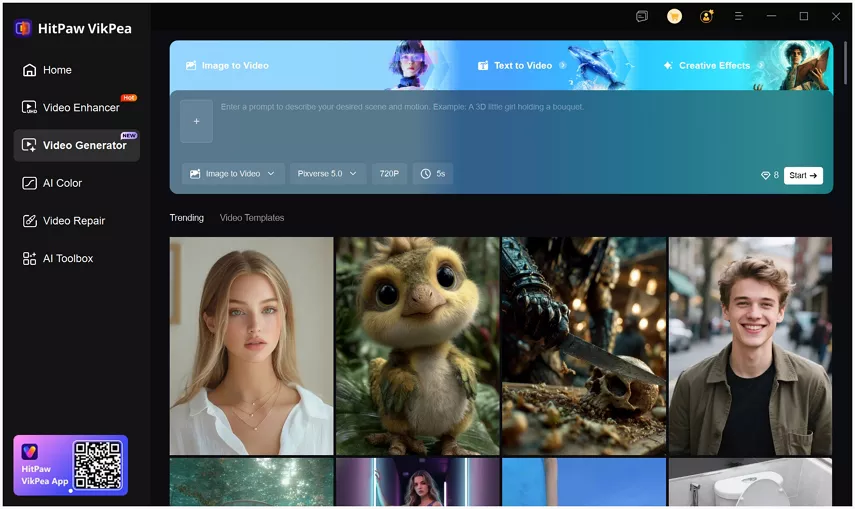
Step 1. Launch HitPaw VikPea after installation. Choose Video Generator module from the left menu. Select Image to Video, Text to Video or Creative Effects to get started.
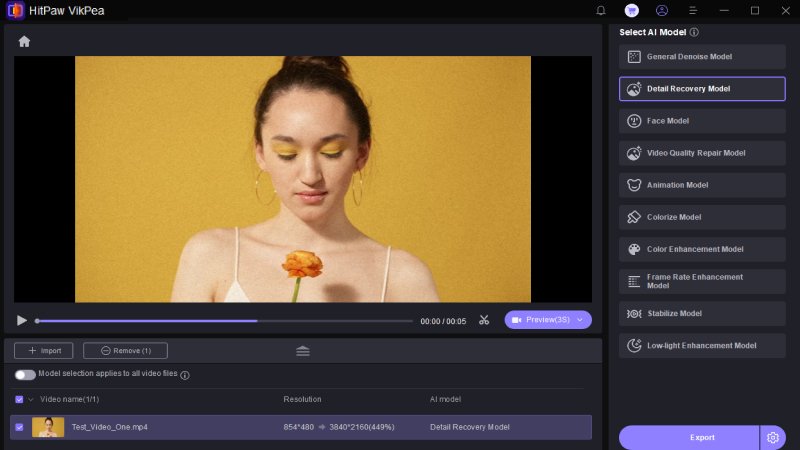
Step 2. Pick the AI model that fits your desired style and visual effect.
Step 3. Upload an image, and enter a propmt to describe the video scene.
Step 4.Click Generate to start processing. When the process is completed, check the AI-generated preview and make adjustments if needed.
Step 5.Finally, click the Download icon to download video. If you'd like to upscale the video quality, click Video Enhancer button to import the AI video into to the Video Enhancer module.
Learn More about HitPaw VikPea
Conclusion
CapCut AI Video Generator is a great choice for creators who want quick, template-driven videos with a simple, beginner-friendly workflow. Its speed, ease of use, and ready-made templates make it ideal for short-form social media content, but it may fall short for those seeking more creative control or advanced AI capabilities.
For users looking to take their AI video creation further, HitPaw VikPea offers a powerful alternative. With image-to-video, text-to-video, and template-based generation, support for multiple AI models, social-media-ready outputs, and integrated AI video enhancement, VikPea provides a more versatile, professional-grade solution for creating high-quality, engaging videos.
 HitPaw Univd (Video Converter)
 HitPaw VoicePea
  HitPaw FotorPea

Share this article:
Select the product rating:
Daniel Walker
Editor-in-Chief
This post was written by Editor Daniel Walker whose passion lies in bridging the gap between cutting-edge technology and everyday creativity. The content he created inspires the audience to embrace digital tools confidently.
View all ArticlesLeave a Comment
Create your review for HitPaw articles