






How to Improve X/Twitter Image Resolution Without Quality Loss
Tired of your photos looking blurry after tweeting? This guide explains how to improve Twitter image resolution without quality loss. We cover the latest 2026 standards for image sizes and file formats, along with professional preparation steps to bypass Twitter's aggressive compression. Learn how to keep your graphics clean, sharp, and professional-looking on every timeline.
Part 1: What Is the Recommended Twitter Image Resolution?
To avoid Twitter image resolution problems on Twitter, it's best to follow their size guidelines. Twitter changes things from time to time, but as of 2024, these are the current standards:
Tweet Images
- Recommended size: 1600 x 900 pixels
- Minimum size: 600 x 335 pixels
- Aspect ratio: 16:9
- These are the images that show up in your feed when you share photos.
Twitter Header/Banner Image
- Size: 1500 x 500 pixels
- Aspect ratio: 3:1
- Keep important details in the center. The sides may be cropped depending on screen size.
Twitter Profile Picture
- Size: 400 x 400 pixels
- Aspect ratio: 1:1
- The image is shown as a circle, so keep key parts in the middle.
Part 2: Why Do Twitter Images Lose Quality After Upload?
Even if you upload sharp and clean Twitter image resolution, there are many users whose image quality falls when the post starts. This is a common issue especially for designers, photographers and content creators. The images are blurred, compressed and visible, and not clearer than I thought. This usually happens because Twitter resolution image in the process of uploading.
Twitter Compression
Twitter uses compression to reduce image files. This can lead to faster loading of platforms while compromising quality. Even high-resolution images are compressed unless they follow a specific size limit or format.
Large or unsupported formats
If the image is too large or a non-generic file format, Twitter high resolution image may further compress or reject it. Images that are too large are often resized by Twitter, leading to poor image quality.
Common User Mistakes
- Save images many times before uploading (the quality may be reduced each time you save)
- Use the wrong aspect ratio to trim or scale.
- Upload images under low DPI or lighting.
By correcting these common mistakes, you can get better results.
Part 3: 5 Best Tools to Fix Image Resolution for X/Twitter Uploads
If your X/Twitter image resolution is unclear, you can solve it by using the appropriate tool. These tools make it easy to resize and clean up images and keep clear images after uploading. Some tools are easy to use online, while others offer additional options such as noise removal and resizing. This section introduces five useful tools to make your images look good on X/Twitter.
1. HitPaw FotorPea
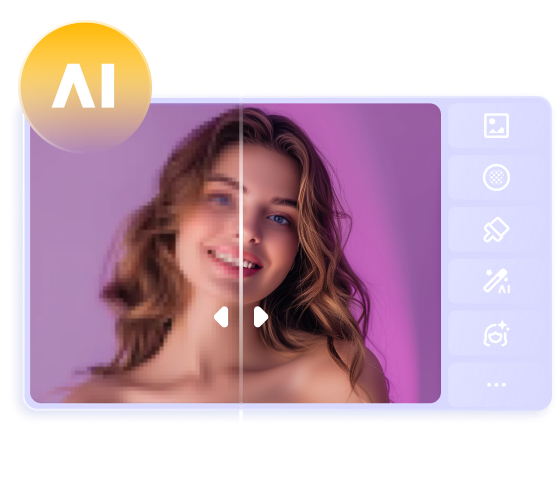
HitPaw FotorPea offers a tool called "Correct Photos, Realistic Noise Removal Model" that improves image quality before uploading to X/Twitter. Eliminate noise, reduce blurring, and keep important details clear. This is useful for users who want to keep their X/ Twitter post images sharp and clean. This tool is useful for people who share photos on a daily basis and for those who share photos regularly. You don't need special skills to use. Simply upload the image, apply the filter, and download the result.

Key Features of HitPaw FotorPea
- Advanced AI Photo Enhancer for social media like X/Twitter, Instagram and Linkedin on Windows and Mac.
- Upscale Low-Resolution Twitter Images to 4K/8K and even 16K with a Single Click.
- Sharpen Blurry and Compressed Photos for Clearer Twitter Uploads.
- Remove Noise and Restore Fine Details Without Losing Image Quality before Upload on X.
- Enhance Faces, Text, and Other Important Details in Your Images.
- Remove Glare like Sunglass from Your Post Images.
Enhance Image Resolution for X/Twitter Posts
Step 1: Download and Install HitPaw FotorPea
Install HitPaw FotorPea to enhance the resolution of your X/Twitter images.




Step 2: Upload the Original Photo
Upload your image by clicking "Choose File" or dragging it into the interface.
Step 3: Select AI Model
Choose the model that suit you most to sharpen and improve the resolution.
Step 4: Preview the Effect
Preview the sharpened image and hit "Export" to save it for Twitter.
2. Adobe Photoshop Express
Adobe Photoshop Express is a simple version of Photoshop. You can crop, resize, and clean up Twitter image resolution before sharing them on Twitter. Includes convenient export settings and preset sizes made for social media. The interface is clear and most functions are easy to use.
 Pros:
Pros:
- Free for basic use
- Trusted software
- Built-in export options for Twitter
 Cons:
Cons:
- Some features require login
- Limited control compared to full Photoshop
3. TinyPNG
TinyPNG is a popular online tool that reduces image files without compromising appearance. It prevents Twitter from compressing the image too much. With TinyPNG, simply drag and drop the image to quickly complete a cleaner and smaller file.
Pros:
- Easy drag-and-drop interface
- Keeps high visual quality
- No install needed
Cons:
- Max file size is 5MB for free users
- Doesn't resize, just compresses
4. GIMP (GNU Image Manipulation Program)
GIMP is a free tool for editing and resizing images. Supports many file formats and allows complete control of image settings such as size and DPI. You can save images with dimensions suitable for Twitter and adjust them to keep quality.
Pros:
- Free and full-featured
- Supports all image formats
- Can set custom image sizes
Cons:
- Steep learning curve
- Interface is a bit old-fashioned
5. Canva
Canva is a design tool that is also suitable for preparing images for X/Twitter. Canva has a ready-made layout that matches Twitter's image size rules. You can add text, crop photos, and download them in supported formats such as PNG and JPG. It is easy to use and does not require much editing knowledge.
Pros:
- Templates sized for X/Twitter
- Very easy to use
- Great for adding text or branding
Cons:
- Some templates are paid
- Limited control over final resolution
FAQs about X/Twitter Image
Q1. Can I upload 4K images on Twitter without compression?
A1.
No, Twitter compresses almost all images to reduce file size. To minimize quality loss, follow these preparation steps:
• Optimize Size: Ensure the file is below 5MB.
• Ideal Format: Save your work in JPG or PNG format.
• Correct Pixels: Target a resolution of 1600 x 900 to prevent resizing.
Q2. Does Twitter treat profile and banner images differently from post images?
A2. Yes. The size and aspect ratio of profile and banner images are determined. If the image does not fit these sizes, it may be cropped or scaled. Tweet images are more flexible but compressed.
Q3. What's the ideal DPI for Twitter images?
A3. Twitter does not use DPI directly for display, as it relies on pixel dimensions for web rendering. For the best results, set your image to 72 DPI (the web standard) and focus entirely on the total pixel count. Setting the correct width and height is far more critical for clarity than the DPI setting itself.
Q4. Can I post 1080x1350 on Twitter?
A4. Yes. You can upload a 1080 × 1350 image to X, but its 4:5 portrait ratio may be cropped in some feed views, and it's preferred to upload in Instagram. If you want the full image to display more consistently, choose a size and aspect ratio that fits X's recommended display format.
Q5. Is 4:3 or 16:9 better for social media?
A5. Neither is universally better. 4:3 works well for standard photos and artwork, while 4:5 (1080 × 1350) is ideal for Instagram portrait posts. 16:9 (1920 × 1080) is better suited to landscape content, YouTube thumbnails, and wide visuals on X. Choose the aspect ratio that fits your platform and content rather than stretching or cropping the original image.
Q6. What's the best image size for Twitter?
A6. For X/Twitter, the best image size depends on your content and aspect ratio. More importantly, start with a high-quality image and use a suitable format such as JPEG or PNG. If the original photo is blurry or low-resolution, increasing its dimensions alone won't make it clearer—HitPaw FotorPea can help restore image details before uploading.
Conclusion
Since X/Twitter often compresses images, photos may be blurred or pixelated. This usually happens due to wrong Twitter image resolution, unsupported format and poor-quality upload. To solve this problem, resize the image to the correct size, compress it carefully, and use the correct file format. If you are looking for the best way to clean up and prepare your images, HitPaw FotorPea is one push. Removes noise and improves clarity. With this tool along with the appropriate upload settings, your X images will always remain sharp and clear.
 HitPaw Univd (Video Converter)
 HitPaw VoicePea
  HitPaw VikPea (Video Enhancer)

Share this article:
Select the product rating:
Daniel Walker
Editor-in-Chief
This post was written by Editor Daniel Walker whose passion lies in bridging the gap between cutting-edge technology and everyday creativity. The content he created inspires the audience to embrace digital tools confidently.
View all ArticlesLeave a Comment
Create your review for HitPaw articles