





Guide to Fix Jellyfin Playback Failed Due to A Fatal Player Error
Summary
Jellyfin shows the error "Playback failed due to a fatal player error" most often when Intel QSV hardware acceleration fails during video decoding or transcoding. This guide explains the common causes of the error and provides step-by-step solutions to restore smooth playback on Jellyfin.
"Hi, I'm receiving the error "Playback failed due to a fatal player error." on certain movies when turning on Intel QSV in Hardware Acceleration. " --From reddit.com
Jellyfin is a popular open-source media server, but playback issues can still occur—especially when hardware acceleration is enabled. Many users report seeing the message “Playback failed due to a fatal player error” right before a movie or episode refuses to play. This can be frustrating, particularly when everything seems properly configured.
It gets really frustrating when you prepare everything for movie night or binge-watch your favorite TV shows and the playback just won't go on. But, don't get panic. This guideline will outline the cause of this issue and guide you through simple steps to resolve it to get Jellyfin working correctly again.

Part 1. What Is Jellyfin Playback Failed Due to A Fatal Player Error?
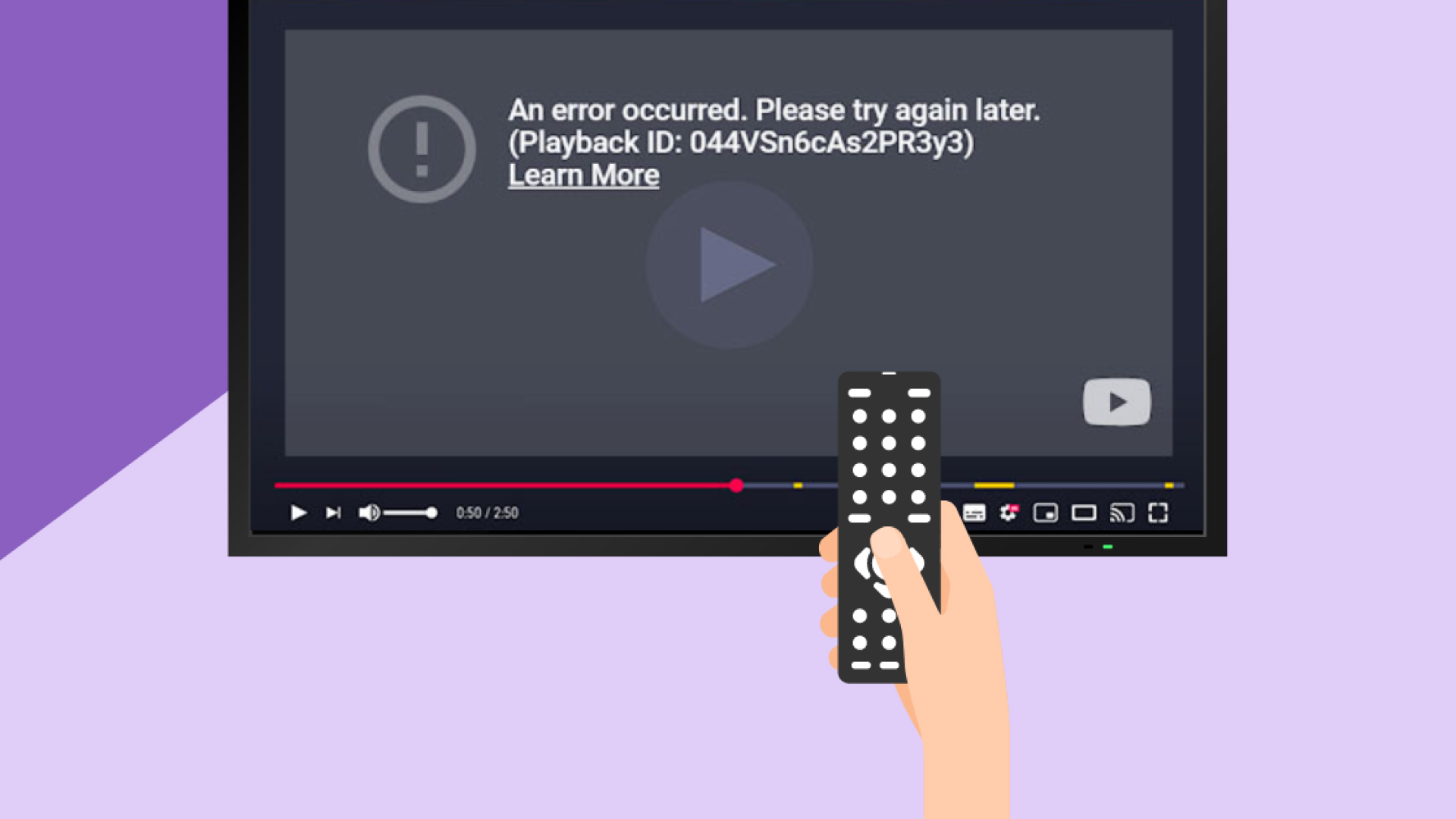
The "Playback Failed Due to a Fatal Player Error" message appears when some Jellyfin users want to play media files over the platform. This problem can unexpectedly interrupt playback, displaying an error message on the screen and preventing the video or music from starting or continuing. Such failures can be extremely aggravating for customers who rely on Jellyfin as their primary media server for watching movies, TV shows, and music.
This playback problem might have a lot of causes. Some common causes include:
- Unsupported file formats or codecs: Jellyfin may fail to play the media if the files are encoded in unsupported formats.
- Server Resource Limitations: The effectiveness of your Jellyfin server can be restricted by limited CPU, memory, or network bandwidth.
- Network connection problems: Connection-related network problems from the server to the client device cause the video being interrupted.
- Client Device Compatibility : Some of the older incompatible devices fail to decode all media formats streamed from the Jellyfin.
- Outdated version: Using an older version of Jellyfin sometimes might expose you to compatibility issues when a new media format or even a device is discovered.
Part 2. Repair Corrupted Video to Fix Jellyfin Fatal Player Error
If Jellyfin fails on specific movies—even with hardware acceleration disabled—the video file itself is likely corrupted. Broken frames, incomplete downloads, or encoding errors can cause fatal playback failures. HitPaw VikPea (formerly HitPaw Video Enhancer) provides a professional and AI-powered Video Repair solution to fix these exact problems. By intelligently analyzing and reconstructing damaged video files, VikPea restores them to a clean, playable state—so they work seamlessly in Jellyfin and other media servers..




Why choose HitPaw VikPea
- Fix video files that crash during playback due to broken frame data, format structure errors, or audio/video desync.
- Stabilize and repair files that trigger fatal playback errors caused by unsupported or poorly encoded formats.
- Automatically detects and repairs common video corruption types: flickering, freezing, black screens, no audio, pixelation, and more.
- Fully compatible with formats commonly used in Jellyfin libraries, such as MP4, MKV, AVI, MOV, and more.
- In additon to repair videos, VikPea also removes noises and enhances quality.
Steps to Repair Videos
1.From the official website, you can download HitPaw VikPea and follow instructions to install it to your computer. On the main interface, select the Video Repair module, and choose the scenario that matches your issue. Or, use Intelligent Detection and Repair to auto-detect problems.
2.Import the corruted video that you've downloaded from Jellyfin.
3.Click Start Repair to let the AI analyze and fix the video.
4.Once you have completed the repair, preview the repaired video under Complete List and save it to your computer.
Learn More about HitPaw VikPea
Part 3. Other Solutions to Fix Jellyfin Playback Error
If you continue to receive the "Playback Failed Due to a Fatal Player Error" message in Jellyfin, there are various different options for troubleshooting and resolving this issue. These procedures fix any setting, network, or compatibility issues that may be affecting playback quality. Here are six more methods to help Jellyfin work smoothly.
1. Update Jellyfin and Clients
Updating your Jellyfin server and client applications is important. Updates frequently include bug fixes, performance enhancements, and improved compatibility. If you're using an older version, this could be the cause of playback issues. To improve playback stability, update Jellyfin on your server as well as the app or browser you're using.
2. Check Server Configuration
Settings like transcoding and resource allocation might significantly interfere with playback. Check your Jellyfin settings to see if there are any resource or transcoding constraints. Enabling hardware acceleration for transcoding, can also help reduce playback mistakes by increasing video processing efficiency.
3. Test Different Browsers or Clients
Playback problems may be exclusive to certain browsers or apps. To see whether the problem persists, try streaming from a different browser or a Jellyfin-compatible client app. This allows you to determine whether the problem is with the client you're using, and switching to a different platform may be a temporary solution while the problem is resolved.
4. Clear Cache
Clearing your cache can resolve playback issues caused by faulty or outdated data. Clearing the cache on both the Jellyfin server and the client device may help to resolve this issue. In browsers, you may clear the cache in the settings, however in the Jellyfin app, go to the settings and look for a cache-clearing option to refresh and possibly solve playing.
5. Adjust Playback Quality
High-quality videos may need extensive server and client resources, particularly for transcoding. Lowering the playback quality help to reduce the load, making it smoother and less prone to failure. This can be done in the Jellyfin player settings, under Playback Quality. Try lowering the resolution or bitrate to see if it cures the problem.
6. Check Network Connection
To enjoy smooth Jellyfin streaming, steady and high-speed internet connection is needed. If your network is slow or has disruptions, it could be causing playback issues. Check your connection's speed and stability. If you're using Wi-Fi, consider connecting to a wired network or relocating closer to the router. Restarting your router or restricting other devices' bandwidth may resolve the problems.
Part 4. FAQs
1. Why isn't Jellyfin working?
Jellyfin may stop working due to several reasons: hardware acceleration failures (Intel QSV), unsupported codecs, corrupted media files, outdated server or client versions, or network issues. Videos using HEVC, 10-bit, or HDR formats are especially prone to playback errors. Disabling QSV, updating drivers, or repairing damaged files usually restores normal operation.
2. Why does enabling Intel QSV trigger Jellyfin playback failures?
Intel QSV can trigger fatal player errors when GPU drivers, FFmpeg, or Jellyfin lack proper codec support. Videos encoded in HEVC 10-bit, HDR, or Dolby Vision may fail during hardware decoding, causing Jellyfin to stop playback. Driver updates or adjusting QSV transcoding settings often resolve this issue.
3. Can damaged video files cause Jellyfin fatal player errors?
Yes. Jellyfin may display a fatal player error if a video file is corrupted or improperly encoded. Broken frames, missing metadata, or incomplete downloads can cause decoding to fail, even when hardware acceleration is disabled. Repairing the video file and re-adding it to Jellyfin often restores normal playback.
4. Should Intel QSV be disabled permanently in Jellyfin?
Not necessarily. Intel QSV improves performance when configured correctly. If disabling QSV fixes playback errors, it’s better to update GPU drivers, limit unsupported codecs, or adjust transcoding settings rather than leaving hardware acceleration turned off long-term.
Conclusion
Jellyfin playback issues can be challenging, but you can restore smooth streaming by following the troubleshooting procedures stated above. These solutions, which range from software updates to cache clearing and playback quality adjustments, can efficiently cure problems.
Also, consider utilizing HitPaw VikPea to further optimize your video files. This sophisticated program not only restores corrupted films, but also improves their quality, resulting in improved compatibility with Jellyfin. HitPaw VikPea can reduce playback failures and you can enjoy a smooth streaming experience. Take action immediately so you can continue enjoying your favorite content without interruptions!
 HitPaw Univd (Video Converter)
 HitPaw VoicePea
  HitPaw FotorPea

Share this article:
Select the product rating:
Daniel Walker
Editor-in-Chief
This post was written by Editor Daniel Walker whose passion lies in bridging the gap between cutting-edge technology and everyday creativity. The content he created inspires the audience to embrace digital tools confidently.
View all ArticlesLeave a Comment
Create your review for HitPaw articles