




Seedream 5.5 vs ChatGPT Images 2.6: How to Create and Enhance AI Images
 By Daniel Walker
Choosing the right visual model will affect how quickly the creative team moves from rough concepts to campaign-ready graphics without having to edit them. This post includes a quick comparison of Seedream 5.5 vs ChatGPT image 2.6. In this guide, we will test both generators across realistic portrait generation, extra rendering product photography and image editing.
Part 1: Quick Model Comparison Across Core Capabilities
Both generators turn natural-language prompts into high-utility visuals, yet they bring distinct strengths to everyday production tasks.
Comparing Seedream 5.5 vs ChatGPT Images 2.6 up front helps clarify whether you prefer stylized artistic contrast, studio-grade lighting, conversational multi-turn editing, or reliable layout alignment before looking at individual test prompts.
| Evaluation Dimension | Seedream 5.5 | ChatGPT Images 2.6 |
|---|---|---|
| Primary Strength | Expressive lighting, stylized aesthetics, and bold studio contrast | Instruction adherence, conversational iteration, and cohesive scenes |
| Portrait Realism | Rich skin texture and dramatic rim lighting; occasional over-smoothing | Natural facial proportions, balanced catchlights, and lifelike expressions |
| Product Photography | Strong commercial staging and metallic/glass reflections | Accurate object placement, clean surfaces, and reliable props |
| Text Rendering | Handles short labels and posters well with occasional minor spacing quirks | Strong spelling accuracy and natural typographic placement |
| Editing & Consistency | Solid regional refinements and style-matched variations | Smooth conversational follow-ups that preserve subject identity |
| Transparent Backgrounds | Supports clean cutout-style generation via prompt/masking workflows | Supports isolated subjects on neutral/transparent-ready backgrounds |
| Best Ideal Use Case | Campaign visuals, artistic concepts, and eye-catching social posts | Iterative design drafts, detailed scene prompts, and everyday edits |
Part 2: Side-by-Side Image Quality Tests
To keep things fair, every test used the exact same prompt wording, aspect ratios, and quality settings across both models, with one re-run to verify whether any flaw was a fluke or a pattern. We scored each output on lighting, structural accuracy, edge cleanliness, and readiness for publication without extra cleanup.
Image Generation Quality
1. Realistic Portrait Generation
Prompted with a candid outdoor portrait at golden hour featuring natural freckles, an 85mm lens look, and soft background bokeh, both generators delivered believable human subjects.
Seedream 5.5 leaned into richer contrast and warm rim highlights along hair strands and shoulders, creating an editorial feel right away. ChatGPT Images 2.6 offered slightly more restrained, lifelike skin micro-texture and dependable facial symmetry, eye catchlights, and hand details.

2. Product Photography
Testing product photography with a matte ceramic coffee tumbler resting on a travertine stone slab under soft studio lighting highlighted how each model renders surfaces. Seedream 5.5 produced punchier shadow depth and crisp highlight roll-off that suited a hero banner immediately. ChatGPT Images 2.6 kept stone pores, ceramic glaze, and contact shadows remarkably consistent when we asked for minor lighting adjustments.
Prompt Understanding
1. Text Rendering
For text rendering, we tested a minimalist bakery sign and label reading "Morning Crumb" with a short serif tagline. ChatGPT Images 2.6 nailed spelling, kerning, and baseline alignment on the first try, making it ready for print mockups. Seedream 5.5 produced warmer storefront framing, though minor letter-spacing quirks required a second pass.
2. Complex Image Composition
Testing spatial reasoning with a multi-subject rainy street scene a cyclist passing a bookstore awning on the left and two people talking under a streetlamp on the right revealed clear strengths for each model. ChatGPT Images 2.6 nailed the left-to-right layout and secondary details accurately, while Seedream 5.5 captured richer wet-pavement reflections despite slightly shifting a minor background element.
Editing Capabilities
1. Image Editing and Consistency
Both models handled targeted edits well when we asked them to change a jacket's color and shift the lighting from afternoon to dusk while keeping the person's face the same. ChatGPT Images 2.6 made step-by-step chat edits feel smooth and predictable, while Seedream 5.5 stood out when changing the overall mood and colors of the whole scene.
2. Transparent Background Generation
Preparing clean cutouts for product cards, overlays, or slide decks depends on sharp separation around fine edges like hair, straps, and curved rims. Both tools perform best when you specify clear subject isolation and a clean, high-contrast background in the prompt, then finish with a dedicated background removal or cutout step when true transparency is required without jagged edges.
Part 3: Which AI Image Generator Should You Choose for Different Needs?
Matching the right model to your task cuts down on re-prompts and cleanup time. Here is how Seedream 5.5 vs ChatGPT Images 2.6 fits real-world creative workflows
1. Best for Professional Design
ChatGPT Images 2.6 fits structured layouts, readable labels, and multi-part briefs cleanly, while Seedream 5.5 is great for early visual direction, lighting studies, and expressive concept boards.
2. Best for E-commerce Images
Seedream 5.5 brings dramatic studio contrast for promotional banners and seasonal campaigns, whereas ChatGPT Images 2.6 keeps product details and packaging copy steady across variations.
3. Best for Social Media Content
Seedream 5.5 creates bold visual hooks and stylized moods that stop scrolling in busy feeds, while ChatGPT Images 2.6 helps turn quick ideas and text-led graphics around fast.
4. Best for Portrait Creation
Choose ChatGPT Images 2.6 for natural proportions and subtle realism, or Seedream 5.5 for richer contrast and expressive editorial lighting.
5. Best for Everyday Image Editing
ChatGPT Images 2.6 makes incremental, conversational tweaks straightforward, while Seedream 5.5 works well when you want broader stylistic shifts across a visual.
Part 4. How to Use Seedream 5.5 and ChatGPT Images 2.6
How to Use Seedream 5.5
- Step 1:Open Seedream 5.5 and set your desired aspect ratio and output options to fit the target placement, such as a landscape header banner or a vertical social card.
- Step 2:Enter a detailed prompt that covers the main subject, lighting style, camera framing, and surface textures, then generate a small set of options to compare the compositions.
- Step 3:Pick the best draft, make quick tweaks or re-runs if needed, and export the final image.
How to Use ChatGPT Images 2.6
- Step 1:Open a chat with ChatGPT Images 2.6 and describe the scene plainly-including exact text, layout placement, and lighting mood.
- Step 2:Check the result and send simple follow-up prompts to tweak colors, small details, or framing without having to start over.
- Step 3:Download the image and check small text or fine edges before publishing or upscaling.
Part 5: How to Enhance AI-Generated Images
Why AI-Generated Images May Need Enhancement
AI images can look soft, noisy, or low-res when cropped or viewed on large screens. Upscaling and enhancing them sharpen fine details, clean up artifacts, and get visuals ready for stores, slides, or print.
How to Upscale AI-Generated Images?
Upscaling raises image resolution while predicting sharp edges and realistic micro-texture rather than merely stretching existing pixels. Using an AI enhancement tool keeps lines cleaner and avoids the mushy look common with basic resizing.
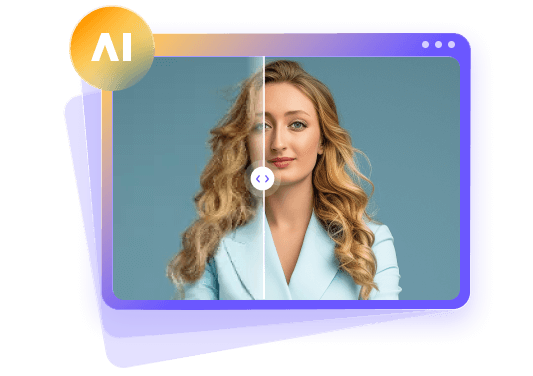
When polishing outputs from Seedream 5.5 vs ChatGPT Images 2.6, we introduce and recommend HitPaw FotorPea. HitPaw FotorPea is HitPaw's AI photo enhancer and AI photo generator for image enhancement, restoration, and creation.
It sharpens blurry details, removes noise, and upscales low-resolution images without losing natural texture. You can also use its dedicated AI models to restore older or damaged photos and generate fresh visuals in one place.




How to Enhance AI-Generated Photos with HitPaw FotorPea
Step 1: Open HitPaw FotorPea on your device, then drag and drop or select the AI-generated photo you want to sharpen or upscale.
Step 2: Choose the Best AI Model for Your Image
Choose the AI model that best fits your phot such as portrait/face detail, general upscaling, or noise reduction and review the preview.
Step 3: Compare the enhanced preview against the original, choose your export settings and folder, and save the finished image.
Part 6: Frequently Asked Questions About Both Models
Neither is better across every single task. Seedream 5.5 often shines with dramatic lighting and stylized aesthetics, while ChatGPT Images 2.6 excels in prompt accuracy, text legibility, and conversational edits.
Both can produce realistic results with clear prompts. ChatGPT Images 2.6 often maintains proportions and natural textures, while Seedream 5.5 delivers rich contrast and striking studio or ambient lighting.
You can guide Seedream 5.5 toward clean, easily separated backgrounds using focused framing prompts, and then remove or refine the background in a cutout step when true transparency is needed.
Yes. An AI photo enhancer such as HitPaw FotorPea can increase resolution while preserving edges and texture much better than basic resizing.
Import a clean base image into an AI upscaler like HitPaw FotorPea, pick a suitable enhancement model, check the preview for crispness, and export at your target size.
Final Verdict
To wrap up our look at Seedream 5.5 vs ChatGPT Images 2.6, choose Seedream 5.5 when expressive lighting and bold visual styling lead the creative brief, and choose ChatGPT Images 2.6 when detailed prompt adherence, clear text, and conversational editing matter most.
Pairing either generator with HitPaw FotorPea gives you a dependable final step to sharpen details and scale images cleanly for high-resolution use.
Leave a Comment
Create your review for HitPaw articles