



ChatGPT Images 2.6 Review: Create, Edit & Animate Images
 By Daniel Walker
Creating AI images can be extremely frustrating when text is unclear, small changes result in large edits, and still images need movement for a playful social media post. ChatGPT Images 2.6 provides GIF creation, faster image generation, and improved editing to help resolve those issues.
This review of ChatGPT Images 2.6 covers the main features, provides a comparison to ChatGPT Images 2.5 and Gemini Nano Banana Pro, and discovers the pricing, usage limits, and ways to enhance images before transforming the still image into a GIF. After reading this ChatGPT Images 2.6 review, you should have enough information to make an informed decision on using ChatGPT Images 2.6.

Part 1: What's New in ChatGPT Images 2.6? Key Updates
ChatGPT Images 2.6 is built upon the image creation and editing features in ChatGPT Images 2.5. The major changes in 2.6 add faster results and more consistent edits as well as the addition of GIF creation.
What's New in ChatGPT Images 2.6?
Users can create and edit images from textual descriptions faster and can create animations or animate existing images. ChatGPT Images 2.5 already supported focused edits and reference photos. ChatGPT Images 2.6 features extend the editing and image generation capabilities, and the developers get additional controls with the API.
ChatGPT Images 2.6 vs. GPT Images 2.5: What's Improved?
| Area | Images 2.5 | Images 2.6 |
|---|---|---|
| Speed | Faster than 2.0 | OpenAI reports another 50% improvement |
| Editing | Focused revisions | Further consistency improvements |
| Animation | GIFs not announced at launch | GIF creation introduced |
| API | Flare and Sunburst | Adds complexity controls, markup, and SVG output |
Faster edits and the ability to create GIFs mean reduced wait times and increased creativity for common image generation tasks. Actual generation times can vary.
Part 2: ChatGPT Images 2.6 Features & Real-World Performance
ChatGPT Images 2.6 helps users create images and make focused changes and generates short animations. The following features describe how ChatGPT Images 2.6 helps users with everyday tasks.
Feature 1: Faster Image Generation
Image 2.6 generates images about 50% faster than earlier versions according to OpenAI. Flare and Sunburst are designed for quick and detailed image creation respectively. This means users can expect quicker overall generation times between revisions. However, the actual generation time will depend on the requests made, the parameters set, and the load on the service.
Feature 2: GIF Creation
The ChatGPT Images 2.6 GIF generator allows users to create reactions, mascots, and other types of short animations. Users are able to provide details about subject, movement, background, and repeating actions in prompts. Keeping the animation focused on one clear movement gives users a simpler result to review and refine.
Feature 3: More Consistent Image Editing
Images 2.6 offers more consistent image editing that preserves details of subjects, product packaging, and other brand elements. For example, users can request changes to the model's background while keeping the subject unchanged. When major modifications are made to a scene, elements such as faces and packaging should be evaluated and compared with their predecessors.
Feature 4: Additional API Controls
Developers can use complexity settings, markup-guided editing, and SVG output for supported generation tasks. Complexity adjusts image quality apart from other factors, and markup identifies areas for edits. Developers can use these features to enhance control over API workflows. However, the same controls and parameters may not be available in ChatGPT.
Real-world Performance: Strengths and Limitations
When comparing ChatGPT Images 2.6 vs 2.5, the latest 2.6 model can generate a variety of images, like social media posts and product listings faster. OpenAI reports faster generation and improved consistency with edits, but there's a lot of variation in the results based on prompts and the complexity of the images. Before publishing, double check the text is legible, facial expressions (if any) match the brief, and that products are placed in the layouts as directed. For GIFs, check the animation loops smoothly.
Part 3: How to Use ChatGPT Images 2.6
To create an animation, you need to provide a ChatGPT AI image generator with a clear description of the subject as well as the movement you'd like it to capture. Follow the instructions below to create a simple animated GIF with the help of the ChatGPT Images 2.6 generator.
Step 1:Visit the official ChatGPT website and create an account, or sign in to an existing account.
Step 2:Click on the Images from the left sidebar to animate your desired image.
Step 3:Upload the reference image you want to animate. Describe the desired movement, background, and other details in your prompt.
Step 4:ChatGPT will take some time to process your request and generate a GIF based on your prompt.
Part 4: ChatGPT Images 2.6 Pros, Cons & Pricing
ChatGPT Images 2.6 allows users to create and edit images and make simple animations. Take into account the following pros and cons before subscribing to a plan.
 Pros
- Creates still images and short GIFs.
- Supports revisions through conversational instructions.
- Generates images faster, according to OpenAI.
- Improves consistency across image edits.
- Offers additional controls for API workflows.
 Cons
- Text, layouts, and subject details may require correction.
- Usage limits and feature access vary by plan.
Plan Pricing & Best Uses
| Plan / Access | Pricing in USD | Best For |
|---|---|---|
| Free | $0 per month | Occasional image creation |
| Go | $8 per month | More casual use |
| Plus | $20 per month | Regular individual work |
| Pro | $100, $200, or $500 per month | Heavier use at different allowance levels |
| API | Usage-based billing | Apps and automated workflows |
Part 5: How to Improve ChatGPT Images 2.6 Image Quality with AI
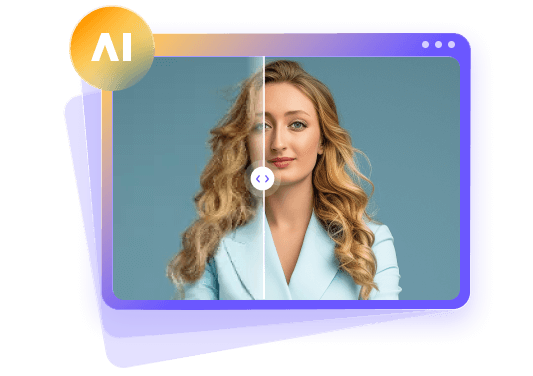
ChatGPT image generation with enhanced 2.6 images model helps users create visuals, make changes, and generate short animations. Once a still image has the right content and composition, it may need a larger resolution, sharper details, or reduced noise for its intended use. A dedicated photo enhancement tool can support these finishing tasks. One option that combines image creation and enhancement is HitPaw FotorPea.
HitPaw FotorPea
HitPaw FotorPea combines image generation and photo enhancement tools to help users create and refine still images. Readers exploring ChatGPT Images 2.6 new features can use HitPaw FotorPea to increase image resolution, reduce noise, and sharpen details before creating animations. These adjustments help users prepare product photos, character designs, and social media visuals for the animation stage.
Key Features of HitPaw FotorPea
- Prepare still images for later animation by sharpening important details.
- Generate original visuals through AI image generation using descriptive prompts.
- Enhance images to 4K/8K resolution with the available upscaling options.
- Streamline creative tasks with an all-in-one workflow.
- Restore damaged pictures using old photo restoration and repair tools.
- Navigate photo editing tools easily through a clear, user-friendly interface.
- Reduce distracting image noise to create a cleaner overall appearance.
- Remove unwanted objects from pictures to create cleaner visual compositions.
How to Enhance Images with HitPaw FotorPea
Step 1:Download HitPaw FotorPea from its official website and install it on your computer.


Step 2:Launch the software and select Enhance Photos Now from the main screen.
Step 3:Import your ChatGPT Images 2.6 generated image Select Auto Mode and choose a suitable model. Click Preview to process the image.
Step 4:Preview the enhanced result. If you are satisfied, click Export and save the enhanced image.
Steps to Create an Image with HitPaw FotorPea
Step 1:Open HitPaw FotorPea and choose AI Generator from the main interface. Select an option based on your needs: Image to Image, Text to Image, or Chat to Image.
Step 2:Select Text to Image and describe your desired image in detail. Choose a suitable AI model and click Generate.
Step 3:HitPaw FotorPea will process your prompt and generate an image. Review the result and click Download to save it.
Part 6: ChatGPT Images 2.6 vs. Gemini Nano Banana Pro: What's the Difference?
Both ChatGPT Images 2.6 and Gemini Nano Banana Pro offer image creation and editing features, but have different strengths. ChatGPT Images 2.6 has a function to create GIFs, while Gemini Nano Banana Pro is more advanced when it comes to creating detailed images and taking on complex image creation tasks. Knowing the differences will help users choose the tool best for their project.
Quick Comparison Table
| Area | ChatGPT Images 2.6 | Gemini Nano Banana Pro |
|---|---|---|
| Image Generation | Creates visuals from prompts and image references | Generates images using text and image inputs |
| Photorealism | Supports realistic visuals; inspect faces and textures | Supports realistic visuals; inspect lighting and details |
| Text Rendering | Handles text, though placement may need correction | Emphasizes detailed text rendering and complex layouts |
| Image Editing | Supports conversational revisions and API markup guidance | Supports conversational edits and reference-based changes |
| GIF Animation | Offers documented GIF generation | Native animated GIF output is not documented |
| Speed | Flare targets faster creation; timing varies | Focuses on complex tasks; timing varies |
| Best For | Everyday revisions and short animated visuals | Detailed still designs and search-grounded visuals |
Which One Should You Choose?
The right choice depends on the visuals you need, the editing process you prefer, and the tools you already use.
Choose GPT Image 2.6 If: You want to create short GIFs, revise images through conversation, or use Flare and Sunburst in an API workflow.
Choose Gemini Nano Banana Pro If: You want to create detailed still images, handle complex design requests, or use Google Search to inform your visuals.
FAQs on ChatGPT Images 2.6
New features in Images 2.6 include the ability to create GIFs, as well as add complexity controls and SVG output through the API. OpenAI has also stated that there have been performance improvements and editing inconsistencies have decreased.
It can be used for free but with limited access. If you want to use it frequently or for your ongoing projects, you need to buy a paid plane according to your needs.
Yes, ChatGPT Images 2.6 can create GIFs from photos. Upload a photo and describe the movement you want to see.
ChatGPT Images 2.6 is the better choice for creating GIFs. Gemini Nano Banana 2 is a good fit for generating still images quickly. Image quality depends on the prompt and the details you need.
Correct content and clarify prompts first. Next, enhance the image with HitPaw FotorPea and compare variations to the original in terms of edges, text, and facial features.
Conclusion
ChatGPT Images 2.6 improves speed and consistency in image and editing projects. Clear prompts and thorough reviews will still be necessary to obtain the results expected. Play around with this feature and get a feel for it by trying to create a simple image or animation. Consider HitPaw FotorPea if a still image needs further enhancement before its final use.
Leave a Comment
Create your review for HitPaw articles


