






Aiarty Image Enhancer Review: Is It A Best Photo Enhancer?
Low-quality, blurry, or noisy images can be a major problem, especially when they are used for professional or commercial purposes. In many cases, simply taking a photo is not enough—images often require enhancement, upscaling, or noise reduction to meet modern visual standards.
This is where tools like Aiarty Image Enhancer come in. Designed to improve image clarity and resolution using AI technology, it has become a popular option among users looking for quick and effective photo enhancement solutions.
In this Aiarty Image Enhancer review, we will take a closer look at its key features, performance, pros and cons, and whether it is truly worth using. We will also introduce a powerful alternative that may offer even more flexibility for different creative needs.

What Is Aiarty Image Enhancer
When searching for a photo enhancer, everyone wants to choose an option that can realistically upscale the image quality. Luckily, Aiarty Photo Enhancer comes up with the three mind blowing AI models including the More Detail GAn V2 which is efficient at increasing the resolution, Smooth Diff V2 that helps you to eliminate the noise from the images and Real photo that helps you to fix the landscape and nature scenes images.
The best thing to like about Aiarty Image Enhancer is that it offers several new features including the pass processing that allows you to apply the same AI models twice. On top of that, Aiarty Photo Enhancer works pretty fast as you don't have to wait a long time to upscale the quality of the images.
From eliminating unwanted noise and blur from the images to enabling you to colorize the black-and-white images, Aiarty Image Enhancer has everything you would like to see in a photo quality.
Features of Aiarty Image Enhancer
1. Upscale Images to 4K/8K Resolution
Aiarty Image Enhancer allows users to upscale low-resolution images into high-definition 4K or even 8K outputs, especially useful for improving old photos, compressed images, or visuals that need to meet professional or commercial quality standards. Aiarty Image Enhancer provides multiple AI models like AIGCsmooth, More-Detail GAN and Real-Photo, designed for different image types.
2. AI-Powered Blur and Noise Reduction
Aiarty Image Enhancer effectively removes blur, grain, and digital noise from images using AI enhancement models. This helps restore clarity in low-light photos or poorly captured shots, making the final output look cleaner, sharper, and more professional.
3. Batch Processing for Multiple Images
Aiarty Image Enhancer supports batch processing, allowing users to enhance multiple images at the same time. This is particularly useful for photographers, designers, or e-commerce sellers who need to process large volumes of images efficiently.
4. Cross-Platform Support (Windows & Mac)
Aiarty Image Enhancer is fully compatible with both Windows and macOS, making it accessible to a wide range of users regardless of their operating system. This cross-platform support ensures a smooth workflow experience for designers, photographers, and general users working on different devices without compatibility issues.
5. Supports Multiple Image Formats
The tool supports a variety of common image formats, allowing users to easily import and export files without format limitations. This flexibility makes it convenient for different workflows, whether you are editing JPEG, PNG, or other widely used image types, ensuring seamless integration into professional or personal projects.
6. Free Trial Availability
Aiarty Image Enhancer offers a free trial version that allows users to explore its core features before making a purchase. This helps users evaluate image quality improvements, AI model performance, and overall usability without any upfront commitment, making it easier to decide whether the tool fits their needs.
Pros & Cons of Aiarty Image Enhancer (Pricing Plan + Usage Steps Included)
Aiarty Image Enhancer offers AI-powered image enhancement, but its real-world performance comes with both advantages and drawbacks. Here's a quick look at its main pros and cons.
 Pros
Pros
- High quality AI upscaling (up to 32K)
- Fully offline processing (privacy‑friendly)
- Batch processing support
 Cons
Cons
- Limited manual adjustment controls
- Results may look over‑processed on faces
- No cloud or team collaboration
Overall, Aiarty Image Enhancer delivers decent results for basic image enhancement needs, but it may not be the best fit for every use case.
Aiarty Image Enhancer Pricing & Plans
Here's a simple overview of what users can expect:
Free or Trial Plan:
It offers a 10-days trial including basic enhancement features with restrictions on export quantity and watermarked output images.
Premium / Pro Plan:
Annual License - $85 (discounted to $75 at the time of writing).
Lifetime License - $155 (discounted to $99 at the time of writing, includes lifetime updates).
To unlock full functionality, it need to upgrade to a paid plan which makes more suitable for creators who require efficient workflows and high-quality, professional results.
How to Use Aiarty Image Enhancer to Upscale Image Quality
Step 1: Download and install Aiarty Image Enhancer on your Mac or Windows computer from the official site. Launch the program and upload the images you want to enhance. Batch processing is supported, so you can upload multiple images at once.
Step 2: After importing, the software automatically detects and enhances the images. You can manually choose from three available AI models to match different image types and enhancement needs.
Step 3: Preview the results and adjust settings such as the upscaling factor, AI model, and GPU or CPU acceleration if needed. Once satisfied, click to export the enhanced images to your computer.
Best Alternative to Aiarty Image Enhancer: HitPaw FotorPea
Despite making huge headlines in the photo quality enhancing market, Aiarty Image Enhancer could not impress the news just by starting to enhance images. The presence of limited AI models in the AIarty Image Enhancer has also urged the professional to look for an alternative, and there is no better tool for that purpose than HitPaw FotorPea.
With its stunning 10 AI models and highly efficient user interface, HitPaw FotorPea makes it easy to edit the various parameters of images. Whether you need to add colors to old images or increase their resolution, HitPaw FotorPea won't disappoint you. Since it is based on AI-powered technology, it doesn't ask you to perform the manual steps. Instead, you need only select the appropriate AI model to apply to the images and then let HitPaw FotorPea do the rest.




Features
- Brings in the 10 outstanding AI models to choose from
- Offers the simple user interface allows you to fix blurred images quickly
- Allows you to put the light into the low-light images
- Create stunning artworks with AI-transform ordinary images into exceptional visuals in just a few clicks.
- Access advanced tools for tweaks like color correction, sharpening, and tone adjustment
- Compatible with the Mac and Windows
- Precisely erase unwanted backgrounds for professional product photos or promotional materials.
- Allows you to process multiple images simultaneously
Here's how to upscale image quality with HitPaw FotorPea
Step 1: Download and install HitPaw FotorPea on your computer. Launch the software, click Enhance Now, and import the image you want to enhance. HitPaw FotorPea supports common image formats such as JPG, PNG, and TIFF, making it easy to get started.
Step 2: Once the image is imported, HitPaw FotorPea automatically displays its available AI models. You can choose the appropriate model based on your image type, whether you're enhancing portraits, real-world scenes, low-light photos, black-and-white images, or repairing old and damaged pictures. Each model is designed to optimize image quality with minimal manual adjustment.
Step 3: In this phase, you'll need to review the credentials of the images by hitting the Preview icon. You can now make some more changes to the images if necessary, and then you'll be able to download them by hitting the Export button.
Aiarty Image Enhancer vs HitPaw FotorPea on Real Test
In the following real tests, we compare Aiarty Image Enhancer and HitPaw FotorPea across three key aspects: face enhancement quality, noise reduction, and output speed.
Face Enhancement
In the test, facial and fine-detail recovery was evaluated using portrait images with visible blur. When it comes to face enhancement, Aiarty tends to enhance the overall image and brighten lighting, resulting in a more vivid appearance. In contrast, HitPaw FotorPea focuses on preserving the original texture and color tones, applying one-click AI enhancement while avoiding over-rendering for a more natural look.
In addition, Aiarty's AI rendering speed is relatively slower, while HitPaw FotorPea delivers faster processing and smoother overall performance.
Reduce Noise
In this noise-related comparison, Aiarty applies stronger noise reduction across the image, which smooths out grain but also slightly softens fine details, such as fur texture and edge sharpness.
HitPaw FotorPea, by contrast, focuses on balancing noise reduction with detail preservation, effectively reducing visible noise while maintaining clearer textures and more natural image depth.
Export & Workflow
During facial restoration, Aiarty Image Enhancer was found to process images at a relatively slower speed, with no visible progress indicator during AI processing. In addition, after importing an image, model selection and output quality adjustments are not available, which limits control over the final result.
HitPaw FotorPea allows users to choose from multiple AI models and set the desired output quality (2K, 4K, or 8K). Although generating high-resolution images also requires more processing time, the progress is clearly displayed, making greater transparency during export.
Based on these real test results, HitPaw FotorPea stands out as a more balanced AI image enhancer for users who value both image quality and ease of use.
FAQs About Aiarty Image Enhancer
Q1. Is Aiarty Image Enhancer any good?
A1. Aiarty Image Enhancer performs well for image upscaling and noise reduction, particularly for landscapes and product photos. However, it relies mostly on automated AI processing with limited manual control, which may not suit users who want more flexibility.
Q2. Is Aiarty Image Enhancer free?
A2. Aiarty Image Enhancer is not completely free, but it offers a free trial with usage or export limitations. To unlock full resolution output and batch processing features, a paid license is required.
Q3. Can I use Aiarty Image Enhancer crack?
A3. Using cracked software is not recommended due to potential security risks, including malware infections and data privacy issues. Cracked versions may also cause software instability and legal concerns. For a safer and more reliable experience, it’s best to choose official software. Desktop tools like HitPaw FotorPea offer secure AI image enhancement without hidden risks and support offline processing to better protect user privacy.
Q4. Is Aiarty safe?
A4. Aiarty Image Enhancer is generally safe when downloaded from official sources. However, using unofficial or cracked versions may expose users to malware risks, data leaks, and software instability. To ensure security and privacy, it is recommended to use the official version or trusted alternatives such as HitPaw FotorPea, which supports offline processing and stronger privacy protection.
Conclusion
Discussing the Aiarty Image enhancer review is essential to explore all the image enhancing powers this tool blesses you with. Whether you wish to eliminate the blur from the images or make the images look realistic, going for the Aiarty Image enhancer is an appropriate idea.
Unfortunately, new users might face difficulty using Aiarty. Despite offering the amazing three AI models, it doesn't allow you to customize multiple photo-enhancing details. Thus, we've listed the HitPaw FotorPea as the best alternative to the Aiarty, which offers 10 commendable AI models to choose from.
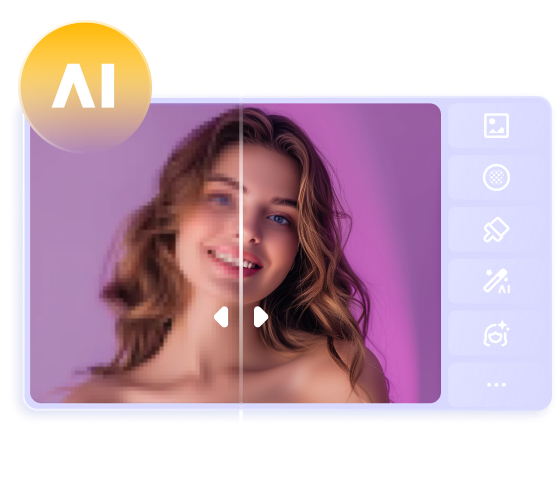
 HitPaw Edimakor
 HitPaw VoicePea
  HitPaw Watermark Remover



Share this article:
Select the product rating:
Daniel Walker
Editor-in-Chief
This post was written by Editor Daniel Walker whose passion lies in bridging the gap between cutting-edge technology and everyday creativity. The content he created inspires the audience to embrace digital tools confidently.
View all ArticlesLeave a Comment
Create your review for HitPaw articles