





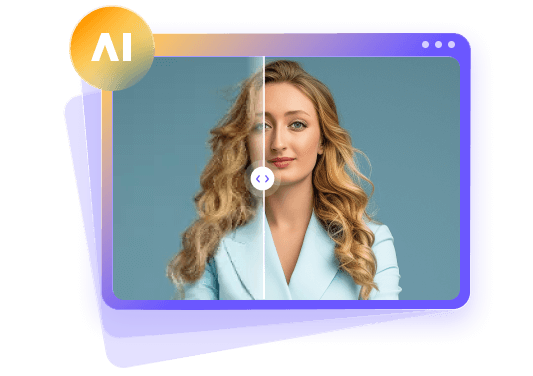
How to Fix Washed-Out Photos and Restore Their Contrast
 By Daniel Walker
Have you ever taken a photo that looks too bright, faded, or lacking in color? Washed-out photos are a common problem that can make images appear flat and lifeless, with little contrast or visible detail.
Fortunately, you don't need to retake every photo to fix this issue. With the right adjustments, you can restore contrast, improve colors, and bring out hidden details. This guide explains how to fix washed-out photos using simple editing techniques and AI-powered enhancement tools.

Why Do Photos Look Washed Out?
Before fixing a washed-out photo, it's helpful to understand what causes the problem. Several factors can make an image look faded, overly bright, or lacking in contrast.
- Overexposure: Too much light reaches the camera sensor, causing bright areas to lose detail.
- Harsh lighting: Direct sunlight or strong backlighting can create flat images with faded colors.
- Low contrast: Insufficient separation between highlights and shadows makes a photo look dull.
- Incorrect editing settings: Excessive brightness, highlights, or other adjustments can wash out image details.
- Faded colors: Low saturation or an incorrect white balance can make colors appear weak or unnatural.
Identifying the cause helps you choose the right adjustments and avoid making the image look overly edited.
How to Fix Washed-Out Photos
You can often fix a washed-out photo with a few simple editing adjustments. Try the following techniques to restore its contrast, colors, and overall appearance.
1. Reduce Exposure and Highlights
Overexposure is one of the most common reasons photos look washed out. If an image is too bright, start by lowering the exposure and highlights.
Reducing exposure helps darken the overall image, while lowering highlights restores detail in bright areas such as the sky, windows, and reflective surfaces. Make small adjustments until the photo looks balanced without becoming too dark.
2. Increase Contrast
Low contrast can make an image appear flat and faded. Increasing contrast creates a clearer difference between light and dark areas, giving the photo more depth.
Move the contrast slider gradually and check how the subject looks against the background. Avoid pushing contrast too far, as this can make shadows overly dark and remove details.
3. Adjust Whites, Blacks, and Shadows
Fine-tuning whites, blacks, and shadows can help restore the tonal range of a washed-out photo.
- Whites: Adjust the brightest tones to recover a more balanced appearance.
- Blacks: Deepen dark areas to create stronger visual definition.
- Shadows: Control darker regions while preserving visible details.
A balanced combination of these adjustments can make an image look more natural and dimensional.
4. Restore Color Saturation and Vibrance
If your photo looks faded or lacks color, adjusting saturation and vibrance can help bring it back to life.
Saturation increases the intensity of all colors, while vibrance focuses more on less-saturated colors. Start with vibrance for a more subtle result, then adjust saturation if the image still looks dull.
Avoid excessive color enhancement, which can make skin tones and other details look unnatural.
5. Correct White Balance
An incorrect white balance can give a photo an unwanted color cast, making it look washed out or unnatural.
Adjust the temperature and tint to bring colors closer to their natural appearance. If the image looks too yellow or orange, try cooling it slightly. If it appears too blue, move the temperature toward warmer tones.
Correcting white balance can improve the overall color balance before you make further adjustments.
6. Use AI to Fix Washed-Out Photos
Sometimes, basic editing adjustments aren't enough, especially when a photo is low-resolution, blurry, or missing fine details.
AI photo enhancement tools can help improve overall image quality, sharpen details, and make faded images look clearer. HitPaw FotorPea is one option for enhancing photos that need additional clarity or detail recovery.
It's particularly useful when you want to improve an image's overall quality without spending too much time adjusting individual settings.
How to Fix a Washed-Out Photo with HitPaw FotorPea
HitPaw FotorPea is an AI-powered photo enhancer designed to improve image quality with ease. It offers AI tools for sharpening details, reducing noise, enhancing resolution, and restoring faded colors, helping make dull or low-quality photos look clearer and more vibrant.
Step-by-Step Guide: Fix Washed-Out Photos with HitPaw FotorPea
Step 1: Upload Your Washed-Out Photo
Download and open HitPaw FotorPea and import the photo you want to enhance. Choose an image with faded colors, low clarity, or visible quality issues.




Step 2: Select an AI Enhancement Tool
Choose a suitable AI enhancement tool based on your photo's condition. The enhancement process can help improve image clarity and recover visible details.
Step 3: Preview the Enhanced Photo
Preview the result and compare it with the original image. Check whether the photo looks clearer and whether important details have been improved.
Step 4: Export Your Photo
Once you're satisfied with the result, export the enhanced image and save it to your device.
Tips to Prevent Photos from Looking Washed Out
Fixing a faded image is useful, but preventing the problem when taking photos can save you editing time later.
- Avoid overexposure: Check your exposure settings and avoid letting bright areas become completely white.
- Pay attention to lighting: Avoid harsh direct sunlight when possible, or adjust your shooting angle to reduce glare.
- Use exposure compensation: Lower exposure slightly when the scene contains very bright areas.
- Shoot in RAW: RAW files preserve more image information, giving you greater flexibility when adjusting highlights and shadows.
- Edit carefully: Avoid excessive brightness, highlights, and saturation adjustments that can make colors look unnatural.
These simple habits can help you capture more balanced photos and reduce the need for extensive editing.
FAQs About Fixing Washed-Out Photos
Photos often look washed out because of overexposure, harsh lighting, low contrast, or incorrect editing adjustments. An improper white balance can also make colors appear faded or unnatural.
Open your photo in a mobile editing app and try lowering exposure and highlights, increasing contrast, and adjusting saturation. You can also correct the white balance to restore more natural-looking colors.
Yes. Using a high-quality original file and making moderate editing adjustments can help preserve image quality. RAW files offer more flexibility than heavily compressed JPEG images. AI enhancement tools may also help improve clarity and details.
Increase vibrance or saturation gradually to bring back color intensity. If the colors look unnatural, adjust the white balance first. For older or severely faded photos, AI photo enhancement may help improve their overall appearance.
AI photo enhancement tools can improve image clarity and recover visible details with less manual editing. However, results depend on the original photo's quality and the type of damage. AI enhancement may not fully recover details that were permanently lost due to severe overexposure.
Conclusion
Washed-out photos don't always need to be discarded. By adjusting exposure, highlights, contrast, shadows, and color balance, you can often restore a more natural and visually appealing look.
For images that still lack clarity or detail, HitPaw FotorPea offers AI-powered enhancement tools to improve overall photo quality. Whether you're fixing a faded picture or enhancing a low-resolution image, it can help you achieve a cleaner, more polished result.
Leave a Comment
Create your review for HitPaw articles