




How to AI Upscale Photos for Better Resolution and Details
 By Daniel Walker
Social media downloads and tightly cropped images often lose quality when scaled up for larger screens or web and print use. This is why neural networks can rebuild real agility and fine texture. This post tells how the top desktop browser added to the stack, and we will also introduce a brilliant way to upscale photos through AI without losing detail in the images
Part 1: What Is AI Photo Upscaling and How Does It Work?
Enlarging a digital picture increases its pixel grid so it holds more visual information at larger dimensions. Modern neural models learn recurring structures across huge datasets of real photographs, enabling them to infer plausible edges, fabric weaves, foliage, and fine surface grain rather than simply stretching existing blocks of color.
What Is AI Photo Upscaling?
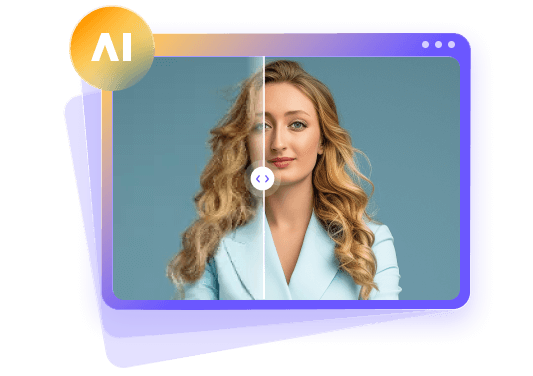
AI photo upscaling uses trained deep learning models such as convolutional networks and diffusion architectures to increase image resolution while keeping details natural. Rather than simply stretching pixels, a dedicated photo upscaler ai analyzes surrounding shapes and textures to rebuild crisp edges and fine details at 2x, 4x, or higher scaling.
This is especially useful when enlarging photos for prints, inspecting tight crops, or rescuing low-resolution files. Neural models separate real texture from compression artifacts, reducing jagged edges and halos along sharp boundaries.
How Does an AI Photo Upscaler Increase Image Resolution?
When an image enters an upscaling pipeline, the model maps brightness, color shifts, and local textures to predict finer pixel detail for the larger canvas while reducing JPEG blockiness and mild grain. Many tools also apply subject-specific modes prioritizing facial features and skin texture in portraits, or straight edges and surface detail in architecture and scenes before matching tones to the original photo for consistent color
AI Upscaling vs. Traditional Image Resizing: What's the Difference?
Traditional methods like nearest-neighbor, bilinear, and bicubic interpolation estimate new pixels using basic math on nearby pixels. They are fast for minor adjustments but cannot add missing detail, often leaving enlarged photos soft or blurry. Neural upscaling uses learned visual patterns to reconstruct natural textures while preserving the framing. When you need to ai upscale photo assets for web banners, portfolios, proofs, or prints, AI produces sharper edges and fewer artifacts than traditional resizing.
Part 2: 5 Best AI Photo Upscalers to Improve Image Quality
The right tool depends on your workflow-whether you want guided desktop steps, batch processing, browser convenience, or full layer editing. Here is a comparison of seven options, including our five top picks and two extras, to help you choose a photo quality upscaler for your projects.
| Tool | Best For | Platform | Free Option |
|---|---|---|---|
| HitPaw FotorPea | All-around enhancement, restoration & batch upscaling | Windows, macOS, Web | Yes (free trial / preview) |
| Topaz Gigapixel | High-detail professional enlarging & print prep | Windows, macOS | Yes (free trial) |
| Adobe Photoshop | Integrated upscaling + full layer & retouching control | Windows, macOS | Yes (free trial) |
| Upscayl | Free open-source local batch upscaling | Windows, macOS, Linux | Yes (free & open-source) |
| Let's Enhance | Cloud batch processing for e-commerce & real estate | Web (Browser) | Yes (free credits) |
1. HitPaw FotorPea-Best AI Photo Upscaler for All-Around Image Enhancement
HitPaw FotorPea is HitPaw's Al photo enhancer and Al photo generator for image enhancement, restoration and creation. It pairs straightforward enlargement controls with specialized options for portraits, landscapes, denoising, and old photo recovery.
For creators who want clear controls without complex configuration, it makes it simple to AI upscale pictures in a few steps while keeping facial features, product edges, and overall tones natural.




Key Features
- Multiple dedicated AI models suited to general photos, portraits, fine details, and noisy or low-light shots.
- Batch processing support so you can upscale multiple images together and keep workflows moving faster.
- Built-in image restoration and clarity improvements alongside resolution enlargement.
- Intuitive step-by-step interface accessible to beginners and regular content creators alike.
How to Upscale AI Photos with HitPaw FotorPea
Step 1:Open HitPaw FotorPea on your computer, enter the AI photo enhancer workspace, and drag and drop or select the low-resolution image you want to enlarge.

Step 2:Pick the AI model and target scale (such as 2x or 4x) that best fit your subject-choosing a detail or general model for scenery and products, or a portrait-suited option when faces are the focal point.
Step 3:Once the preview looks sharp and balanced, click Export to save the enlarged file to your destination folder.
2. Topaz Gigapixel - Best for Professional Photo Upscaling
Topaz Gigapixel is a dedicated desktop enlargement tool built for photographers, archivists, and designers who need strong detail reconstruction. It handles heavy scaling on small or cropped images while keeping edges clean and natural.
Key Features
- Specialized models tailored to high-detail scenes, graphics, low-resolution files, and face recovery.
- Flexible output sizing by scale factor, pixel dimensions, or print measurements with DPI control.
- Side-by-side preview comparisons and batch queue processing for multi-photo projects.
Pros and Cons
 Pros
- Exceptional detail recovery across landscapes, architecture, and high-resolution print files.
- Capable batch queue processing lets you enlarge large sets of photos in one run.
- Fine-grained model and sharpness sliders give professionals precise control over output textures.
 Cons
- Paid software license required after the free trial, with higher GPU demands on older systems.
Best For
Photographers, print labs, and designers enlarging key shots for posters, client deliverables, or displays.
3. Adobe Photoshop - Best for AI Upscaling and Photo Editing
Adobe Photoshop combines image resizing and refinement tools inside a complete layer-based editing and compositing environment. You can scale assets, retouch blemishes or distractions on separate layers, fine-tune color, and prepare files for web or print in one place.
Key Features
- Image size scaling with detail-preserving resampling options and non-destructive Smart Objects.
- Layer masks, adjustment layers, healing tools, and color grading for post-upscale polish.
- Tight integration with Creative Cloud workflows and professional export formats.
Pros and Cons
Pros
- Unmatched post-upscale retouching, masking, and compositing control inside a single editor.
- Non-destructive Smart Object workflows keep original pixel data safe during scaling.
- Seamless Creative Cloud integration and industry-standard color profile and print export options.
Cons
- Requires an ongoing Creative Cloud subscription and has a steeper learning curve than one-click tools.
Best For
Creative professionals, marketers, and designers who need to enlarge an image and immediately edit, mask, or composite it into a layout.
4. Upscayl - Best Free AI Photo Upscaler
Upscayl is an open-source, cross-platform desktop upscaler that runs locally on Vulkan-compatible GPUs. Because images are processed locally rather than uploaded to a remote server, it suits privacy-minded users and anyone seeking a free desktop option.
Key Features
- Free and open-source across Windows, macOS, and Linux with no paid tiers.
- Multiple upscaling models suited to everyday photos, illustrations, and sharp edges.
- Batch folder processing to upscale sets of images in one pass.
Pros and Cons
Pros
- Completely free and open-source across Windows, macOS, and Linux with zero watermarks.
- 100% local processing keeps sensitive or private photos off external cloud servers.
- Simple folder-level batch upscaling processes entire image directories effortlessly.
Cons
- Lacks built-in color grading or blemish retouching tools, and speed relies on GPU compatibility.
Best For
- Creators, tinkerers, and everyday users who want free local batch upscaling without watermarks.
5. Let's Enhance - Best Online AI Photo Upscaler
Let's Enhance runs directly in your browser, allowing you to upscale and polish photos in the cloud without installing desktop software. It is handy when working across devices or preparing batches of product and listing images.
Key Features
- Browser-based processing with presets geared toward photography, artwork, and online listings.
- Color, tone, and lighting adjustments paired with resolution enlargement.
- Cloud batch uploads for processing multiple images together.
Pros and Cons
Pros
- Runs directly in any modern browser without requiring local installation or heavy hardware.
- Ready-made presets streamline product, real estate, and e-commerce image preparation.
- Combines tone, lighting, and color balancing with cloud-based batch upscaling.
Cons
- Requires an active internet connection and file uploads, with free usage capped by credits.
Best For
- E-commerce sellers, real estate teams, and marketers who want fast cloud upscaling without local setup.
Part 3: FAQs About AI Photo Upscaling
It depends on your workflow: HitPaw FotorPea for guided all-around enhancement, Topaz Gigapixel for print enlargements, Adobe Photoshop for layer editing, Upscayl for free local batching, and Let's Enhance for browser-based upscaling. Test a small crop first to compare results.
AI boosts sharpness and detail during enlargement, though heavy scaling from very small or damaged files still relies on reconstruction. Start with a clean source and use a moderate scale (2x or 4x) for the best results.
Use free trials, free credits, or free open-source tools like Upscayl on an image that fits a 4K aspect ratio (3840px wide in 16:9). Check the preview to avoid over-sharpening.
AI upscaling increases pixel size and reconstructs fine detail, while AI enhancement improves overall visual quality like lighting, color, noise, and blemishes with or without changing dimensions. Many tools offer both.
Yes, AI upscalers sharpen edges and rebuild texture better than basic resizing, and they work best on low-res or lightly compressed photos rather than severely blurry ones.
Final Verdict
Enlarging small or aged photos no longer has to result in soft edges and blocky artifacts. Whether you choose HitPaw FotorPea for all-around enhancement, Topaz Gigapixel for detailed enlargements, Adobe Photoshop for hands-on retouching, Upscayl for free local batching, or Let's Enhance for quick browser work, match the tool to your source image and inspect fine details before publishing.
Leave a Comment
Create your review for HitPaw articles