





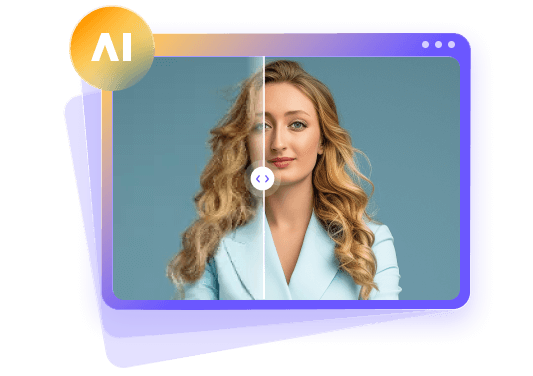
Best Face Enhancer Tools for Clearer, Sharper Photos
 By Daniel Walker
A photo may look good on your phone, but it may have blurry eyes or other facial issues. There are many tools that enhance faces. This article reviews five face enhancer tools by examining what kind of photos they improve, the level of control you have with the tools, the kinds of devices they work with, and how much they cost. After reading this article you will be able to determine which tool is best for your purpose and budget, whether that be to restore a dimly lit selfie, sharpen a face in a group photo, or enhance a family portrait.

Part 1: Quick Picks: Best Face Enhancer Tools at a Glance
A slight blur in a selfie might require just a sharpening adjustment, while a family portrait with a lot of grain and blur might need multiple adjustments. How often you edit pictures and the level of control you want can impact what you'll be willing to pay for a face enhancer. The table below lists three face enhancers and compares them across four categories to help you find one that works for your budget.
| Category | Tool | Why it stands out |
|---|---|---|
| Best Overall | HitPaw FotorPea | It offers a Face Restoration model that improves facial definition, especially around the eyes, brows, and lips. It also has a Denoise model that reduces grain in facial portraits. |
| Best Value | BeautyPlus | The web Sharpener enhances image clarity and the mobile editor allows users to brighten eyes and smooth skin in portrait mode. |
| Best Premium | Facetune | The one-touch Enhance tool sharpens the image and adjusts lighting while the Details tool enhances lashes and brows. |
| Best Free Option | BeautyPlus | The free web sharpener enhances definition and removes blur in portraits. |
Part 2: How We Tested the Best AI Face Enhancers
Each portrait has a different problem, what works for one type of photo may not work for the other. For a fair comparison between blurry face enhancers, use the same image in each tool, do not change them in any way, and compare them to the originals, all at the same zoom.
Test Images Used
| Test Image Name | Photo Quality Issues |
|---|---|
| Indoor portrait | Slight camera movement blurs the eyes and mouth. |
| Low-light selfie | Grain and deep shadows hide fine skin texture. |
| Cropped group photo | The face looks pixelated when enlarged. |
Testing Criteria
| Testing Criteria | What We Evaluated |
|---|---|
| Facial sharpness | How clearly the eyes, brows, and lips were edited. |
| Noise reduction | How much grain was left and how visible are the skin details. |
| Likeness | How successfully did the tool keep the subject's face shape, expression, and features. |
| Editing and export | Whether the tool lets you see the edited photo and export without a watermark. |
Part 3: 5 Best Face Enhancer Tools for Clearer Portraits
Some face enhancers modify the whole portrait in one step, while others let you edit individual features. Decide on the basis of how frequently you edit photos, as well as the device you work on, be it a phone or a computer. The five reviews below discuss what each AI face enhancer does best and what it costs.
1. HitPaw FotorPea - Best for photos with more than one problem
HitPaw FotorPea is a desktop AI face enhancer. It offers different enhancement models for diverse problems, such as small images, grainy photos, and blurry faces. You have to identify the major flaw in your portrait and pick the corresponding model. With this tool, you can also check the edited and original portrait side by side to compare face details like eyelashes, skin texture and sharpness.
Key features
- Face Restoration brings out details around the eyes, brows, and lips in blurry portraits.
- Sharpen helps correct blur caused by movement, missed focus, or image compression.
- Denoise reduces visible grain in photos taken in dim light.
- AI Upscale increases the resolution of small or cropped portraits.
- Low-Light Enhancement brightens dark portraits so facial features are easier to see.
- Background Remover separates the subject from a cluttered background.
- AI Background Generator replaces the original backdrop with a new one, such as a plain studio setting.
- Batch Processing lets you enhance several portraits at once.
 Pros
- Separate models address different photo problems.
- The preview helps you check changes before export.
- Batch processing saves time on larger photo sets.
 Cons
- Full desktop export features require a paid plan.
Real case study
I used HitPaw FotorPea on an indoor family portrait to remove blur and grain. I started with Face Restoration. In the preview, the eyes and brows had better definition and less blur, with eyelashes having better edge definition. After that i also used the Denoise model. It removes the grain and reduced blur on the faces while keeping fine lines and other facial details intact.
Best for: People who want one desktop tool for portraits with blur, grain, or low resolution.
Rating: ★★★★★ (5/5) for its range of portrait enhancement tools.
Actual Price: The listed monthly offers are $22.39 for Windows and $24.99 for macOS before tax.
Available platform: Windows and macOS.
2. Enhancor AI - Best for adding skin texture to AI portraits
Enhancor AI can fix portraits where sharpness on face elements gives a glossy effect or excessive skin smoothing. Its skin tools can enhance skin textures and details efficiently. It also includes a portrait upscaler to enlarge images and enhance areas surrounding eyes and hair.
Key features
- Fix Skin adds visible pores to overly smooth portraits.
- Fix Shine reduces unwanted shine on cheeks and foreheads.
- Freckle Control adjusts the strength and density of freckles.
- Portrait Detailer enlarges portraits while bringing out facial details.
Pros
- Dedicated controls give you more say over skin texture.
- The Basic plan also includes Portrait Detailer.
Cons
- Larger images can cost more credits to process.
- Added texture can change the appearance of real skin.
Real case study
I tested Enhancor AI on a fashion portrait with sharp eyes and glossy cheeks. I used Fix Skin and compared it with the original to check the edits on the nose, forehead, and cheeks. Fix Skin added a slight texture of skin to cheeks, nose, and forehead, giving it a subtle dimpled look, a slight improvement to the portraits, and making them ready to post.
Best for: Creators who want to add skin texture to AI-generated portraits.
Rating: ★★★★☆ (4/5) for skin texture editing.
Actual Price: Basic plan costs $12 per month and Creator costs $45 per month.
Available platform: Web browser.
3. BeautyPlus - Best for free portrait sharpening
BeautyPlus offers a free browser-based tool for sharpening portraits. The tool adds sharpness across the entire photo, which can be useful for photos that were taken with a soft overall detail. The mobile editor has tools for eye brightening and skin smoothing as well.
Key features
- AI Sharpen Image adds definition to soft portrait edges.
- Portrait Enhancement improves clarity in blurry or low-resolution portraits.
- Image Upscaler increases photo resolution for larger displays.
- Skin Smoothing softens the appearance of uneven skin texture.
- Eye Brightening helps eyes stand out in dim selfies.
Pros
- Automatic sharpening is easy to use.
- The free browser sharpener offers watermark-free downloads.
Cons
- The web sharpener applies changes across the whole photo.
- Some mobile editing features require premium subscription.
Real case study
I used BeautyPlus to edit a profile picture that appeared soft after it was shared and compressed by a messaging app. I zoomed both photos to the same level and compared them. Definition around the hairline and the edges of the eyes and glasses were noticeably improved.
Best for: People who want a quick browser tool for slightly blurry portraits.
Rating: ★★★⯪☆ (3.5/5) for free portrait sharpening.
Actual Price: The Pro plan costs $10 per month, and the Max plan costs $17 per month.
Available platform: Web browser, iOS, and Android.
4. Wink AI - Best for sharpening portraits with adjustable strength
Wink AI can be used to add detail to eyebrow, eye regions, or an entire face that appear pixelated and fuzzy. Natural skin texture is often desired in photos, and the browser version of Wink AI allows users to edit photos with different levels to achieve this effect.
Key features
- AI Image Enhancer improves overall clarity in soft portraits.
- Image Unblur helps sharpen facial features in blurry photos.
- Adjustable Strength lets you control how much enhancement applies.
- AI UHD enlarges low-resolution portraits for larger displays.
Pros
- Adjustable strength gives you control over the amount of sharpening.
- The browser editor is convenient for quick portrait edits.
Cons
- The free web plan limits AI processing.
- Watermark rules vary by web tool and plan.
Real case study
I used Wink AI on a portrait where the eyes and brows appeared to be soft. I chose a light enhancement and compared it to the original at the same size. Defining the eyes and brows was successful, however, skin texture was rendered the same way.
Best for: People who want to sharpen slightly blurry faces and control the strength of the edit.
Rating: ★★★⯪☆ (3.5/5) for portrait sharpening with adjustable strength.
Actual Price: Standard plan costs $14.99 per month and Pro plan costs $39.99 per month.
Available platform: Web browser, iOS, and Android.
5. Facetune - Best for adding definition to specific facial features
Facetune is a face photo enhancer that brings out minor details. The Details tool can be used to bring out details such as eyebrow and eyelash hairs without making the whole photo sharper. If the photo is still looking dull or soft after the adjustments, Facetune can automatically make improvements to sharpness and can also adjust other aspects of the photo.
Key features
- AI Enhance adjusts lighting and sharpness in one tap.
- Details adds definition to eyelashes and eyebrows.
- Sharpen makes soft edges look more defined.
- Smooth softens the appearance of uneven skin texture.
- Fix Tone helps correct unwanted color in portraits.
Pros
- You can add definition to specific areas of the face.
- The one-tap enhancer is useful for quick adjustments.
Cons
- Full access to the editing tools requires a paid plan.
- Strong sharpening can make fine details look harsh.
Real case study
I used Facetune to edit a headshot to increase the definition of the eyelashes and eyebrows, which were slightly soft. I compared the edited and original photos to evaluate the eyes. The edited photo was a slightly better definition of the eyebrows and eyelashes; however, the skin around the eyes wasn't changed to a completely smooth appearance.
Best for: Headshots and selfies that need more definition in specific areas of the face.
Rating: ★★★☆☆ (3/5) for targeted portrait enhancement.
Actual Price: Start with $25 per month, $40 every three months, or $77.99 per year.
Available platform: Web browser, iOS, and Android.
Part 4: Before-and-After Tests: How Well Can AI Enhance Faces?
Place the original and edited portraits side by side and view them at the same size. In each test below, focus on the problem the tool was meant to fix. Then check nearby features to see whether the edit changed details such as the shape of the eyes or lips.
Test 1: Indoor Portrait With Motion Blur
Test 2: Grainy Selfie Taken in Dim Light
Test 3: Low-Resolution Face Cropped From a Group Photo
Summary Of the Product Test Result
The blurry portrait looked clearer after sharpening, especially around the eyes and lips. Noise reduction made the low-light selfie less grainy and kept fine lines visible. The face cropped from the group photo gained some definition, though the crop still showed less detail than the other two images. All three faces remained recognizable.
Part 5: How to Choose the Best Face Enhancer for Your Needs
Choose HitPaw FotorPea if: You want to enhance face photos on a computer and compare several restoration presets before saving.
Choose Enhancor AI if: Your main concern is flat or glossy skin texture in an AI portrait.
Choose BeautyPlus if: You need a free blurry face enhancer for a photo with mild softness and want to work in your browser.
Choose Wink AI if: You regularly work with portrait photos and short videos and want tools for both.
Choose Facetune if: You need a face photo enhancer that lets you work on individual details, such as the eyes or brows.
FAQs
Start with the original photo and apply mild sharpening. If it looks grainy, reduce noise first, then check whether the eyes and whiskers look clearer.
BeautyPlus offers free browser sharpening for quick edits. For desktop editing, try HitPaw FotorPea's Sharpen model and compare details like the eyes and whiskers with the original.
A general image enhancer can bring out fur texture that is still visible. In heavily blurred areas, AI may guess what missing strands of fur looked like.
Try HitPaw FotorPea's Ultra Clarity model in auto mode. Compare the preview with the original and check the eyes and fur for harsh edges before saving.
Conclusion
First, identify the main problem in your portrait. If the face looks blurry, try sharpening. If the photo looks grainy, start with noise reduction. A small face cropped from a group photo may need upscaling to make details easier to see. HitPaw FotorPea gives you separate tools for each fix, so you can address several issues in one portrait. Preview each change alongside the original before saving the edited photo.




Leave a Comment
Create your review for HitPaw articles