






How to Upload High-Quality Photos on X/Twitter Without Compression
Sharing crisp, high-resolution photos on X (formerly Twitter) can be frustrating — you upload what looks like a sharp image only to find it blurry or overly compressed in your feed. This happens because Twitter automatically compresses images to optimize loading speed and performance, which often reduces detail and dulls colors if the photo doesn’t meet the right size, format, or upload settings.
In this guide, you'll learn how to upload high-quality photos on Twitter, including the best photo formats for Twitter uploads (like PNG and high-quality JPEG), Twitter photo compression settings, and practical steps to increase Twitter photo upload quality or stop Twitter from compressing your images. You'll also find smart tips on optimal resolutions and tools to enhance photos before posting, so your visuals always look polished and professional.

Part 1. Understanding X/Twitter's Image Compression
As mentioned above, X, like every other social media platform, uses different compression algorithms to reduce the size of pictures and videos. It has a few specific limitations for uploaded content, so when you are uploading a high-quality photo or video, its algorithms reduce resolution, reencode, and compress it. When there is a large-sized image, it gets downsized to minimum resolution, and file formats like JPEG or MP4 are preferred to save space.
Usually, around 85% of EXIF data is deleted for privacy and security purposes. These specifications optimize content across different devices for a consistent experience while minimizing bandwidth usage as well. One of the main reasons for these Twitter photo compression settings is to maintain efficiency and performance, even for users with slower internet connections.
Part 2. Best Image Specifications for X/Twitter
Learning a few requirements for uploading can help you get the best X/Twitter image resolution and format for high-quality uploads. Following are a few optimization techniques that can help minimize reduction:
Recommended Photo Resolutions & Formats
When uploading a high-resolution image on X, make sure that it sit right on all following criteria's for satisfactory results.
1. Timeline images: minimum 1600x900 or larger for better quality.
2. Profile pictures: 400×400.
3. Header images: 1500×500.
4. Best file formats: PNG, JPEG (if it is a high quality image).
Maximum File Size Limits
When you have met all the specifications that were recommended, it is always better to ensure the file size is suitable to upload as well.
1. Standard Image Uploads: Up to 5 MB per image case of mobile phones, on the other hand, up to 15 MB per image.
2. Profile Picture: 2 MB minimum.
3. Header Image: 5 MB Maximum.
Part 3. Tips & Tricks to Avoid X/Twitter's Image Compression
Does Twitter compress images? Absolutely—but maybe you just forgot one small step. If you want to learn how to upload HD photos on Twitter without compression, here are a few tips and tricks for you:
1. Turning on the High-Quality Upload Option on X:
Go to Settings: Tap your profile icon > Settings and Privacy.
Data Usage: Tap Data Usage > High-quality images.
Select Quality: Choose from On Wi-Fi only, On mobile data and Wi-Fi, Never
2. Twitter’s Maximum Resolution: Twitter compresses oversized images, which results in loss of quality. Thus, it is highly recommended that you should not exceed Twitter's maximum resolution.
3. Resize Images: Manually resize images to Twitter’s recommended sizes before uploading.
4. Use PNG Format: Although JPEG format is also supported by X, it is better to use PNG format to reduce compression loss.
5. Avoid Heavy Filters: If you over-process your pictures by applying heavy filters, X compresses it more, so using natural edits is more practical.
Part 4. Enhance Photo Quality Before Uploading on X/Twitter
To help you upload high-quality photos on Twitter, it is essential that you can enhance photos before you post them. For your better understanding, we have listed the top 4 platforms below that can help you attain sharp and clear pictures:
1. HitPaw FotorPea
Uploading high-quality photos on Twitter can sometimes prove to be a difficult task, even after you have taken all the precautions from your end. If you are looking for an ultimate solution to avoid this kind of disappointment, try the best photo enhancer tool, HitPaw FotorPea. It is an advanced AI technology software that can transform your defective images with multiple AI Models.
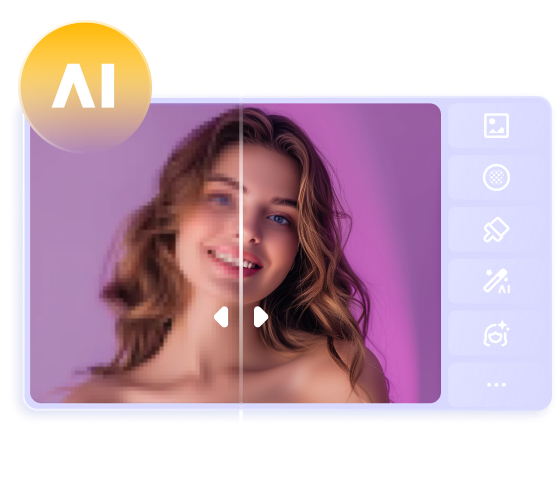
Moreover, if you have a lot on your plate and very little time, it can enhance a whole batch of your images side by side with only a few clicks. As compressions can cause a lot of blurry patches and pixilation artifacts, HitPaw FotorPea’s AI models can help you sharpen those areas. It also offers a preview feature that lets you see the before and after results.
Key Features
1. Enhance with AI Models: Enhancing the quality and resolution of your images to a maximum has become the easiest job with various AI models, like the Face Model for face restoration.
2. Export Format: You can choose a desired format for your photograph from its settings before exporting it.
3. Auto Select Models: This intelligent feature automatically selects a suitable model by detecting the details of your image.
A Guideline to Improve Image Quality Using HitPaw FotorPea
After learning about the amazing features that it uses to enhance images, follow the given steps to work with it:




You can launch the tool after downloading it and click the "Enhance Photos Now" button on the top.
Step 2. Import a Desired Photo and Choose the AI Model
Press the “+” icon above “Drag and Drop Files Here” to import the image that you want to share on X/Twitter. From the section of “AI Models” on the right side and other options to adjust your image. After that, hit the “Preview” button to let the tool enhance the image for you.
Step 3. Download Your Transformed High-Resolution Picture
When the after results are satisfying for you, you can simply click the “Export” present at the bottom-right corner of the screen and then upload the high-quality photo on X/Twitter.
Video Tutorial to Enhance Image to Upload
2. Topaz Photo AI
If you want to get high-quality images, this editor uses AI-powered technology and provides tools like Clarity, Sharpen, etc. You can adjust the lighting and balance the color of photos to make them look vibrant and appealing. To help you achieve the best results, we have provided a simple stepwise guide below:
Step 1. Open the tool and click the “Browse Images” button to import your target picture from your device.
Step 2. Go to the “Add Enhancement” button, and a pop-up menu will appear. There, choose the target “Denoise” and “Sharpen” tool to get high-quality images and press “Export Image” to download.
Key Features
1. The Recover Face tool lets you sharpen the facial features in the images.
2. To get a clean and polished look, use its Remove Object Feature, which detects unwanted things and extracts them.
3. If your images contain captions, use its Preserve Text tool, which is specifically made to sharpen text.
3. Fotor
To increase Twitter photo upload quality, you can use Fotor, an advanced tool that allows you to make basic adjustments to your pictures, such as contrast. By using the fine-tune feature, you can change the exposure and shadows to give your images a defined and polished look.
Step 1. Open the tool and click the “Open Image” button from the main screen to upload the photo.
Step 2. From the “Basic Adjust” section, modify the contrast, brightness, and sharpness from its toolbar and then press the “Download” button for a high-quality picture before uploading on X/Twitter.
Key Features
1. The Denoise tool lets you remove the Luminance and Color noise from the images.
2. Crop images in different shapes, such as hearts and circles, to make them look appealing.
3. Cut the background of the images using the BG Remover tool, which gives them a clean look.
4. Canva
If you want to upload your X selfie for high resolution, you can modify pictures by changing their contrast, clarity, and sharpness with this editor. Unlike other tools that enhance the whole image, Canva allows you to highlight specific parts with the help of the brush tool, letting you adjust only the blurry part of your photos.
Step 1. Search the Canva's AI Enhancer tool and press the “Upload Your Photos Now” button from the main interface to import the picture.
Step 2. From the next screen, change the saturation, sharpness, and clarity of the image under its “Adjustment” section and hit the “Download” button to save it. In this way, your high-resolution photos you upload to X/Twitter will get lots of likes and followers.
Key Features
1. The auto-adjust button lets you instantly enhance your images with just one click.
2. To add vibrance and saturation to your compressed pictures, you can use its Color tool.
3. A wide range of filters, such as Fresco and Belvedere, allows you to give unique looks to your photos.
FAQs of 4K Photos on X/Twitter
Q1. Why is my selfie picture so blurry on X?
A1. Because the X app compresses or resizes images can save data and load faster. Low lighting, camera focus issues, or using a low-resolution photo can also cause blur.
Q2. How to stop X/Twitter from blurring images?
A2. The simplest way to stop X/Twitter from blurring images is by setting the correct format within the Twitter app. Additionally, you can use AI photo enhancement software to improve the quality of your photos, ensuring they appear sharp and clear when uploaded to X/Twitter.
Q3. How to batch-optimize images for X?
A3. There are several tools that can batch-optimize images for X/Twitter, such as HitPaw FotorPea. It allows you to quickly optimize multiple images at once, reducing their file size while maintaining high quality, which is ideal for X/Twitter. This ensures your images load faster and look great on the platform, without exceeding X/Twitter's image size limits.
Conclusion
Only the right approach to avoid excessive compression can help you maintain image quality on X. By following the specifications and tips given in this article, you can ensure your photos stay crisp and clear. If that doesn't help you, tools like HitPaw FotorPea will help upscale and sharpen images with ease. So, download HitPaw FotorPea now and upload high-quality photos on Twitter.




 HitPaw Edimakor
 HitPaw VikPea (Video Enhancer)
 HitPaw Univd (Video Converter)





Share this article:
Select the product rating:
Daniel Walker
Editor-in-Chief
This post was written by Editor Daniel Walker whose passion lies in bridging the gap between cutting-edge technology and everyday creativity. The content he created inspires the audience to embrace digital tools confidently.
View all ArticlesLeave a Comment
Create your review for HitPaw articles