



Best AI Video Enhancers to Enhance Video Quality in 2026
 By Daniel Walker
High-quality video content has an important role in content creation, whether for social media, marketing, or entertainment. However, even with the latest cameras, videos often need refinement to reach their full potential. This is where AI video enhancers come into play.
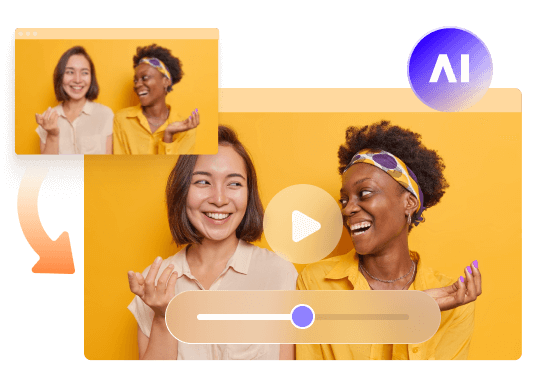
These tools help improve video resolution, correct colors, reduce noise, and enhance overall visual quality. If you're looking to elevate the look of your videos, understanding which AI video enhancer works best for your needs can make all the difference. In this post, we'll explore the top AI video upscalers in 2026, which are perfect for making your footage stand out.
Part 1. How to Choose the Best AI Video Upscaler?
An AI video upscaler is a software tool that uses artificial intelligence to improve the quality of a video. It enhances resolution, reduces noise, sharpens images, and corrects color imperfections, making the video look clearer and more vibrant. The best AI video enhancer should be able to upscale a video's resolution while retaining or even enhancing the clarity and details without introducing distortion or unwanted artifacts.
When looking for the best video enhancer, consider the following features:
- Ease of Use: Whether you're a beginner or a professional, the software should have an intuitive interface that allows you to easily apply enhancements to your videos.
- Resolution Upscaling: The software should allow you to upscale your video resolution, whether you're converting from SD to HD or from HD to 4K or even 8K.
- Speed and Efficiency: It should offer fast processing times so you can work on large projects without unnecessary delays.
- High-Quality Processing: The AI-powered algorithms should preserve the sharpness and details in the original video without oversmoothing or distorting the image.
- Support for Multiple Formats: The best AI video upscalers support a wide variety of video formats to make sure they can work with any video source you have.
Part 2. 7 Best AI Video Upscalers That You Should Know
Here's a list of the best AI video upscalers that are available in 2026. These tools can upscale your videos, improve resolution, enhance color, reduce noise, and stabilize shaky footage.
1. HitPaw VikPea AI Video Upscaler (Windows & Mac)
HitPaw VikPea is a leading AI-powered desktop application designed to automatically upscale, repair, and enhance low-resolution video footage. By leveraging trained neural networks, it transforms low-quality, blurry, or old videos into crisp visuals up to 4K or 8K resolution without requiring complex editing skills. Whether you need to colorize black-and-white home movies, smooth out choppy frame rates, or enhance AI-generated clips, VikPea offers a straightforward solution tailored to content creators and casual users alike.


Best For: Content creators, family historians, and non-editors looking to quickly restore old media, upscale AI clips, or enhance low-resolution videos without complex software.
Key Features of VikPea AI Video Upscaler:
- 4K/8K AI Resolution Upscaling: Upscales low-resolution videos to sharp 4K or 8K while preserving realistic details.
- Dedicated Facial Restoration Model: Sharpens blurry human faces and restores complex facial details in portait videos.
- AI Frame Interpolation & Stabilization: Boosts low frame rates up to 60FPS while eliminating shaky screen jitter.
- Black-and-White Automatic Colorization: Colorizes vintage grayscale films with natural tones while enhancing overall visual brightness.
- AI Noise Reduction & Repair: Cleans visual grain, compression artifacts, and blurry elements from low-light recordings.
- Animation & Anime Enhancement Model: Restores cartoon and anime lines sharply while preventing ringing and edge distortion.
 Pros
- Intuitive Workflow: Clean, beginner-friendly interface that requires zero editing experience.
- Targeted AI Models: Specialized presets tailored for portraits, animation, general footage, and low-light scenes.
- Cloud GPU Support: Offloads heavy rendering to cloud servers, enabling smooth performance on lower-end PCs.
- Side-by-Side Preview: Features real-time split-screen previews to easily evaluate results before exporting.
- Real Experience Insight: Users note the Animation Model excels at maintaining crisp lines without edge distortion.
 Cons
- Resource & Cost Dependent: Requires a powerful GPU for local processing, while cloud rendering relies on paid credits.
- Occasional Facial Artifacts: The portrait model can sometimes over-smooth skin or cause slight facial distortions.
2. PowerDirector (Windows & Mac)
PowerDirector is one of the most popular AI video enhancers, suitable for both beginners and professionals. It's compatible with both Windows and Mac, offering a comprehensive suite of video editing tools and advanced AI-driven enhancements. It allows you to correct color, stabilize shaky footage, and upscale videos to 4K or higher. The interface is user-friendly, making it easy for beginners, while offering powerful tools for professionals.

Best For: Video editing and enhancement, suitable for all skill levels
Key Features
- AI-driven video enhancement with color correction and noise reduction.
- Video stabilization and lens correction tools.
- HDR effects for highlighting fine details.
- Seamless integration with social media for easy video uploads.
Pros
- Suitable for users at all skill levels.
- Easy-to-use interface with advanced features.
- Compatible with all video formats, including 360-degree and 3D videos.
Cons
- Some advanced tools are Windows only.
- Higher system requirements for best performance.
3. Topaz Video AI (Windows & Mac)
Topaz Video AI is ideal for high-quality video enhancement with its ability to upscale from SD to 4K, 8K, and even 16 K. It uses AI-powered algorithms to remove noise and sharpen details, which is especially useful for video professionals. Known for its slow-motion capabilities and superior noise reduction, Topaz ensures a crystal-clear video output.
Best For: Slow-motion
Key Features
- Upscales videos to 16K resolution.
- AI-powered noise reduction and frame interpolation for smooth slow-motion effects.
- Detailed restoration tools for recovering lost details.
Pros
- Incredible upscaling to 16K resolution.
- Great for slow-motion video and detailed restoration.
- Advanced facial recognition technology.
Cons
- High processing time for large videos.
- Expensive pricing may be prohibitive for casual users.
4. Vivid Glam (iOS)
Vivid Glam is an AI-powered video enhancement tool available on iOS that specializes in portrait and selfie video enhancements. It offers automatic color correction and various filters that improve video aesthetics instantly. Vivid Glam's focus on beauty features like body and face reshaping makes it perfect for social media influencers looking to perfect their video content.
Best For: Video color correction & face/body editing
Key Features
- AI-based video enhancement with automatic color correction.
- Body and face reshaping tools for personalized adjustments.
- Stylish filters enhance mood and visual appeal.
Pros
- Unique portrait and selfie enhancements.
- Great for quick video retouching and color adjustments.
- User-friendly interface with a modern look.
Cons
- Only available on iOS.
- Limited video editing options beyond enhancement and filters.
5. AVCLabs Video Enhancer AI (Windows & Mac)
AVCLabs offers one of the best AI video enhancers with its facial recognition technology, making it ideal for enhancing videos with people. It's particularly useful for improving the sharpness of faces in a video while maintaining natural skin tones and textures. AVCLabs supports upscaling from SD to HD, 4K, or 8K, and it works seamlessly on both Windows and Mac.
Best For: AI facial recognition
Key Features
- Facial recognition and motion tracking for precise enhancement.
- Automatic noise reduction and video denoise tools.
- Upscaling from SD to HD, 4K, and 8K resolution.
Pros
- Excellent for enhancing faces and fine details.
- Fast processing with automatic settings.
- It's a good value for its feature set.
Cons
- Lacks advanced manual control.
- Higher price compared to other tools.
6. Adobe Premiere Pro (Windows & Mac)
Adobe Premiere Pro is a professional-grade video editor that offers AI-driven features to enhance video quality. It includes advanced tools for color correction, noise reduction, and video stabilization. While it is more suited for experienced editors, its AI video enhancement capabilities make it a strong contender for video professionals.
Best For: Professional video editors
Key Features
- AI-powered audio enhancements.
- Advanced color grading and video stabilization.
- Support for all video formats and integration with other Adobe products.
Pros
- Comprehensive video editing suite with powerful AI tools.
- Fast processing with GPU acceleration.
- Works well with high-resolution videos and complex editing projects.
Cons
- Steep learning curve for beginners.
- Expensive subscription model.
7. Movavi Video Editor (Windows & Mac)
If you're looking for a way to improve the quality of a low-resolution video, Movavi's video editor is the perfect solution. This powerful editing software not only enhances modern digital footage but also restores and fixes common issues found in older videos. Designed with user-friendliness in mind, it combines a wide range of tools and features within an intuitive interface.
Best For: Editors seeking quick, professional video enhancements on a budget
Key Features
- Video Stabilization - Smooth out shaky footage effortlessly.
- Advanced Color Correction - Enhance low-quality videos with precision.
- Stylization Filters - Apply effects to further refine and enhance visuals.
- 4K Editing Support - Work with high-resolution footage seamlessly.
Pros
- User-Friendly Interface - Intuitive controls make it easy for beginners and professionals alike.
- Creative Editing Tools - Access a full range of titles, stickers, filters, and transitions.
- Fast Editing Process - Complete most projects in just 20 minutes with minimal effort.
Cons
- The free trial is available, but premium features require payment.
Part 3. How to Enhance Videos with HitPaw AI Video Enhancer
Whether you're a professional videographer, a social media enthusiast, or simply someone who wants to preserve precious memories, HitPaw VikPea Video Enhancer feature empowers you to elevate your videos to new heights. Below is a step by step guide.
-
Step 1.Download and install HitPaw VikPea on your PC or Mac. Open the software, select Video Enhancer on the main dashboard, and click to import your clip—or directly drag and drop the video file into the workspace from the Home tab.
-
Step 2.Choose from specialized AI models based on your footage type, such as the General Model, Sharpen Model, Portrait Model, Animation Model, or Video Quality Repair Model.
-
Step 3.Navigate to Export Settings to set your target output resolution (up to 4K or 8K). Click Preview to render a short sample and inspect the quality improvements. Once satisfied with the results, click Export to save the finished video to your computer.
Frequently Asked Questions On Best AI Video Enhancer
An AI video enhancer is a software tool that uses artificial intelligence algorithms and deep learning models to automatically improve video quality. It analyzes low-resolution or damaged frames, predicts missing pixel details, removes visual noise, restores faces, and upscales video resolution up to 4K or 8K without losing clarity.
Yes. Unlike traditional stretch scaling, AI video upscalers use neural networks trained on millions of high-definition images to intelligently generate new pixels and sharpen fine details. This process restores textures, sharpens blurry edges, and preserves edge clarity even when scaling footage up to 4K or 8K.
HitPaw VikPea is widely considered the best choice for beginners due to its intuitive one-click workflow and automated AI presets. Users can upscale low-resolution media, repair old home movies, and enhance AI-generated clips instantly without needing complex manual video editing or color-grading skills.
Processing video through AI locally requires significant graphics card capability (GPU). However, modern tools like HitPaw VikPea support cloud GPU rendering, allowing users with lower-end PCs or laptops to offload heavy processing to external servers and achieve fast, high-quality video exports seamlessly.
Yes. Advanced AI video upscalers include specialized colorization models that detect objects, landscapes, and skin tones in vintage grayscale footage. The AI applies natural colors, removes grain and compression artifacts, and stabilizes frame rates to completely modernize old VHS tapes or historic films.
Conclusion
In 2026, AI video enhancers and video upscaling software have become essential tools for content creators. Whether you're enhancing old videos or creating professional content, the best AI video upscalers can help you achieve stunning results. From PowerDirector's user-friendly interface to HitPaw VikPea's advanced features, there's a tool for everyone. So, choose the one that fits your needs and start transforming your videos today!
Leave a Comment
Create your review for HitPaw articles