





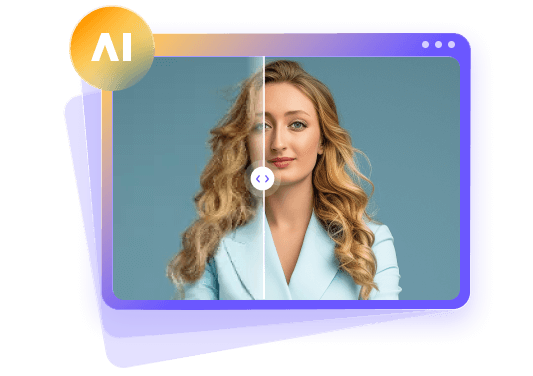
Improve Old Phone Camera Photos: 5 Easy Tricks for Sharper Look
 By Daniel Walker
An older smartphone can still capture moments that matter, but its photos may lack the color and clarity you've come to expect. Poor lighting, grain, faded colors, and blurriness can turn what should be a fine photograph into a letdown. Yet you don't need to buy a new phone to get better results. This guide offers five practical ways to get more from your current device and bring life back to photos you have already taken, including ways to improve old phone camera photos.
Answer Box
An AI photo enhancer, a good lens cleaning, an external attachment, or editing in Snapseed or Adobe Lightroom can revive old smartphone images. Add a portable light for dark conditions, and each method will tackle its own issue, whether dull exposure or a lack of detail. Use the free remedies before spending money on accessories.
For low-quality photos, HitPaw FotorPea can sharpen, upscale, and reduce noise to restore them, helping improve old phone camera photos.



Part 1: Why Do Photos from Old Phone Cameras Look So Bad?
Older smartphones have limited hardware and image processing, which is why they don't always produce clear photos. A phone that once did a decent job can now produce soft, grainy, or too-dark images.
There are a number of culprits:
- Small camera sensors: The older ones don't take in as much light, so indoor and night shots end up noisy.
- Outdated image processing: Newer phones handle fine details, color, and exposure in ways older models cannot.
- Dirty or scratched lenses: Dust, fingerprints, or scratches can create a hazy picture by blocking light.
- Slow autofocus: Older phones take longer to focus, and the subject can easily go out of focus.
- Digital zoom: Cropping in this way tends to make things look pixelated.
- Poor lighting: Without enough light, the camera struggles to stay sharp without adding noise.
None of this means the camera is done for. Some of these are matters of technique before you shoot; others can be put right in post.
Part 2: 5 Quick Fixes to Make Your Old Phone Photos Look Better
A new smartphone isn't an immediate necessity. What follows are ways to deal with the usual camera problems, whether for a new shot or one already in your gallery, and improve old phone camera photos.
1. Use an AI Photo Enhancer to Restore Image Quality
Best for: Old, blurry, noisy, or low-resolution phone photos that need more than basic editing to restore clarity and detail.
When a photograph needs more than a brightness or color tweak, an AI enhancer can help. They analyze image patterns to restore resolution and facial detail while reducing noise.
HitPaw FotorPea is one such tool for those who don't want to get into complicated editing. You can choose a model for denoising, upscaling, or face restoration, depending on what your old camera photo needs. Preview the results to compare the enhanced image with the original, then export a sharper, clearer version with more visible details. It's an easy way to improve old camera photos without manually adjusting multiple editing settings.

 Pros:
- Easy-to-use workflow.
- Multiple enhancement options with automatic processing.
- Preview enhanced images before exporting.
 Cons:
- Some advanced features require payment.
How to use HitPaw FotorPea:
Step 1:Install the program on your computer and open the photo you want to edit.
Step 2:Pick an AI model or let the automatic option handle it.
Step 3:Apply face restoration to a portrait or sharpening to soft areas.
Step 4:Have a look at the enhanced version against the original.
Step 5:If it is to your liking, export it.
 Tip:
2. Clean or Repair Your Phone Camera Lens
Best for: Photos that look hazy, cloudy, or consistently soft because of fingerprints, dust, smudges, or minor scratches on the camera lens.
Before you fiddle with settings or add an app, have a look at the physical lens. After all the time a smartphone spends in pockets and on surfaces, the cover will likely pick up dust and smudges.
Wipe it with a microfiber cloth, but avoid paper towels or household cleaners that might damage the coating. Should the pictures remain hazy, check for a crack or scratch. A broken cover calls for a professional. It is a simple way to improve an old phone's camera quality, though it won't fix a faulty sensor or similar issues.
3. Try External Phone Camera Lenses
Best for: Phone photos that lack the desired zoom, wide-angle view, or close-up detail, especially when you want more flexibility for different shooting scenarios.
An external lens gives an older phone some of the options found on newer devices. Most clip on or have a mounting system of their own. A wide-angle is good for groups or buildings, a macro for the fine details of jewelry or flowers, and a telephoto for subjects at a distance.
They are handy when the phone has but one rear camera. But the attachment's quality is key; a cheap one can cause distortion and dark corners. See some sample photos before you buy and make sure it is compatible with your model.
4. Edit Photos with Mobile Photo Editing Apps
Best for: Photos that need quick adjustments to brightness, contrast, color, or sharpness, especially when you want to improve their overall look without using professional editing software.
You can do quite a bit to an ordinary smartphone photo without any pro software. Mobile apps offer straightforward controls for the job. Snapseed and Adobe Lightroom are two that are worth considering. With Snapseed, one can adjust the brightness, contrast, saturation, white balance, and sharpness.
The app's selective editing is useful when you need to adjust only part of the picture. Adobe Lightroom offers more in the way of fine control over exposure, highlights, shadows, color temperature, and image sharpness. It is the better choice for keeping a uniform look from one photograph to the next.
In either case, begin with the exposure and white balance. Make a slight tweak to the contrast and draw out some detail in the shadows. Only add sharpness if the photo warrants it. Both are capable of turning around old phone photos and helping make old phone photos better where the issue is color, brightness, or softness of the image. Do not expect editing to put back details the camera did not record in the first place.
5. Improve Lighting with External Lighting
Best for: Photos that look dark, grainy, or lack detail due to poor lighting, especially when shooting indoors, at night, or in low-light environments.
Light quality is paramount in smartphone photography. An older sensor has less capacity to work with the little light available in a dim room. A small ring light or portable LED unit provides the extra illumination needed for selfies, product shots, video, or indoor portraits.
Place the light off to one side of the subject rather than in their face; this creates softer shadows and a more natural-looking photograph. An adjustable LED panel is also a good option for regular indoor work. While external lighting does nothing for the lens or sensor, it reduces the need for aggressive low-light processing, which in turn yields pictures with finer detail and less grain.
Part 3: What Is the Best Way to Improve Old Phone Photos?
That depends on what you have and what you want to accomplish. For old phone camera files already on your device, an AI enhancer or editor is of more service than an external lens. If your new work is coming out hazy or dark, then clean the lens and fix the lighting first.
A Quick Comparison
| Tool or Method | Pros | Cons | Best For | Platform |
|---|---|---|---|---|
| HitPaw FotorPea | AI sharpening, denoising, upscaling, and face restoration | Some are paid features | Blurry or low-res existing pictures | Windows, Mac |
| Lens cleaning or repair | Inexpensive and simple | Will not overcome sensor limits | Hazy, smudged pictures | Physical |
| External camera lenses | Macro and wide-angle | Varies in quality | Creative work | Compatible smartphones |
| Snapseed | Free, selective adjustments | Manual work required | Basic corrections to color and brightness | Android, iOS |
| Adobe Lightroom | Controls for exposure and color are detailed | Subscription for some | Advanced editing | Android, iOS, desktop |
| Portable LED lights | Fewer low-light issues, better illumination | Extra gear | Nighttime and indoor | Physical |
Which To Go With
To get better results from your smartphone camera in new shots and improve its quality, focus on the lens, lighting, and settings. You don't need costly equipment or software. For existing photos, an editing app will do if the problem is poor exposure or dull colors. Visible noise, softness, or low resolution calls for an old phone photo enhancer.
HitPaw FotorPea is a good option for those who prefer an automated approach; its enhancement models handle multiple issues without having to fiddle with each setting by hand, and you can see how it will look before exporting.
The easiest way is to figure out the problem. You don't have to install a host of apps or buy every accessory to see an improvement.
Part 4: Bonus Tips to Get the Most Out of Your Old Phone Camera
The five methods above are the main ones, but everyday habits can be just as effective. Changing how you hold the phone or choose your surroundings can prevent a lot of trouble.
Some tips to try:
- Make use of natural light. Go outside or to a window in daylight.
- Don't use digital zoom. Get in close to the subject.
- Steady the phone. Use both hands or a mini tripod to stop any shake.
- Put it on the highest setting the storage will allow.
- Tap the subject on the screen first.
- Too much effect can make skin tones and other colors look unflattering. Save an unaltered copy of your photographs before you put any edits or AI enhancement to work on them.
These are good habits for getting the most out of old phone camera photos at no cost and can help improve old phone camera photos. They come in handy for day-to-day photography, where proper lighting and a steady hand will do more for the image than one might think.
FAQs
Clean the lens and make use of natural light. Avoid digital zoom, hold the phone still, and tap to focus before you shoot. Check the camera settings and set it to the highest resolution; that doesn't hurt either. These steps can improve old phone camera quality. For photos already taken, editing apps and AI can boost sharpness, brightness, and color to improve old phone photos.
Indeed. The right AI tool can reduce noise, add sharpness, upscale resolution, and restore facial detail to a subpar picture. Some can even make a poorly lit image look better. That said, don't expect it to recover every original detail perfectly; it can create details not in the source, so review the result before you share it.
Find out what made it that way. A dirty lens is easy to fix with a microfiber cloth. If the blur is from movement, try an AI sharpening tool. If it's only slightly soft, an editing app can add contrast and sharpness. An old phone photo enhancer can handle some blur, but if it is badly out of focus, you can only do so much.
No. Clean the lens, set the camera to the right settings, use better lighting, and avoid digital zoom. External lenses or a portable light are optional if you need more flexibility. For existing photos, mobile apps and AI can reduce grain, improve low-res images, and brighten dull colors.
It can be many things. Older models have smaller sensors, and their autofocus is slower. There is also the matter of outdated processing and scratched lenses. Hand movement and poor light are also culprits. Digital zoom and excessive compression can also eat up visible detail.
Conclusion
You don't need a new smartphone to get more use out of your current camera or improve old phone photos. Simple editing adjustments, better lighting, lens cleaning, and more can help. If the picture is already low-resolution or grainy, an AI tool is more practical.
For those who want to improve their smartphone camera without the hassle of complicated editing, easy fixes are a good place to start and can improve smartphone camera quality. To polish an old phone photo after the fact, consider HitPaw FotorPea as an old phone photo enhancer. Its AI makes it a capable enhancer for denoising, sharpening, and restoring images.
Leave a Comment
Create your review for HitPaw articles