




How to Make Your Lips Look Fuller in Videos Without Surgery
 By Daniel Walker
Fuller lips are on a lot of women's beauty wish lists, and the camera makes that feeling louder. A slightly more defined, balanced mouth can make a selfie video, a tutorial, or even a work call feel a little more put together.
You don't need fillers or a cosmetic procedure to get there, though. Video beauty tools can adjust lip proportions in your footage without touching your real face. They work for selfies, beauty tutorials, social media videos, and video calls.

Below, I'll cover how to do it with AI, a few makeup and lighting tricks that help, and how to keep the final result from looking fake.


Answer Box: How to Make Your Lips Look Fuller in Videos
You can make your lips look fuller in videos without surgery by using AI video beauty tools, lip makeup, and flattering camera angles. For a digital fix, import your footage into HitPaw VikPea and use its AI Video Beauty feature to adjust your look. Preview the result so your lips stay natural and in proportion with the rest of your face. If you'd rather skip software, try a lip liner, a slightly overlined lip shape, and a glossy finish to create the illusion of fuller lips.

Part 1. How to Make Your Lips Look Fuller in Videos With HitPaw VikPea
If you've ever searched for how to naturally make my lips bigger, you've probably run into plumping glosses, lip exercises, and injectables. Most of those give small, short-lived results, or they ask for more commitment than you want to give. If all you care about is looking good in recorded content, editing the video is far simpler.
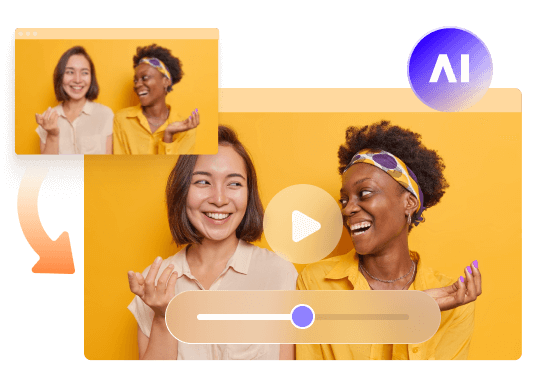
AI video beauty tools find the face in your footage and make light changes frame by frame. You don't fix each frame by hand. The software follows your face while you talk, smile, and turn your head, so the edit stays steady through the whole clip.
Enhance Your Lip Appearance With HitPaw VikPea AI Video Beauty
HitPaw VikPea has an AI Video Beauty feature made for this kind of touch-up. It's aimed at creators who want to look a bit more polished on camera without changing anything about their real appearance.
Because the edit applies to the footage and not to you, it's fully reversible. Keep the original file, try a few versions, and pick the one you like before you post. That makes it handy for selfies, beauty tutorials, short social clips, and recorded calls or presentations.
VikPea also handles general video cleanup, so you can sharpen the image and apply beauty edits in the same place before you export. One heads-up: the exact controls depend on your version of the software, so open AI Video Beauty and check which facial adjustments are available.
How to Make Your Lips Look Fuller With HitPaw VikPea Step by Step
Step 1: Install and open VikPea
Download the software HitPaw VikPea to your computer and launch it.
Step 2: Pick AI Video Beauty
Select the beauty feature so the software can detect your face.
Once you click on the AI video beauty option, you will be able to browse videos or drag them to the timeline.
Step 3: Adjust the settings in Selected Enhancements
Click on "Selected Enhancements" on the right bar.
Use the available controls to refine your look. You'll see the "Big Lips" effect along with multiple effects and skin retouch features. Go easy, so your lips stay in proportion with the rest of your face.
Step 4: Preview the result
Play several seconds, including moments when you talk and smile, and check that it looks natural.
Step 5: Export the video
Once you like it, save the file and share it wherever you want.
Don't skip the preview. A setting that looks fine on a paused frame can look strange once you're moving and talking. If something looks off, lower the strength and run it again until it feels like you.
Why Choose Video Beauty Instead of Cosmetic Procedures?
Editing footage and getting a cosmetic treatment are two different things. Here's how they compare.
- No permanent changes: Video beauty edits the recorded footage. It doesn't physically change your lip volume, so there's nothing to undo in real life.
- Flexible results: You can preview the effect and decide whether it suits you before anything goes public.
- Useful for content: Creators can use it for beauty tutorials, selfies, short-form videos, and other social posts.
- No real-world effect: It changes how the video looks, not the actual size of your lips.
Video beauty is just an editing tool. It isn't medical advice, and nobody needs a procedure to look good. If you're thinking about one for your own reasons, talk to a qualified professional.
Part 2. 3 Other Ways to Make Your Lips Look Fuller Naturally
These simple habits work great in tandem with video beauty tools, and can be implemented as a standalone.
Use Lip Liner and Gloss to Create Fuller-Looking Lips
Choose a lip liner that is more or less in the color of your lips. Draw around the outer perimeter, taking note of the line in your upper lip and the corners of your mouth; then blend the liner inwards so that the line isn't sharp.
Next apply a little of the gloss in the middle of your lips. Light reflects off of it shiny and makes that area rounder. Some overlining is okay, but just outside of the natural lip line. Don't go too far or it will appear drawn on, particularly when shot.
Use Flattering Lighting and Camera Angles
Many people don't realize that the lighting affects the appearance of full lips more than anything else. Front lighting with soft light, such as a window opposite the photographer or a ring light positioned at eye level reduces shadows around the mouth. Overhead or side lighting can make lips appear thin and/or lopsided.
Also the height of the camera is important. The lens should be at eye level to ensure even face balance. Low or high angles will be distorted as well as the lower half of the face. Try a number of positions before you start recording and avoid the very close-ups as these over emphasise everything.
Try Other Video Beauty Tools
It's not just VikPea. There are numerous beauty applications and video editors that include face retouching features, while there are also some mobile apps that have fast filters for social clips. There are wide differences in the kind of controls found in different tools. Do not commit to an app that does not perform on video, but only photos, and that provides the lip adjustments you desire.
Part 3. Tips for Making Fuller Lips Look Natural on Camera
Whichever method you use, a few habits keep the final video from looking overdone.
Avoid Excessive Digital Enhancement
Tight fitting adjustments tend to cause a mouth to appear too large or unnaturally-shaped, primarily when speaking and smiling. The edges of your lips might appear to shake or twist; people notice this immediately. No heavy breathing - watch the entire video. Have a friend peer over it, too; a fresh pair of eyes identifies odd edges in no time. The first sign of over-editing is in motion.
Keep Lip Proportions Balanced With Your Face
A subtle change nearly always looks more believable than a dramatic one. Think about your natural proportions: the width of your smile, your jawline, the size of your other features. The goal is a look that fits your face and your taste, not one fixed beauty standard. If friends barely notice the edit but you feel better on screen, you've probably got it right.
Choose the Right Method for Your Goal
Larger lip volume is not the same as a fuller look when taking a picture. Makeup and lighting is a form of visual illusion, while video beauty editing alters the image that has been captured. Both will not give a lasting increase in volume. If you're only interested in appearing good in your content, there are many of them. If you're looking for a permanent physical transformation, that's another discussion that you will need to have with a licensed professional.
FAQs About Making Lips Look Fuller
Yes, you can create the look of fuller lips without fillers. Liner, gloss, good lighting, and smart camera angles all help, which is why they come up so often when people ask how to make my lips bigger naturally. They only change how your lips look, though. They don't permanently increase volume.
Start with subtle makeup, like a lip liner and a touch of gloss, and film in soft front lighting at eye level. Then run the clip through a video beauty tool that supports the adjustments you want, such as the AI Video Beauty feature in HitPaw VikPea. Preview carefully so the result stays natural.
Some AI editing tools offer facial adjustments, but the controls differ from program to program. Before you count on a specific result, confirm that the tool actually supports lip-size changes. Test it on a short clip first.
Conclusion
You don't need surgery or injectables to look your best on camera. Makeup and lighting can create the illusion of fuller lips in real life, and video beauty tools can polish your recorded look with no permanent change. Using both gives you the most control.
If you want to improve how you look in videos, HitPaw VikPea is a solid pick thanks to its AI Video Beauty features. You can preview your edits, keep the original footage, and fine-tune the look before sharing. The most natural results come from small adjustments and realistic expectations, so keep your edits light and check your clips in motion.
Leave a Comment
Create your review for HitPaw articles


