



Best Video Color Correction Apps for iPhone & Android in 2026
 By Daniel Walker
Want to make your videos look more vibrant, balanced, and professional? A good video color correction app can help you fix exposure, adjust white balance, enhance saturation, and create cinematic looks directly on your phone. In this guide, we'll explore six video color correction apps for iPhone and Android and introduce an AI-powered desktop alternative for more advanced enhancement needs.

Part 1. What Is a Video Color Correction App?
A video color correction app is a mobile application that helps improve the colors and lighting of video footage. It allows users to adjust visual elements such as brightness, contrast, saturation, and white balance to make videos look more natural and consistent.
Unlike basic video editors that mainly focus on trimming clips, adding music, or inserting text, color correction apps provide dedicated tools for fine-tuning the visual appearance of footage. Many also include filters, presets, and LUTs (Look-Up Tables) to help users achieve specific styles, from natural-looking colors to cinematic tones.
Part 2. 6 Best Video Color Correction Apps for iPhone and Android
Not all video color correction apps offer the same level of control. Some focus on quick adjustments and ready-made filters, while others provide advanced color grading tools for more experienced creators. Here are six options worth considering.
1. CapCut - Best Overall Video Color Correction App
Platform: iOS, Android, macOS, Windows
Price: Free with in-app purchases; Pro plans available.
CapCut is a popular mobile video editor that combines easy-to-use editing tools with a wide range of visual effects and color adjustment options. It's a convenient choice for beginners and social media creators who want to improve video colors without learning complicated editing techniques.
Users can manually adjust key color parameters to correct footage that looks too dark, washed out, or oversaturated. CapCut also offers a variety of filters and visual effects, making it easy to create different moods for TikTok, Instagram Reels, and YouTube Shorts.
 Pros:
- Easy-to-use interface suitable for beginners.
- Offers manual color adjustments and a large filter library.
- Includes various editing tools and creative effects.
- Convenient for creating social media videos.
 Cons:
- Some premium filters, effects, and AI features require a subscription.
- Advanced color grading controls are more limited than those in professional editing software.
- Feature availability and export options may vary by region and subscription plan.
2. LumaFusion - Best for Advanced Mobile Color Grading
Platform: iOS, Android
Price: Paid app; additional in-app purchases available.
LumaFusion brings desktop-class non-linear editing power to mobile devices. It is widely recognized as the most complete professional mobile editor, offering full multi-track editing, color curves, custom LUT presets, HSL adjustments, and frame-accurate color manipulation.
Pros:
- Advanced color correction tools and imported LUT support.
- Professional video scopes for more precise adjustments.
- Multi-track timeline for complex editing projects.
- Supports high-resolution video workflows.
Cons:
- More expensive than many free mobile video editors.
- Has a steeper learning curve for beginners.
- Some advanced features require additional purchases.
3. Adobe Premiere on iPhone
Platform: iOS (iPadOS & iPhone)
Price: Free core features / Paid Creative Cloud sync plans
Adobe's native mobile experience delivers core elements of Adobe's legendary Lumetri Color engine directly to iPhone users. Designed for streamlined mobile editing, it provides fine control over exposure, contrast, highlight/shadow recovery, and tint adjustments, making it seamless to prep raw phone footage for publication or cloud export.
Pros
- Seamless integration with Adobe Creative Cloud desktop workflows.
- Clean processing engine supporting 4K HDR media export.
- Free core editing functionality without forced watermarks.
Cons
- Currently offers more robust support on iOS than Android.
- Advanced cloud storage features require paid subscription plans.
4. PowerDirector - Best for All-in-One Video Editing
Platform: iOS, Android
Price: Free with in-app purchases; premium subscription available.
CyberLink PowerDirector combines professional-grade tools with mobile accessibility. Its detailed color control panel lets users adjust brightness, saturation, contrast, temperature, and hue. It also features dedicated video stabilization and skin-smoothing color balance features.
Pros
- Provides multiple manual color adjustment options.
- Combines color correction with a wide range of editing tools.
- Includes filters, effects, and AI-powered features.
- Suitable for both casual creators and more experienced users.
Cons
- The interface can feel overwhelming for beginners.
- Some premium features require a subscription.
- Advanced color grading is not as comprehensive as dedicated desktop solutions.
5. InShot - Best for Quick Video Color Adjustments
Platform: iOS, Android
Price: Free with ads and in-app purchases; InShot Pro subscription available.
InShot is ideal for fast, hassle-free edits. While popular for canvas formatting and simple cuts, InShot contains a surprisingly effective color adjustment tab with sliders for light, contrast, warmth, tint, shadows, highlights, and color tinting.
Pros:
- Simple interface with easy-to-understand controls.
- Covers essential color correction adjustments.
- Offers filters and effects for quick visual styling.
- Suitable for short-form social media content.
Cons:
- Limited advanced color grading capabilities.
- Some filters and features require a Pro subscription.
- Not ideal for complex video production workflows.
6. KineMaster - Best for Detailed Manual Color Adjustments
Platform: iOS, Android
Price: Free with in-app purchases; Premium subscription available.
KineMaster offers a landscape-first, timeline-based video editing environment. Its color adjustment panel provides precise manipulation of brightness, contrast, saturation, vibrance, temperature, shadows, and highlights.
Pros:
- Offers 11 manual color adjustment parameters.
- Includes preset filters with adjustable intensity.
- Allows users to apply consistent adjustments across clips.
- Supports multi-layer editing and up to 4K/60fps exports.
Cons:
- The number of adjustment options may be challenging for beginners.
- Some premium assets and features require a subscription.
- Advanced color workflows are still more limited than desktop software.
Part 3. Best AI Video Color Correction Tool for Mac & Windows
Mobile video color correction apps are convenient for quick adjustments, but they may not be enough when footage has more serious quality issues. For example, dark videos may contain significant noise, old footage may have faded colors, and low-resolution clips may lack important details.
In these situations, an AI-powered desktop tool such as HitPaw VikPea can help improve both color appearance and overall video quality with less manual work.
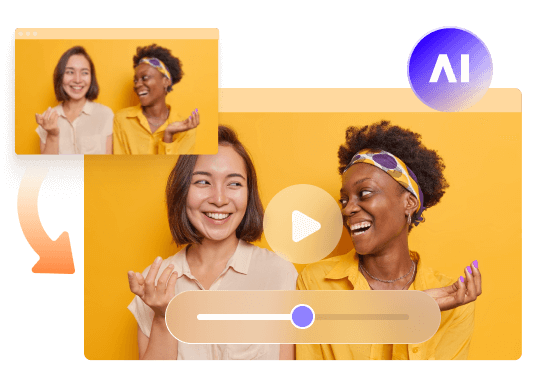
HitPaw VikPea is an AI-powered video enhancement tool designed to improve video quality, restore details, and enhance colors automatically. Unlike traditional mobile color correction apps that rely mainly on manual sliders and filters, VikPea uses specialized AI models to address different video quality issues.
It can help improve dull colors, brighten dark footage, colorize black-and-white videos, and convert SDR videos to HDR. It also offers AI upscaling, denoising, and detail recovery, making it useful when a video needs more than basic color adjustments.
Key Features of HitPaw VikPea
- Automated AI Color Enhancement: Intelligent algorithms detect skin tones, outdoor scenery, and low-light environments to apply balanced, lifelike color correction instantly.
- Smart Video Quality Restoration: Simultaneously cleans up digital compression artifacts, eliminates low-light noise, and sharpens visual detail.
- 4K/8K Resolution Upscaling: Transform low-resolution mobile clips or compressed footage into crisp 4K/8K media without losing color accuracy.
- Batch Processing Power: Color-correct and enhance multiple video files simultaneously using high-performance desktop hardware.


How to Enhance Video Colors with HitPaw VikPea
Step 1. Import Your Video:Launch Vikpea on your PC or Mac and drag your raw video clip into the AI Color workspace.
Step 2. Choose an AI Color Model:Select a suitable model based on your footage. Choose Color Enhancement for dull or faded colors, Low-Light Enhancement for dark footage; Colorize for black-and-white videos; and SDR to HDR for dynamic range conversion.
Step 3. Preview:Click Preview to let the AI process a side-by-side comparison frame, showing immediate improvements in tone, brightness, and contrast.
Step 4. Export Enhanced Video:Select your desired output resolution and format, then click Export to save your professionally color-corrected clip.
Part 4. FAQs About Video Color Correction Apps
CapCut, InShot, and VN are good options for basic video color correction. They provide essential adjustment tools such as brightness, contrast, and saturation, along with filters for quick styling. However, some advanced features, effects, and export options may require paid subscriptions.
Yes. You can use the built-in Photos app on your iPhone to adjust video appearance without installing additional software. It offers controls for exposure, brightness, contrast, saturation, highlights, shadows, warmth, and tint. This is a convenient option for making simple color corrections without using a dedicated video editor.
Not usually. Traditional color correction tools mainly adjust the appearance of colors and lighting. They cannot reliably restore missing image details or remove significant blur. If your footage is blurry, pixelated, or noisy, an AI video enhancer such as HitPaw VikPea can help recover details, reduce noise, and upscale resolution.
Conclusion
Finding the best video color correction app depends on your workflow. For quick mobile adjustments on TikTok or Reels, CapCut and InShot offer fast and intuitive controls. If you need timeline precision on your phone, LumaFusion and Adobe Premiere Mobile deliver professional flexibility. However, when mobile apps fall short and you need automatic, high-definition visual enhancement, desktop AI solutions like VikPea deliver effortless, studio-quality color correction and quality upscaling.
Leave a Comment
Create your review for HitPaw articles


