


Pruna AI P-Video-Avatar Review: Features and Results
 By Daniel Walker
AI is progressing at a fast pace and now those who did not like to believe in the power of AI talking avatars are now taking it seriously. AI talking avatars are being transformed to the original looking faces and this progress is extremely fast with new models being introduced everyday by different companies.

Now there is a low-cost and fast-tuned model called P-Video-Avatar from Pruna AI. Once you upload your portrait, add a script or an audio file, you will receive a video of your talking back.
This review will explain what the model is, how it works, any costs involved, any issues it has and how to edit out the footage afterwards using HitPaw VikPea.


Part 1. What Is Pruna AI P-Video-Avatar?
What Is Pruna AI and What Does It Offer?
Pruna AI is a model platform with a simple goal: make generative AI faster and cheaper, and keep the quality from slipping. It has models for video generation, image generation and editing, and you can use them through a web interface or an API.
It isn't trying to sell you one massive flagship model that's slow and expensive to run. You get a set of models that are affordable enough to use all the time, which counts for a lot if you publish content every week instead of now and then.
What Is Pruna AI P-Video-Avatar?
This is the talking-avatar model. You upload a portrait and add either a script or an audio file. The model sends back a video of that person speaking, with lip-sync, multilingual speech, and output in 720p or 1080p.
You don't need a camera, a studio or a presenter with a free calendar. If you make presenter-style videos on a regular schedule, that's where most of the value is.
Part 2. What Can Pruna AI P-Video-Avatar Do?
Key Features of Pruna AI Avatar Video Generator
- Image-to-video: a single portrait becomes a moving, talking clip.
- Script-to-speech: type the words you want spoken and the model produces the voice.
- Your own audio: record yourself or upload a voiceover, and the avatar lip-syncs to it.
- Voice and language options: one avatar can speak in several languages.
- Face and body movement: the avatar blinks, turns its head and gestures, and you can adjust how much it moves.
- Resolution: 720p or 1080p.
Best Use Cases for Pruna AI Avatar Videos
A tool like this makes the most sense when you need a lot of short videos that follow the same pattern:
- Product marketing: short spokesperson clips for ads and landing pages.
- Virtual presenters: one steady host for a channel or newsletter.
- Online education: lesson intros and explainers without recording each one.
- Customer support: quick walkthroughs for common questions and onboarding.
- Training videos: internal lessons you can update just by editing the script.
- Localization: the same presenter giving the same message in different languages.
How Realistic Are Its Lip-Sync and Avatar Movements?
Promo demos are picked because they look good, so they don't tell you the full story. Make your own samples and judge five things: how the mouth handles fast consonants, whether the expressions feel believable, how natural the head movement looks, whether the face stays the same person from start to finish, and how the clip feels as a whole.
Given what the model is designed to do, the safest start is a front-facing portrait with good lighting and a neutral expression. Things usually go wrong with side profiles, heavy shadows, or anything blocking the mouth, like a hand or a microphone.
Part 3. How to Use Pruna AI P-Video-Avatar and Test Its Results
How to Generate an AI Avatar Video with Pruna AI
- 1. Choose how to access it.The web interface is quick for a one-off, and the API works better for batches.
- 2. Upload a portrait.Pick a clear, sharp photo taken from the front, with the mouth visible.
- 3. Add the speech.Paste in a script and choose a voice and language, or upload an audio file.
- 4. Set your options.Choose 720p or 1080p and change any motion settings you want.
- 5. Generate and check.Once the job finishes, play the clip and check the lip-sync and how steady the face stays before you use it.
A quick tip: run a 5 to 10 second test first. You pay by the second, so it's the cheapest way to find out whether your portrait and voice get along.
Pruna AI P-Video-Avatar Real Test: Quality and Speed
For a fair test, use the same portrait with three different inputs: a short script, a long script and an uploaded audio file. For each run, write down the generation time, resolution, lip-sync, motion quality and any visual glitches.
Pruna AI P-Video-Avatar Real Test: Quality and Speed
| # | Input | Resolution | Generation Time | Lip-Sync | Motion | Artifacts |
|---|---|---|---|---|---|---|
| 1 | Short script | 720p | 38 seconds | Very good; closely matched mouth movements | Natural head movement and subtle expressions | Minor mouth distortion during fast speech |
| 2 | Long script | 1080p | 2 min 14 sec | Good; occasional timing mismatch in longer sentences | Mostly smooth, with slightly repetitive gestures | Brief facial warping and minor eye movement inconsistencies |
| 3 | Uploaded audio | 1080p | 1 min 46 sec | Very good; followed speech timing accurately | Natural lip and jaw movement, limited upper-body motion | Slight lip jitter and occasional teeth distortion |
When you review the clips, go through them frame by frame. Look at the corners of the mouth on sounds like "p" and "b", make sure the teeth and lips stay steady, and see if the eyes or hairline drift from one frame to the next.
Pruna AI P-Video-Avatar Limitations
Like most avatar generators today, it has a few weak spots:
- Max Length: Best visual consistency is maintained on clips generated under 3 minutes.
- Resolution Specs: Supports rendering at 720p and 1080p resolutions.
- Input Parameters: Accepts a portrait still (image) plus either a raw audio file or a text voice_script.
- Languages & Audio Specs: Features 30 named voices across 10 core languages (including English, Spanish, French, German, Italian, Portuguese, Japanese, Korean, and Hindi)
What's more?
- The mouth can look off on fast or unusual speech.
- Details such as teeth, skin texture or glasses can change between frames.
- Body movement is limited. Nearly all the motion is in the head and face.
- The picture can look soft, mostly at 720p.
Part 4. How Much Does Pruna AI P-Video-Avatar Cost?
Pruna AI P-Video-Avatar Pricing
Pruna's official API pricing is per second of video: $0.025 per second at 720p and $0.045 per second at 1080p. For common lengths, that works out to:
| Video length | 720p | 1080p |
|---|---|---|
| 30 seconds | $0.75 | $1.35 |
| 1 minute | $1.50 | $2.70 |
Those figures are for the official API. If you use the model on another platform, the price and access may be different, and any free credits or trials depend on that platform. Check the rate before you commit.
Pruna AI P-Video-Avatar Pros and Cons
 Pros
- Quick avatar generation from a single image
- Multilingual speech
- Accepts a script or your own audio
- Per-second pricing that's easy to plan around
 Cons
- Still not as convincing as real footage, particularly in close-ups
- Not much control over fine movement and expression
- Output tops out at 1080p, which can look soft on a large screen
- Long videos and repeated retakes add up fast
Part 5. Pro Tips: How to Enhance Pruna AI Avatar Videos with HitPaw VikPea
Why Do AI Avatar Videos Need Enhancement?
Avatar footage often comes out with soft facial detail, a little noise, blurry edges or compression artifacts. You may not spot any of that on a phone. On a laptop or a big screen it's obvious, and it can make a good clip look cheap.
A post-processing step can fix much of it, and you don't have to regenerate the video.
How to Enhance Pruna AI Avatar Videos with HitPaw VikPea
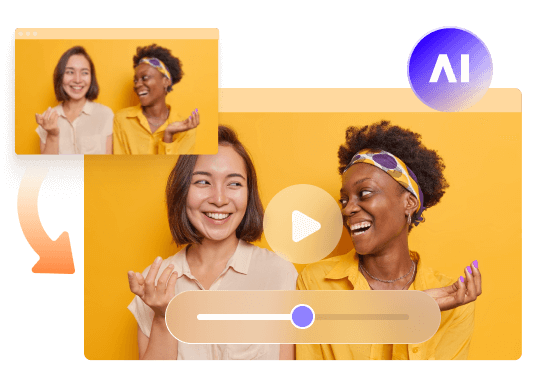
HitPaw VikPea is an AI video enhancer. It can upscale footage to 4K or 8K, restore facial detail, reduce noise and sharpen the picture. Treat it as the last step before you publish.
Key Features of HitPaw VikPea
- AI upscaling up to 4K or 8K
- Face and detail enhancement
- Noise reductionfor grainy clips
- Sharpening for soft or slightly blurry footage
- Different AI models for different problems
Step-by-Step Guide to Enhancing AI Avatar Videos with HitPaw VikPea
Step 1: Install and Download
Go to the official website and download HitPaw VikPea. After it is installed, start the application and log in when it is necessary.
Step 2: Get Your Footage into Video Enhancer
Click on the left panel to open the Video Enhancer module. Press the icon to import your video file into the interface.
Step 3: Use the Appropriate AI Model
Along with a general model that applies enhancement overall, there are multiple specialized models that can be applied to the video as per particular enhancement needs.
You can apply other models like UHD Restoration Model that will further improve video quality of a high resolution 720p video, enhancing visibility and restoring sharpening.
Choose your preview length (3 or 5 sec). In case you need to improve only a few elements of the video, use the Cut tool. Fix the output resolution and format.
Tips: In case you are not sure what model to use, use AI Pilot. It will automatically examine your video and advise the most suitable enhancement.
Step 4: Preview and Save
After making all necessary adjustments, click on Preview to compare the before-and-after results of your video. This lets you clearly see the difference between the original and the enhanced version before finalizing.
Step 5: Export or Cloud Export
Once satisfied with the preview, select Export or Cloud Export to save your video. Enjoy enhanced videos with stunning clarity.
Which VikPea AI Model Works Best for Talking Avatar Videos?
It depends on what's wrong with your footage:
- UHD Restoration: best for overall detail recovery, especially for 720p clips that need to hold up at a bigger size.
- Professional Denoise: best for grainy or noisy footage.
- Professional Sharpen: best for mild blur, when the image is clean but a bit soft.
Whichever one you use, compare the before and after frames and look hard at four places: the eyes, the mouth, the hair and the clothing. The eyes should look clear without an overdone shine. The mouth and teeth should still look natural. Hair should get more definition without harsh, crunchy edges, and fabric should look sharper without shimmering.
If something looks fake, try another model or lower the enhancement strength.
FAQs about Pruna AI Avatar Video Generator
It's the talking avatar model of Pruna AI. It can produce a speaking video with lip-synced audio in multiple languages and resolutions (720p or 1080p), using just a single portrait and a script or audio file.
Not by default. The official API charges per second: $0.025 at 720p and $0.045 at 1080p. Some platforms may give out free credits or trials, so check the latest offer before you start.
Yes. One portrait is the main input. A sharp, well-lit photo taken from the front, with the mouth showing, gives the best results.
Yes. It supports multiple languages to enable multi-speaker and multi-audience presentations. Please consult the documentation for the latest list of languages and voices.
Use a good portrait and clean audio. You can also run the clip through an upscaler like HitPaw VikPea to upscale, denoise, and sharpen it.
Conclusion
With Pruna AI P-Video-Avatar, you can transform a single image and a script into a talking presenter with minimal effort. It is fast, offers multiple languages, allows you to submit your own audio and will cost you approximately $1.50 per one-minute 720p video or $2.70 per one-minute 1080p video. The drawbacks are typical for this type of software, such as occasional lip sync errors, movement of facial features, restricted range of movement for the body and some blur in the images.
Whether it's a video that needs to be professional, HitPaw VikPea puts the finishing touch: 4K upscaling, improved facial clarity, and reduced noise and blur, ensuring it's perfect for any screen..
Leave a Comment
Create your review for HitPaw articles


