






Smartphone Photography With Best Cameras And Creative Shot Ideas
Capturing pictures has been made easier with the integration of high-end cameras in smartphones. These cameras not only help in capturing the perfect selfies, but they also aid businesses in shooting the intricate details of their product. If you are a small business owner and do not have the budget to pull up a full-fledged product shoot, a phone with a good camera might help you with the task.
In this article, we will discuss some of the most reliable mobile devices that you can get to conduct smartphone photography efficiently. The article will also shed light on how you can refine the taken pictures using the right apps and tools.

Part 1. Top Smartphones for Photography in 2025
To generate creative photographs with high-quality results, you must possess a good capturing device. Mentioned below are some of the top listed smartphones that offer professional smartphone photography for their users:
1. Samsung Galaxy S25 Ultra
This is one of the widely used phones that offer a high-quality camera with various settings. With a 200-megapixel camera, you can zoom in as much as you want and capture the finest details without losing quality.
Key Features
1. The ultrawide camera angle allows you to capture large group shots or expansive landscapes.
2. You get a resolution of 12MP in the front camera of this smartphone for high-quality selfies.
3. Users can apply filters in real-time before doing the mobile photography.
2. iPhone 16 Pro Max
With a 48-megapixel ultrawide camera, you can capture all the details easily using this smartphone. The phone camera includes a focal length of 133 mm, enabling incredible zoom capabilities to capture distant objects with high quality.
Key Features
1. Users get the ability to switch between scenes with different aspect settings.
2. You can crop an image instantly with the editor offered by its dedicated camera app.
3. It lets you adjust settings like exposure and contrast for the perfect balance of light and shadows.
3. Google Pixel 9 Pro XL
The phone offers a 50-megapixel camera with a sensor to detect the subjects instantly and focus on them for high-quality results. Even if there is motion in the scene, the camera efficiently cancels out the blur and generates high-quality results.
Key Features
1. The display colors of the captured picture through this phone are accurate and natural in different lighting conditions.
2. It offers video quality of up to HDR10 for incredible video capturing.
3. You can adjust different settings, such as exposure optimization and tone mapping.
4. Xiaomi 14 Ultra
The automatic variable aperture lens of this smartphone allows you to adapt to different lighting conditions for perfect smartphone photography. With multiple zoom options offered by this device, you can effortlessly switch between wide-angle, telephoto, and digital zoom to capture everything.
Key Features
1. Offers an ultra-wide 50MP rear camera to capture large canvas in high quality with all the details.
2. The images captured through this phone are almost noise-free.
3. Provides users with an accurate auto-focus feature to quickly and precisely lock onto subjects.
Part 2. Essential Camera Settings for Optimal Shots
It is essential to set up camera settings for your professional smartphone photography to capture the best shots. Provided below are some of the essential settings to optimize your photos for the best results:
1. Understand the Camera Modes: Learn about different camera modes, for instance, Night and Pro, for customized shooting settings based on the environment.
2. Adjust Resolutions and Aspect Ratios: Adjust the aspect ratio and resolution before capturing the picture to ensure sharper and more detailed image results.
3. Enable HDR and AI Enhancements: Enabling the HDR balances the exposure in high-contrast scenes. You can switch it and other AI enhancements for automatic image optimizations.
4. White Balance and Color Tuning: Specify the white balance and color tuning before capturing to get accurate hues and colors.
Part 3. Top Post-Processing Apps To Use For Mobile Photography
After you have learned how to take high-quality photos with a smartphone, let us provide you with some of the apps that make the images look more enhanced:
1. Adobe Lightroom Mobile [iOS/Android]
No matter what operating system you are using, the Lightroom App lets you modify the images with a professional touch. This AI-assisted application offers features like Auto Enhancement to instantly uplift the image quality with one tap.
Key Features
1. To give your photos a bokeh effect, you can use the Lens Blur tool offered by this app.
2. It offers an HDR option to give your blurry or distorted images a high-definition effect.
3. The app allows you to add various filters to make your selfies look more captivating.
2. Snapseed [iOS/Android]
Another application that fine-tunes high-quality mobile photography is Snapseed as it offers various precision options for effects. Along with basic functions like crop and rotate, it provides users with advanced features like expanding the photo canvas.
Key Features
1. It lets you remove grains from images with only a single tap to make the visuals clear.
2. The app automatically adds details to give your photos a more defined look.
3. You can add text to your photos using this advanced image editor.
3. InShot [iOS/Android]
With various effects and transitions, this application helps turn your mundane images into clear and captivating photos. With the text feature offered by InShot, you can make your images more engaging by adding customized text.
Key Features
1. The auto-remove background feature removes the unwanted background from your images instantly.
2. You also get the ability to add stickers to your pictures to give a fun effect to your photos.
3. If you have multiple images from smartphone photography, turn them into a single collage.
4. Canva [iOS/Android]
The extensive editing features make Canva one of the best apps for editing smartphone photos. You can ask the AI feature of this application to add elements by simply giving text commands. Moreover, it offers basic functionalities like cropping and rotating for quick and simple edits.
Key Features
1. It offers an extensive library of templates to let the users get a head start on their edits.
2. The app allows you to add compelling filters to your photographs.
3. If your smartphone photography settings generate blurry results, you can remove them using this app.
Part 4. [Top Alternative] Create The Best Photo Out of Mobile Photography With Comprehensive Post-Processing
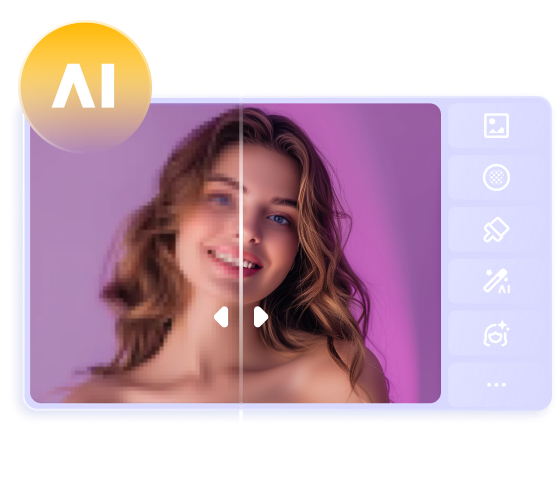
If you are looking to transform the photos you took from your smartphone into masterpieces, you can use desktop tools with extensive features such as HitPaw FotorPea. This AI-powered tool detects the flaws in your images and refines them using advanced technology. The upscale feature offered by this platform instantly removes any grains or noise from the images and enhances the overall quality.
Key Features Offered by HitPaw FotorPea
1. Bulk Image Processing: It allows you to edit and process multiple images simultaneously to save you time and effort.
2. AI-Face Model: If you have selfies taken when doing mobile photography, you can automatically enhance the facial features using this function.
3. Multiple Aspect Ratio Options: Users can easily switch between different aspect ratios to suit various platforms or print formats.
4. Quality Adjustments: FotorPea offers options to select the quality modes for professional-level results.
Steps For Enhancing Mobile Photography Images
Once you have taken the picture from your smartphone, you can upscale it using FotorPea. Read the steps mentioned below to learn how to use this efficient image editor:
Step 1. Launch the Tool and Select the Image Enhancement Feature
After launching the FotorPea tool on your device, select the “Enhance Photos Now” tab from the homepage to proceed forward.
Step 2. Add the Image Captured From Your Smartphone
In the following interface, import the photo you took from the phone and toggle on the "Upscale Model." If you have a selfie with blurred features, enable the "AI Face Model" feature too. Once done, locate the "Preview" button to let the tool execute the process.
Step 3. Preview the Processed Image and Export
Once the image is upscaled and enhanced, you can see the changes side by side and once you are satisfied with the results, locate the “Export” button and save it to your device.
Conclusion
To conclude, this article discussed the top devices to do smartphone photography efficiently. The article also suggested some tools to enhance the images post-production. However, HitPaw FotorPea is one of the most reliable tools when it comes to enhancing photos. The tool offers advanced features to automatically remove unwanted noise and flaws from your photos with only a few clicks.
 HitPaw Edimakor
 HitPaw VikPea (Video Enhancer)
 HitPaw Univd (Video Converter)


Share this article:
Select the product rating:
Daniel Walker
Editor-in-Chief
This post was written by Editor Daniel Walker whose passion lies in bridging the gap between cutting-edge technology and everyday creativity. The content he created inspires the audience to embrace digital tools confidently.
View all ArticlesLeave a Comment
Create your review for HitPaw articles