






How to Take a Photo on a Computer: The Right Settings?
When filling out an online application, you might search for an old image of yourself. Instead, you can instantly snap a photo using your computer’s built-in or external webcam. While this is an effortless and efficient option, this gives you direct access to editing and sharing the captured portraits.
Many computer webcams allow for actual adjustments, like brightness and filters, to make sure you get the best possible image. Thus, if you are wondering how to upscale the webcam images with the right tools, we've got you covered. This article will guide you through the right settings and steps on how to take a photo on a computer.

Part 1. Methods to Ensure the Compatibility of Your Camera
To start the discussion, before you take pictures, it is better to ensure the camera's computability, as different devices may have varying resolutions and features. So, let's explore the below-mentioned methods you must use to check your computer's camera compatibility.
Method 1. Check if Your Computer Has an Integrated Webcam
Most laptops come with a built-in webcam that you can use; however, some computers might require an external camera. Standard cameras are usually positioned at the top of the device screen in the middle. To take a photo on the computer, this is the first initial step you must carry out for an enhanced experience.
In any case, if you are not sure whether your PC has a camera or not, you can always perform a quick system check. For that, search for a Camera app on your Windows device or Photo Booth on the macOS to confirm its presence.
Method 2. Verify the Drivers of the Camera
Drivers are an essential software component that allows your operating system to interact with the hardware devices. When your drivers are corrupted, it might not allow your external cameras to function properly. Hence, follow the guide below to capture images using a webcam and ensure the drivers are up-to-date:
Instructions. Start the process by getting access to the “Device Manager” window on your device. Here, locate the "Cameras" option and right-click on it to pick the "Integrated Webcam" tab. Choose "Update driver" from the drop-down menu to scan the integrated lens and update it.
Method 3. Troubleshoot a Non-Working Camera
After you check for your built-in webcam and verify the driver, additional issues might affect its functionality. Common causes include software conflicts, incorrect privacy settings, physical connection problems, or outdated system settings. Regardless of the reason, read the steps below to troubleshoot these factors to ensure your camera is ready for use.
Step 1. Before you learn how to take high-quality photos with a laptop camera, you need to troubleshoot if it works. Get access to the “Settings” window on your PC and click on the “Privacy” option.
Step 2. Here, select "Camera" from the left sidebar and toggle on the button at the "Allow Apps to Access Your Camera" section. This will make sure that your webcam gets access to all the apps on your laptop.
Part 2. [Solved] Proactive Ways to Store and Share Photos on Computer
Once you capture images using a webcam, let's move on to the best ways to store and share your pictures. A proper storage method ensures easy access and ease of sending images to others.
Way 1. Save Photos on Your Windows or Mac Devices
Understanding where your computer stores photos is essential for easy access and organization. On Windows devices, the images captured are automatically saved into the Camera app in the Camera Roll folder. Whereas on macOS, the images are stored in the Pictures directory. Users can quickly locate their photos without searching manually, which makes this convenient to edit, move, or back them up when needed.
Way 2. Upload on to Cloud-Based Systems
Using cloud storage services provides a flexible way to store your photos online. These platforms allow users to access their images from any device with a connection to ensure their files remain safe even if their computer is lost or damaged. It allows you to sync across different devices after you learn how to take a photo on a computer.
Way 3. Share via Email or Social Media Platforms
Most email services or social media platforms provide the ability to attach and share photos for a smooth transfer. Sharing images digitally allows users to send them to friends, family, or colleagues quickly. Besides that, email is ideal for private sharing, while social media platforms make it easy to post images publicly or within specific groups.
Part 3. Tools to Adjust and Enhance Photos
After you learn how to take a selfie on a computer using a built-in camera, discover the tools we can enhance them further with ideal editing tools. In this section, we have highlighted a few of them, and they ensure to provide essential editing options for professional and personal use.
1. Photos – Windows Users Only
Photos is an integrated application that provides cropping tools to resize and crop unwanted parts of an image. You can also adjust the brightness with the sliders to alter their levels based on your requirements. Moreover, the app includes basic filters that enhance colors and the overall appearance. After you figure out how to take high-quality photos with a laptop camera, you can use this tool for enhanced editing.
2. Preview – macOS Users Only
It includes essential photo editing tools after you have applied the best settings for taking clear photos with a computer webcam on your macOS. You can fine-tune the exposure of the picture by adjusting the brightness levels. By increasing the sharpness level on the slider, you get the ability to highlight the details of the photograph you are viewing.
3. HitPaw FotorPea
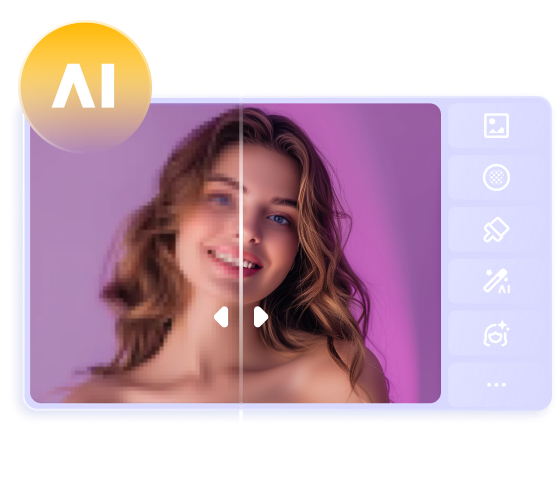
HitPaw FotorPea is an advanced AI-powered photo editing tool that is designed for a quick and hassle-free enhancement process. After learning how to take a photo on a computer, you can download FotorPea to your device to edit them further. The software offers a smart brightness adjustment feature, which automatically detects the best lighting balance to improve image clarity.
AI technology helps you retouch any damaged or old photos to revive your memories. Users can choose from vintage or modern aesthetic filters to match different moods and styles. Plus, with the BG remover, one can extract the backdrop and replace it with the desired one that suits their vibe.
4. Adobe Photoshop
As a professional photo editing tool, Photoshop provides users with a comprehensive set of editing features like color palettes and swatches. Once you take a photo on a computer device, you can choose Photoshop to enhance its quality for professional use further. The extensive filter library gives users the flexibility to adjust their pictures as per their requirements.
5. GIMP
GIMP is a free photo editing tool that is a competitor to multiple software in functionality. Users can crop images using various selection tools to ensure flexibility in edits. Its brightness adjustment settings allow for detailed exposure corrections. Furthermore, GIMP includes customizable filters that help users achieve both subtle and dramatic effects.
Part 4. How To Enhance Photos on Your Computer With Perfection?
From the above discussion we can see that HitPaw FotorPea is the best editing tool you can opt for after taking a photo on a computer. To further understand how it works and edits the image, let us dive into the steps below:
Step 1. Install HitPaw FotorPea and Access AI Photo Editor
To start the process, download FotorPea’ s latest version to your desktop and launch the tool. At the main interface, choose the “AI Photo Editor” feature and add or drag and drop the image you want to edit.
Step 2. Perform the Basic Adjustments on the Imported Image
Once your image is up on the tool, move to the “Adjust” tab from the right navigation bar. Here, you can perform basic adjustments to the image to enhance its appearance.
Step 3. Utilize the AI Tools for Quick Repairs
Moving on, at the “AI Tools” tab, you can pick any of the provided AI models to quickly repair any damaged image. Once you are satisfied with the picture quality, hit the “Export” button at the top-right corner of the screen to download the final result to your desktop.
Conclusion
In conclusion, this article looked into the different methods to check the compatibility of your camera. Moreover, we looked into the ways to share and store the images you captured while learning how to take a photo on a computer. We discussed several top editing tools to enhance your images, out of which HitPaw FotorPea stands as the best option.
 HitPaw Edimakor
 HitPaw VikPea (Video Enhancer)
 HitPaw Univd (Video Converter)


Share this article:
Select the product rating:
Daniel Walker
Editor-in-Chief
This post was written by Editor Daniel Walker whose passion lies in bridging the gap between cutting-edge technology and everyday creativity. The content he created inspires the audience to embrace digital tools confidently.
View all ArticlesLeave a Comment
Create your review for HitPaw articles