




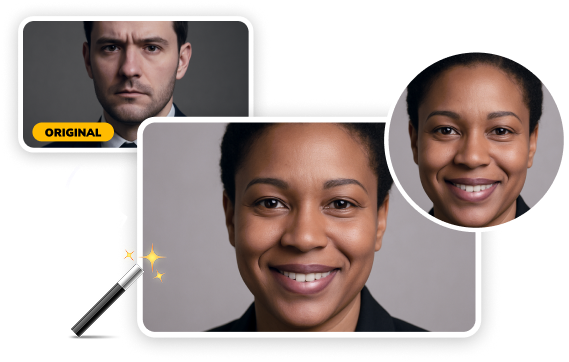
7 Best Offline AI Swap Software for Windows (2026 Tested)
Creating viral social media content shouldn’t compromise your privacy or require an internet connection. We’ve reviewed and compared 7 easy-to-use offline swap tools for Windows to help you find the best AI software for your creative workflow.
Whether you want to swap with friends or even swap animals for fun and engagement, our hands-on testing reveals which tools generate the most realistic results in seconds. Skip the complex setups and discover the top-rated offline solutions for your PC.

Part 1. Why Use Offline Swap Software on Windows?
Check out the reasons below that make offline swap software on Windows a must-have to create content:
- Protection of Your Privacy:
- No Upload Limits:
- Higher Image Quality:
- No Subscription Fees:
No need to upload sensitive images online and reduce data exposure risks.
Unlike online tools, offline softwares allows unlimited edits without restrictions.
Offline tools offer better resolution and let you refine your edits.
Several best free swap software for Windows offer one-time purchases or no fee at all.
Part 2. How I Tested These Swap Software for Windows
To provide an honest and professional recommendation, I spent over 20 hours testing each software on a mid-range Windows PC (RTX 3060 GPU, 16GB RAM). My evaluation was based on the following rigorous criteria:
- The "Natural Look" Test:
- Hardware Efficiency:
- Privacy Verification:
- User Workflow & Speed:
I used high-definition portraits with challenging lighting to see if the AI could maintain skin texture and bone structure without "blurring" the edges.
I monitored system resources to identify which tools run smoothly on older laptops and which require a high-end dedicated GPU to function.
I ran every tool with the Wi-Fi disabled to ensure that no data was uploaded to external servers, guaranteeing 100% offline security for your files.
I timed the process from "opening the app" to "exporting the final result." Only those that delivered stunning results in under 3 steps made this list.
Part 3. 7 Amazing Offline Swap Software for Windows
Having understood the necessity and real-world applications swap software for Windows, let us explore the best tools that will facilitate you in this manner:
1. The Best AI Swap Software with HitPaw FotorPea
HitPaw FotorPea is one of the offline tools that offer AI-powered swaps while customizing facial features. Users can generate brand-new images with realistic appearances from old photos without compromising on quality. Its swapping feature detects the faces of provided images using advanced AI and swaps them seamlessly.
My Test Results
HitPaw FotorPea processed a high-res photo in under 3 seconds. The "Auto-Correction" feature handled side-profile photos much better than other tools, successfully mapping facial features without any "sliding" or blurring effects, even with Wi-Fi turned off.
Key Features
- Fun Transformations: The tool supports gender swaps, and advanced image edits.
- Availability to Download in Different Formats: Download your generated pictures in different formats such as JPG and PNG.
- Availability of Samples: In case you want to try it first before starting editing, use the tool’s available samples.
 Pros
Pros
- Delivers high-quality swaps in seconds without technical knowledge.
- Maintains image resolution and detail, producing professional swaps.
 Cons
Cons
- The free version adds a watermark to edited images.
2. PhotoWorks
When you have no idea how to swap on a Windows PC, try out PhotoWorks, which is an easy-to-use tool that offers real-time results analysis. It facilitates numerous customizations and adjustments to generate results as per your need.
My Test Results
In my testing, PhotoWorks excelled at skin tone blending, the AI automatically adjusted the lighting and color balance. It feels more like a professional retouching tool than a simple swap app.
Key Features
- AI-powered face recognition enables smooth and natural swapping.
- Users can change the background of the provided image before swapping.
- Smart retouching tools blend facial features and skin tones effectively.
Pros
- It lets you remove unwanted objects from the photo.
- Multiple aspect ratio options are offered by the tool.
Cons
- The free trial only offers basic features that may not cater to every user’s demands.
3. DeepFaceLab
This swap software is the industry-standard tool used by professionals for its advanced image manipulation features. You can extract multiple faces and replace them with the desired headshots in photos and videos with this swap photo editor for Windows.
My Test Results
During my 20-hour test, DeepFaceLab proved to be the most hardware-intensive. It took about 10 hours to train a basic model for a high-fidelity video swap. While the learning curve is steep, the ability to run 100% locally without any data leaks makes it the king of professional privacy.
Key Features
- AI-powered technology creates ultra-realistic swaps with precision.
- Allows frame-by-frame face refinement, ensuring hyper-realistic expressions.
- Utilizes GPU acceleration to process high-resolution swaps faster and more efficiently.
Pros
- The masking feature enables users to make precise selections by adding multiple facial points.
- Offers full control and accuracy, making it perfect for professional face transformation projects.
Cons
- Even professionals need time and effort to learn it because of its complex design.
4. MagicMirror
If you want to utilize Windows to generate swap images, try using MagicMirror for professional image creation. Users get the ability to edit their generated image features like hairstyles and outfits.
My Test Results
I used this tool specifically to test "creative swaps" involving different hairstyles. While the rendering engine is a bit older, the offline stability is rock solid. It’s a great lightweight choice if you want to experiment with total character transformations.
Key Features
- Magic Mirror automatically detects the facial features of the image.
- It lets you change the screen appearance by adjusting it as per your needs.
- This tool enables its users to insert multiple formats of images.
Pros
- You get a library of photo filters to apply to your photos.
- Magic Mirror offers a stylish design and interactive features match the expectations of users.
Cons
- Users challenges in downloading its windows version.
5. GIMP with Swap Plugin
Do you want to know how your child looks in the future? Using GIMP swap software for Windows, you can swap into your desired photo. Its drag-and-drop functions let users transform their saved device images into multiple images.
My Test Results
Unlike the "set-and-forget" AI tools, this is for those who want manual control. I used the plugin to handle the initial alignment and then used GIMP’s native healing brushes to perfect the skin blending. It’s 100% free and runs on almost any PC, making it the best offline option for high-res "still image" swaps without needing a powerful GPU.
Key Features
- Its variety of editing tools allows you to modify your images professionally.
- It supports HDR and images in many formats, including JPG and PNG.
- This tool offers photo manipulation to enhance and make images professional.
Pros
- Adjust saturation and intensity of image colors for stunning photos.
- You can improve your images by removing their noise and grains.
Cons
- Beginner faces issues while using its complex editing features.
6. Auto Swap by Microsoft
Transform your younger images into old-age photos using swapping tool Windows. Using drag and drop functions, users can swap also from a live webcam. Besides swap, it morphs faces from photos within minimal time.
My Test Results
I tested this on a laptop without a dedicated GPU. While it was slower (about 15 seconds per photo), it didn't crash once. It is perfect for users with older hardware who need a simple, offline solution for fun social media memes.
Key Features
- It offers face morphing for seamless transformations, allowing users to blend two faces smoothly.
- Generate automatic and professional videos using your images.
- Users can swap in real time while recording video or on a live video call.
Pros
- Beginners can edit their images using its intuitive interface.
- You can access the tool in multiple languages for swapping.
Cons
- Users face accuracy issues while generating images.
Part 4. How to Swap on PC with HitPaw FotorPea in One Click?
One of the resources that offers a simple interface with unique AI-powered swapping features is HitPaw FotorPea. After learning about the swapping tool Windows, let's have have a look at the steps for replacing faces using it:




Launch the tool on your desktop and hit the “Swap” option from the main menu to initiate the process.
Step 2. Import Swap Image & Initiate Swapping
Moving forward, import your images from the device and next click the "Swap" button to execute the process
Step 3. Check Out the Results and Download
In the last step, modify your generated outcomes and then hit the "Download Picture" to save the image to your device.
Learn how to easily swap on your PC using HitPaw FotorPea in just a few clicks. Watch the step-by-step tutorial below:
Part 5. [Bonus Tip] Best Free Online AI Swap Alternative
While offline swap software for Windows offers strong performance, sometimes you may prefer a quick solution that doesn’t require downloads or licenses. That’s where HitPaw Online AI Swap becomes a great alternative. It’s 100% free, requires no subscription, and works directly in your browser—making it the easiest way to try swapping without installing desktop software.
Create Now!
Features
- Free Swap Tool Online — Unlimited usage with no subscription fees.
- Browser-Based Access — Use it instantly without installing desktop software.
- AI Swap for Photos & Videos — Generates smooth, natural swaps powered by advanced AI.
- Compatible with Windows AI Workflow — Works as a lightweight complement to your offline Windows swap tools.
- Cross-Platform Support — Accessible from Windows, Mac, and mobile browsers.
- No Watermarks — Clean, professional outputs ready for sharing or further editing.
- Fast Processing — Quick results for rapid testing and iteration when comparing offline software.
Conclusion
This article discussed the most suitable tools for users to generate swaps on their Windows computers. It also sheded light on the importance of swap and how it helps you in generating unique content. However, one of the best AI swaps for Windows that offers instant and convenient functionalities is HitPaw FotorPea.
(*Final Reminder: This guide is for informational purposes only and does not constitute legal advice. Before using the relevant features, please make sure to:
① Consult a qualified legal professional in your jurisdiction to evaluate any legal risks that may apply;
② Carefully read and fully understand the HitPaw Term of Service and HitPaw Privacy Policy;
③ Ensure that all generated content complies with applicable local, state, and federal laws and regulations, particularly those related to synthetic media and deepfake technologies.)
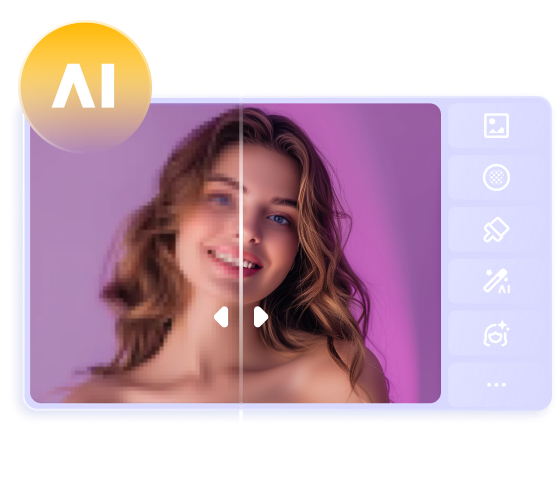
 HitPaw Edimakor
 HitPaw VikPea (Video Enhancer)
 HitPaw Univd (Video Converter)


Share this article:
Select the product rating:
Daniel Walker
Editor-in-Chief
This post was written by Editor Daniel Walker whose passion lies in bridging the gap between cutting-edge technology and everyday creativity. The content he created inspires the audience to embrace digital tools confidently.
View all ArticlesLeave a Comment
Create your review for HitPaw articles