






Best AI Face Swap for Mac in 2026: Top Tools Compared (M1 & M2)
Many users find face swapping challenging on macOS due to limited experience with image editing or complex workflows. To make the process easier, a variety of AI-powered face swap tools for Mac have been developed, offering simple and accessible ways to apply face swap effects without technical expertise.
In this article, we’ll explore the best face swap tools for Mac, focusing on ease of use, compatibility with macOS, and overall results.

Part 1. Key Factors to Look for When Choosing Face Swap Software for Mac
Before jumping onto a swapping tool, it is important to know the features you should look for. Check out the following key factors to consider to ensure you get the best experience through a face swap software Mac:
1. Accuracy and Realism: Choose a high-quality AI-powered tool that uses deep learning to ensure proper face alignment for realism, producing realistic swaps.
2. Ease of Use: Your swapping software should have pre-built templates to help you achieve better results with minimal effort during the process.
3. Performance and Speed: Slow performance by your tool can hinder creativity and make the process frustrating, so pick a fast-rendering platform for quick deliveries.
4. Compatibility: For better performance, ensure the software is fully optimized for macOS, including the latest macOS versions.
Part 2. 6 Best AI Face Swap Software for Mac in 2026 (macOS 14 Supported)
After learning about the key factors to look for in the right face swap Mac tool, let us explore the top options available:
1. HitPaw FotorPea - Change Faces Smoothly
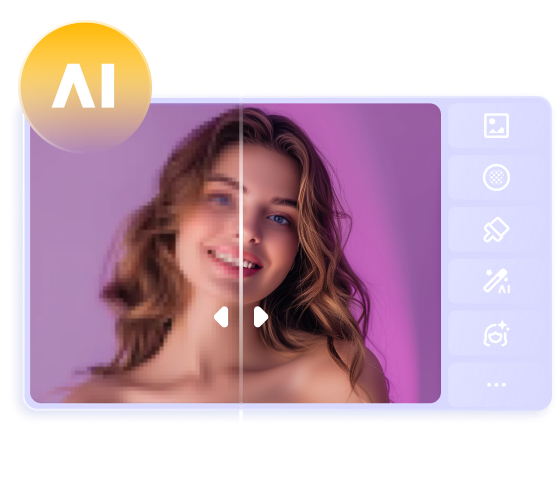
One of the most reliable face swap tools compatible with Mac that offers easy-to-use functionality is HitPaw FotorPea. The tool uses advanced artificial intelligence to detect the facial feature in one image and swap it with the face in another image. However, while swapping, the blending of skin tone and features like hairline are accurate, which makes the face swapping seamless for viewers.
Using this platform, users can save the generated results in multiple formats, including JPG and PNG. Moreover, users can analyze the results in real-time with the compare option offered by the platform.
Why Chooose HitPaw FotorPea for AI Face Swap Tool
- Face Swap Templates: Instead of starting from scratch, you can select from built-in templates and quickly apply face swap effects for creative use.
- Multiple Swapping: It lets you change multiple headshots in a single image.
- Image Enhancement: After face exchange, you can enhance the overall quality of the photo using this feature.
Step-by-Step Guide For Face Swapping With FotorPea Mac
As discussed, FotorPea applies AI-powered face swap effects that preserve overall image quality and details; let us have a look at the steps for using this tool:




To begin, launch this AI face swap application for Mac on your device and choose the “Face Swap” feature. Next, import the first photo to the tool’s interface.
Step 2. Add the Second Image and Swap
Next, import the other photo to the interface and click on the “Swap” button located on the right side to execute the process.
Step 3. Review and Save ResultsOnce the process is done, review the results in the preview window and press the “Download Picture” button to save the image to your device.
2. FaceSwap
FaceSwap is an open-source, multi-platform software that generates realistic face swaps using advanced AI technology. It gives you complete control over the process to ensure user-specific results. After appling ai face swap effect, users can see the seamless transition of the process using this free face swap app for macOS.
Advantages
- If you like a face swap setting during the process, you can lock it for future use.
- Besides face swapping for images, this tool processes your images as well.
- This platform offers customization features to personalize the results.
- Being an open-source platform, FaceSwap does not ensure security throughout the process.
- Free
3. VidMage
Another application for Mac users that allows them to swap faces in images as well as videos is VidMage. Using this tool, users get the ability to exchange multiple faces in a group photo seamlessly. Moreover, the application offers a live preview of results for its users.
Advantages
- You can add media of unlimited file size with unlimited duration.
- This face swap software Mac lets you swap the genders instantly.
- This AI face swap feature lets you apply different character-inspired looks to photos using sample images.
- A watermark is added to the results generated with the free version.
| Plan | Pricing |
|---|---|
| Monthly | $9.99/month |
| Yearly | $5.83 /month |
4. SwapFace
Whether you need to swap faces in an image or a video, SwapFace on the Mac has everything you need. Users can also create GIFs to entertain their audiences in a better way. This platform requires high-end hardware and software to ensure the best quality results.
Advantages
- Using this tool, you can generate HD images for studio-quality output.
- SwapFace is a face swap tool compatible with Mac and supports up to 10 minutes of videos.
- This platform allows you to use real-time filters for fun to swap faces in your live videos.
- This platform takes up lots of storage in your Mac device, making the processing slow.
| Plan | Pricing |
|---|---|
| Pro Plan | $39/month |
| Advance Plan | $69/month |
| Enterprise Plan | $249/month |
5. FaceFusion
With numerous customization options, FaceFusion is a tool for face swapping on MacOS for users looking for extensive personalization. The application allows you to adjust the preview frame of the uploaded image and trim the unwanted parts before swapping.
Advantages
- You need a paid subscription to enjoy all the features of this tool.
| Plan | Pricing |
|---|---|
| Professional | $9.9/month |
6. FantaMorph
When looking for a comprehensive photo face swapper, FantaMorph is sure to provide good results. It analyzes facial features and transforms images into AI-generated characters inspired by different eras or styles. Especially, this face swap app for MacBook Pro also lets you apply fun animal-themed face swap effects.
Advantages
- Users can benefit from the source images to create impressive photos.
- Using the dots, you can rotate or flip the faces to achieve the desired expressions.
- This tool allows you to export the swapped faces in MP, JPEG, TIFF, and more formats.
- Unlike most tools, FantaMorph does not offer any video face morphing features.
| Plan | Pricing |
|---|---|
| FantaMorph Standard | $29.95 |
| FantaMorphProfessional | $59.95 |
| FantaMorph Delux | $99.95 |
Part 3. Bonus Tip: HitPaw Online AI Face Swap for Mac
Want to swap faces on your Mac without paying for expensive software? Many Mac users turn to desktop apps with subscriptions, but HitPaw Online AI Face Swap offers a completely free, browser-based solution. You can swap faces in photos directly on your Mac with no downloads, no hidden fees, and no subscription required.
Create Now!
Features of HitPaw Photo Face Swap for Mac
- Totally Free on Mac – Enjoy all features without paying or registering an account.
- Mac-Friendly Browser Tool – Works smoothly in Safari, Chrome, or any browser on your Mac.
- AI-Powered Accuracy – Produces realistic, seamless face swaps with minimal effort.
- Photo-Only Editing – Easily swap faces in images with professional-looking results.
- Watermark-Free Output – Get clean, ready-to-share photos every time.
Part 4. 4 Pro Tips for Achieving the Best Face Swap Results on Mac
For the process to run smoothly, you need some tricks that help you along the way. With the following pro tips, you can generate the best results through AI face swap applications for Mac:
1. Choose High-Quality Images: Using high-resolution and well-lit images ensures that facial details remain sharp and clear, helping the tool with accurate detection.
2. Match Face Angles and Expressions: For a natural-looking face swap, you should choose images where both faces have similar angles and expressions.
3. Use Mac’s Performance Features: For fast results, it is advised to use M1 or M2 chips by macOS, as they handle AI-powered editing much faster and more efficiently.
4. Experiment with Different Images: Images with certain light conditions work better than others, so try experimenting with different pictures to learn which image works best.
Part 5. Frequently Asked Questions About Face Swap AI for Mac
Q1. Is Face Swap AI Safe on Mac?
A1. Face swap AI tools can be safe on Mac when used responsibly. Reliable face swap software for macOS is designed for creative use with sample or authorized images and typically follows standard data protection practices. To ensure safety, always review the tool’s privacy policy and avoid uploading sensitive or unauthorized photos.
Q2. Does Face Swap AI Work on Mac M1 and M2?
A2. Yes, most modern AI face swap tools support Mac computers powered by Apple Silicon, including M1 and M2 chips. These tools are optimized for macOS, offering faster processing speeds and smoother face swap results compared to older Intel-based Macs.
Q3. Is There a Free Face Swap Tool for Mac?
A3. There are free face swap tools for Mac that allow users to try basic AI face swap features. Some tools offer free trials, demo modes, or limited credits, while advanced features and higher-quality results are usually available through paid versions.
Conclusion
To sum it up, the article discussed the top 6 tools to apply face swap on a Mac device. The article also discussed each tool in detail, along with providing a detailed guide for the best face-swapping tool, HitPaw FotorPea. The tool uses advanced artificial intelligence to detect the facial features in the photos and swap faces while blending accurately.
(*Final Reminder: This guide is for informational purposes only and does not constitute legal advice. Before using the relevant features, please make sure to:
① Consult a qualified legal professional in your jurisdiction to evaluate any legal risks that may apply;
② Carefully read and fully understand the HitPaw Term of Service and HitPaw Privacy Policy;
③ Ensure that all generated content complies with applicable local, state, and federal laws and regulations, particularly those related to synthetic media and deepfake technologies.)
 HitPaw Edimakor
 HitPaw VikPea (Video Enhancer)
 HitPaw Univd (Video Converter)

Share this article:
Select the product rating:
Daniel Walker
Editor-in-Chief
This post was written by Editor Daniel Walker whose passion lies in bridging the gap between cutting-edge technology and everyday creativity. The content he created inspires the audience to embrace digital tools confidently.
View all ArticlesLeave a Comment
Create your review for HitPaw articles