






How to Upscale ChatGPT Images from GPT-Image 1.5 Using AI Enhancers
While GPT-Image 1.5 generates impressive visuals, downloads can sometimes appear low-resolution or blurry. This guide provides a step-by-step walkthrough on how to upscale ChatGPT images using external AI enhancers. Learn to transform standard $1024 \times 1024$ renders into high-definition assets suitable for professional use.

Part 1. How to Upscale ChatGPT Images with Best AI Tool -HitPaw FotorPea
While ChatGPT can generate images, it is not designed for professional image upscaling or quality enhancement. For significantly improving resolution, restoring details in blurry images, or processing images in batches, a dedicated third-party AI upscaler is required.
Tools like HitPaw FotorPea are built specifically for image enhancement, offering more reliable results and greater control over image quality.
With this tool, you can explore the 9 AI models and regardless of the shortcomings your images are facing, HitPaw FotorPea won't take any time to eliminate the shortcomings from the images. Apart from offering the stunning free version, HitPaw FotorPea is also capable of offering the affordable premium package, and while exporting the enhanced images, you won't see the quality of the images getting messed up.
Why HitPaw FotorPea is the Best AI Upscaler for ChatGPT Images
- Instantly enhance GPT-generated images by increasing resolution, sharpness, and overall clarity with just one click.
- Powered by 9 specialized AI models, optimized for different scenarios such as portraits, anime, landscapes, and AI-generated images—delivering visibly improved details and cleaner textures.
- Batch upscaling support allows you to enhance multiple GPT-generated images at once, saving time on large creative projects.
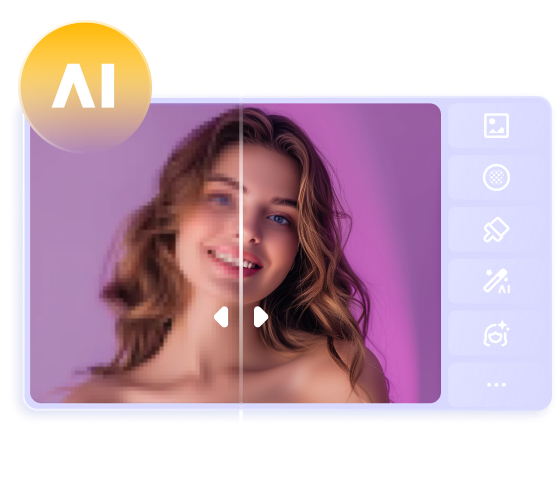
- Real-time preview before export, so you can compare the original and enhanced versions of ChatGPT images instantly.




Video Tutorial to Enhance ChatGPT Image with FotorPea:
How to Enhance the Images Generated by ChatGPT Image 1.5 through HitPaw FotorPea?
In HitPaw FotorPea, you've got the best photo quality enhancer to upscale the quality of the images, and all the AI models offered by the HitPaw FotorPea are simple to use and apply. Here's the detailed guide to upscale the quality of the images through HitPaw FotorPea.
Step 1: March into the official timeline of the HitPaw FotorPea and then click on the Download button to get the software downloaded on the computer. In the next phase, you'll need to install the software on the PC and start the software afterwards.
Step 2:Click on the AI Enhancer button and hit the Choose Files button to import the image you wish to enhance the quality of. HitPaw FotorPea is also compatible with batch enhancing, meaning you've got the chance to ability to import multiple images simulataneosly.
Step 2: Navigate to the timeline of the HitPaw FotorPea and access the AI models, including the Face Model, Upscale Model, Denoise model, animation model, text model, low light model, colorize model, scratch repair, color calibration, and low light models.
If you want to customize the images into the preferred image format, HitPaw FotorPea also supports plenty of image formats, and while enhancing the orange quality, it doesn't affect the photo quality.
Step 3: Once you're done applying the favorite AI model to the images, you can click on the Preview button to see all the changes you've made. Doing so allows you to explore all the credentials of the images and if there is something that needs to be adjusted, you can then apply the AI model again to the images.
Part 2. How to Upscale ChatGPT Images with Altenative Choice
If you want to upscale the ChatGPT images, going for the Gigapixel is another way. With this tool, you can upscale the quality of the images to a great extent and while editing the images, it doesn't affect the quality of the images.
If you've got a subscription to the Gigapixel, you don't have to pay extra money as only going into the timeline of the Gigapixel and uploading the images there will be enough to access the watermark-free images on the computer. The method of using the Gigapixel isn't a difficult one provided if you've got the prior knowledge of using the Gigapixel. This tool only takes a few moments before processing and editing the credentials of the images.
How to upscale ChatGPT images via Gigapixel?
Step 1: Visit the timeline of the Gigapixel and then tap on the Download button to begin downloading the Gigapixel on the computer. After downloading the software, you'll need to install the Gigapixel and launch the software afterwards.
Step 2: In this phase, you'll need to import the photos into the timeline and then make some adjustments to the images. If you want to process multiple images simulataneosly, Gigapixel allows you to customize the multiple images simultaneously.
It implies that you can import multiple images at the same time and you can also customize the the credentials of these images at the same time. You can rely upon the AI model selector to enhance the quality of the images, and adjusting the scale of the images is also on the cards. The options appearing in the Gigapixel allow you to adjust the blur, noise, and compression of the images.
You can now turn the auto setting to make the Gigapixel handle the tasks for manually adjusting the images appropriately.
Step 3: After applying the necessary AI models, you'll need to preview the image credentials. Upon getting satisfied with the image credentials, you'll need to hit the Export button to download the images onto the computer. Reviewing the images before exporting them allows you to make some last-minute adjustments to the images and this tool also doesn't insert the watermark in the images.
Part 3. FAQs of How to Upscale ChatGPT Images
Q1. What is the resolution of the image in ChatGPT?
A1.
By default, ChatGPT-generated images contain 1024 x 1024 pixels. However, you can direct ChatGPT to generate specific sizes based on your needs:
• Wide Images: 1792 x 1024 pixels.
• Full Body Portraits: 1024 x 1792 pixels.
Q2. Can ChatGPT make an image sharper?
A2. No, ChatGPT does not have built-in post-processing tools to sharpen or upscale images after they are generated. To improve resolution and clarity, you must use external AI software such as HitPaw FotorPea, Photoshop, or free online alternatives like Waifu2x to achieve professional-grade sharpness.
In Conclusion
If you're looking to learn how to upscale ChatGPT images, this post has listed a detailed guide of upscaling the image courtesy of the Gigapixel. Although this tool offers an intuitive user interface to upscale the images, HitPaw FotorPea remains the best alternative to the Gigapixel. It offers a simple user interface and allows you to upscale the quality of multiple images simulataneosly.
HitPaw FotorPea doesn't bring in the watermark in the images, and you won't see the unwanted ads in the interface of the HitPaw FotorPea.
 HitPaw Edimakor
 HitPaw VikPea (Video Enhancer)
 HitPaw Univd (Video Converter)

Share this article:
Select the product rating:
Daniel Walker
Editor-in-Chief
This post was written by Editor Daniel Walker whose passion lies in bridging the gap between cutting-edge technology and everyday creativity. The content he created inspires the audience to embrace digital tools confidently.
View all ArticlesLeave a Comment
Create your review for HitPaw articles