




How to Improve Your LinkedIn Profile Photo Quality
 By Daniel Walker
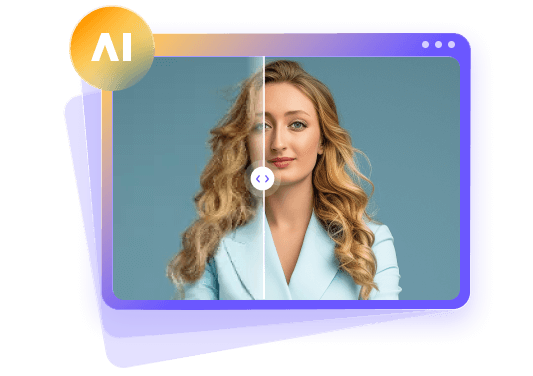
Your LinkedIn profile photo is the first thing employers, recruiters, and potential clients notice when they visit your profile. However, not everyone can afford an expensive photoshoot. Thankfully, you can make your LinkedIn portrait look sharp and professional with artificial intelligence. In this guide, you will learn how to improve portrait quality for LinkedIn with AI tools like HitPaw FotorPea and a few simple photography techniques to create a clearer, more polished headshot.
Answer Box: How to Improve Portrait Quality for LinkedIn
To improve portrait quality for LinkedIn, start with a clear photo, focus on optimal lighting, remove background distractions, and crop the image so your face is clearly visible. If your photo looks blurry, grainy, or low-resolution, an AI photo enhancer like HitPaw FotorPea can sharpen and upscale it. Keep the final result natural and professional, without excessive filters or facial alterations.

Part 1: What Makes a LinkedIn Profile Photo Look Unprofessional?
Sometimes, even a photo taken with a modern smartphone can appear unprofessional because of a few easily overlooked details. Here are the most common problems that reduce portrait quality for LinkedIn:
- Blurry or Low-Resolution Images: Poor focus can create a blurry photo that makes your face hard to recognize and gives your LinkedIn profile an unpolished look. Since LinkedIn displays profile photos in a small circle, unclear facial details can become more noticeable.
- Poor Lighting: Lighting makes a big difference in how your portrait looks. Photos taken in dark rooms often have heavy shadows that hide important facial features. Similarly, strong sunlight or bright light behind you can make facial features difficult to see.
- Unnatural Skin Texture: Minor retouching improves a photo, but overediting can make your LinkedIn headshot look artificial. Excessive skin smoothing removes natural details, while strong sharpening creates harsh edges around the eyes, nose, and hair.
- Poor Cropping and Composition: LinkedIn displays profile pictures in a circular frame. If your face is too small, too close, or poorly positioned in the frame, the portrait can look awkward or unbalanced.
- Distracting Backgrounds: Unnecessary background details can draw attention away from the person. For example, a messy room, crowded public place, or objects can make your photo look less professional.

Part 2: How to Improve LinkedIn Portrait Quality with AI
Don't have a professional headshot for LinkedIn? You don't necessarily need to pay for a new photoshoot. If you already have a decent portrait but it looks blurry, grainy, or poorly lit, AI photo enhancement can help improve its quality. One such AI enhancement solution is HitPaw FotorPea, HitPaw's AI photo enhancer and AI photo generator.
This desktop software uses artificial intelligence to improve image quality and restore details in low-resolution or blurry photos. With its AI enhancement models, you can sharpen facial details, reduce unwanted noise, and improve your existing portrait with a single click. You can also increase the resolution to 4K/8K and reframe as needed while keeping a natural look. It even offers an editing toolkit to remove and replace backgrounds with a solid color.


Step-by-Step Guide to Improve LinkedIn Portrait Quality with HitPaw FotorPea
Step 1: Import Your LinkedIn Portrait Photo
First of all, launch the software and tap "Enhance Photo Now." Then, drag & drop or click to upload the LinkedIn portrait photo.
Step 2: Choose an AI Enhancement Model
Next, choose your preferred AI enhancement model, such as AI Upscale, Face Restoration, Sharpen, Denoise, etc. You can also adjust the level for the chosen model.
Step 3: Preview and Export the Enhanced Photo
Lastly, press the "Preview" tab and let AI finish processing. Once done, check the results. If everything is fine, hit "Export," and that's all.
Part 3: Tips for Making Your LinkedIn Portrait Look Professional
Whether you're using AI enhancement or basic editing tools, the following tips can improve an existing portrait while maintaining a natural, professional appearance:
- Improve Facial Clarity: A good LinkedIn headshot should have clear facial features, especially around the eyes, eyebrows, and hair. If your photo looks slightly blurry, enhance sharpness and facial details without overediting, as it can create unnatural edges.
- Adjust Lighting and Skin Tones: Good lighting can make an ordinary portrait look more polished and professional. If your photo appears too dark, adjust the brightness and exposure while keeping the skin tones natural.
- Choose a Clean Background: Your LinkedIn profile photo should keep the focus on your face, not the surroundings. If your existing picture has a distracting background, remove unnecessary objects, apply a slight background blur, or replace it with a simple backdrop.
- Crop the Portrait Properly: Even a high-quality photo looks unprofessional if it isn't cropped correctly. Ideally, you need to position your face near the center for LinkedIn's circular profile-photo display.
- Keep Your Appearance Authentic: While AI tools can improve portrait quality for LinkedIn, too much editing can make your photo look unrealistic. Avoid excessive beauty filters, skin smoothing, or AI effects that significantly change your facial features.
Part 4: How to Take a Better LinkedIn Profile Photo
It's best to take a new professional portrait when your current photo isn't suitable for LinkedIn, whether you plan to edit it later or not. Here are a few practical tips to consider:
- Use Soft, Even Lighting: Natural lighting can make your portrait look clearer and more flattering. Try taking your photo near a window where soft light falls evenly on your face. Avoid harsh sunlight, dark shadows, and strong backlighting.
- Position the Camera at Eye Level: Keep the camera at eye level to capture a balanced, natural-looking portrait. Look directly into the lens, relax your shoulders, and maintain a friendly expression. Avoid taking pictures from extremely high or low angles.
- Dress for Your Industry: Choose clothing that matches your profession and workplace environment. Formal outfits work well for corporate roles, while smart casual clothing may suit creative industries. Avoid flashy patterns or accessories that distract from your face.
- Use a Simple Background: A clean background keeps attention on you. Choose a plain wall, a tidy office, or a neutral outdoor setting. Avoid crowded places and unnecessary objects that can make your photo look cluttered.
- Check Focus and Image Quality: Make sure your camera lens is clean, and your face is in focus. Hold the camera steady to prevent blurry images, and take several shots to find the best angle and expression for your LinkedIn profile.
Part 5: FAQs About Improving LinkedIn Portrait Quality
To improve your LinkedIn profile photo, capture a high-resolution image, choose a clean background, adjust the lighting, and sharpen facial details. Also, the face should fill about 60% of the 1:1 frame and be uploaded in PNG format.
Your LinkedIn photo may look blurry due to low resolution, poor camera focus, excessive compression, or improper resizing. Uploading a high-quality image or using AI enhancement can improve its sharpness.
Yes, AI photo enhancers like HitPaw FotorPea can sharpen facial details, reduce noise, improve image resolution, and restore clarity. These improvements help create professional-looking LinkedIn portraits without extensive manual editing.
Choose a clear photo with balanced lighting, appropriate clothing, and a simple background. Center your face, crop properly, and avoid excessive filters to keep a natural, polished look.
Yes, you can improve your LinkedIn photo either by capturing a high-resolution image or using free editing tools to adjust brightness, sharpness, and cropping. However, the results may differ from paid AI enhancers.
Final Verdict
A professional LinkedIn profile photo is not always shot with an expensive camera. In many cases, improving lighting, removing background distractions, adjusting the frame, and enhancing facial clarity can make a huge difference.
If you already have a suitable portrait that looks slightly blurry, grainy, or low-resolution, HitPaw FotorPea is the ultimate solution. Its AI enhancement models improve portrait quality for LinkedIn without requiring advanced editing skills, delivering a clear, confident, professional look.
Leave a Comment
Create your review for HitPaw articles