






How to Fix Grainy Photos in 8 Practical Ways (Step-by-Step Guide)
 By Daniel Walker
Are your photos grainy after shooting in the dark or low light? Many users experience this issue when taking night photos, indoor pictures, or using older cameras and smartphones. that's why people are often searching for how to fix grainy photos.
With modern photo editing and AI tools, it is now easier than ever to learn how to fix grainy photos using practical methods across desktop, mobile, or online platforms. By the end of this guide, we will discover the best ways to clear up noisy and grainy photos step by step. You can reduce photo noise, recover important details, and make your images look clearer and sharper.

Quick Answer: How to Fix Grainy Photos Easily
How to Fix Grainy Photos Easily
Yes, grainy photos can often be improved by reducing image noise and restoring lost details. You can fix grainy images using AI photo enhancers, photo editing software, or mobile apps depending on your needs.
- First, upload your grainy photo.
- Then, apply AI denoise or noise reduction.
- Finally, click to improve sharpness and lighting if needed. And then save a clearer image.
If you want the fastest way to fix grainy photos without complicated editing, tools like HitPaw FotorPea's image denoiser can automatically remove noise and enhance image clarity in just a few clicks.
What Causes Grainy Photos
Grainy photos are the result of a camera sensor that cannot collect enough available light. In digital photography, this grainy effect is referred to as image noise.
High ISO is the primary culprit when it comes to image noise. In dark scenes, cameras increase ISO levels to avoid low lighting, resulting in increased noise levels when images are taken, which is a primary reason users search for how to fix grainy photos from high ISO.
Grainy images are also caused by poor lighting. When lighting is insufficient, the camera's sensor tries to compensate which results in intrusive noise or grain. Smartphone users experience this issue as well. Users often wonder why their mobile phone pictures are so noisy and how to fix grainy iPhone photos.
Other causes include:
- Underexposed photos
- Digital zoom
- Small smart phone sensors
- Heavy photo editing
- Old camera hardware
Knowing the reason is key to finding the appropriate solution when learning how to fix grainy photos.
How to Fix Grainy Photos on PC (Professional Editing)
Editing grainy images on a computer gives you better tools and greater control in terms of noise reduction and image clarity improvement. Some best tools available for editing grainy photos on a computer are listed below.
1. How to Fix Grainy Photos with AI Instantly
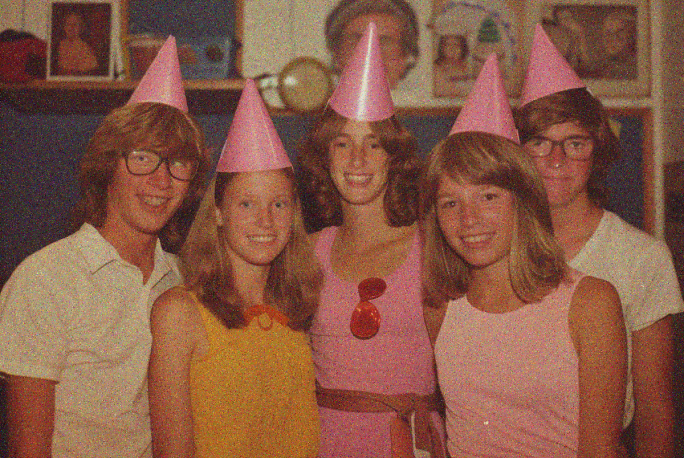
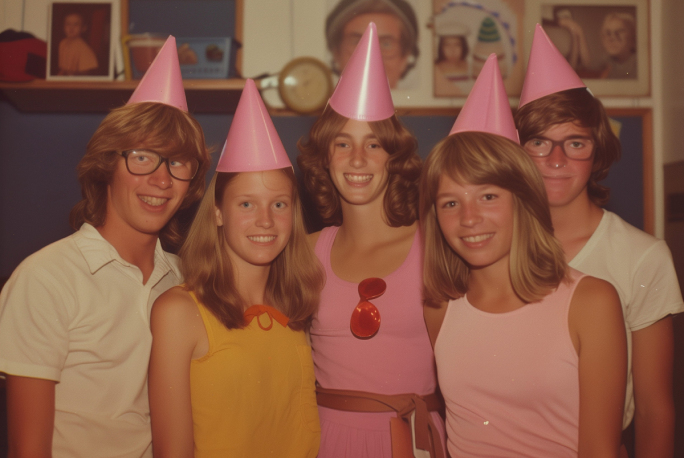
For users searching for how to fix grainy photos quickly, HitPaw FotorPea offers a simple AI-powered solution that removes noise automatically while keeping images natural and detailed. Unlike traditional editing tools, it requires no manual adjustments, making it ideal for beginners who want fast and clean results.
It also supports batch processing and high-resolution output, allowing users to enhance multiple images at once while maintaining consistent quality across all photos.
Key Features of HitPaw FotorPea
- AI denoise model removes image noise automatically
- AI photo enhancer improves sharpness and clarity
- Batch processing allows editing multiple images at once
- Upscale resolution up to 8K quality output
- User-friendly interface suitable for beginners
Steps to Fix Grainy Photos with HitPaw FotorPea
Step 1.Download and install HitPaw FotorPea on your computer.




Step 2.Open software and click on Enhance Now.
Step 3.Now, upload the grainy photo and select the Denoise model from the Enhancements section, and press Preview to view the changes.
Step 4.If you are satisfied with the output, export the final clean image by clicking Download Image.
 Pro Tip:
2. How to Fix Dark and Grainy Photos in Lightroom
One of the most common tools used by photographers for dark, grainy, and noisy image correction is Adobe Lightroom. Lightroom contains some of the most powerful tools for image noise correction; that's why so many users search for how to fix grainy photos in Lightroom.
Key Features
- Noise reduction controls for luminance and color noise
- RAW editing support
- Professional color correction tools
- Non-destructive editing
Steps to Fix Grainy Photos with Lightroom
Step 1.Download and install Adobe Lightroom on your computer.
Step 2.Click on Add Photos and drag and drop the grainy image you want to fix.
Step 3.From the right-side toolbar, click on Edit and scroll down to find Noise Reduction option.
Step 4.Toggle the Noise Reduction pointer to 100 to completely remove the noise.
Pro Tip:
3. How to Fix a Grainy Photo in Photoshop
Photoshop has more advanced options, as it is designed to reduce noise and improve the quality of images. People who search for how to fix grainy photos in Photoshop generally use its Lighten feature to denoise the image.
Key Features
- Camera Raw noise reduction
- Layer-based editing
- Smart filters
- Advanced masking tools
- Retouch option for advance editing and improve the quality
Steps to Fix Grainy Photos in Photoshop
Step 1.Download and install Adobe Photoshop on your computer.
Step 2.Click on Upload and select the grainy image from your computer you want to fix.
Step 3.From the left toolbar, click on Select, then click on Marquee and then select the area of the image you want to denoise.
Step 4.Now click on Quick Actions and choose the Lighten option to denoise the image completely.
Pro Tip:
How to Fix Grainy Photos Online
If the goal is quickly correcting a grainy image and you do not want to download any software, online image editors provide great benefit. Online tools typically implement AI to analyze images and apply several noise reduction techniques. For this reason, many users are looking to learn how to fix grainy photos online.
1. Canva
Canva is primarily a design platform. However, it has grown to be a photo editing platform that lets you do a range of photo editing, which includes denoising and sharpening your grainy photos. These tools are all available online in a simple browser-based editor.
Key Features
- AI image enhancement improves clarity
- Sharpen and texture adjustments help reduce visible grain
- Simple browser editor suitable for beginners
- Quick download options
Steps To Fix with Canva
Step 1.Goto the official website of Canva and Signup to edit the photos online.
Step 2.Now, click on Create button, then select Photo Editor and upload the grainy image you want to denoise.
Step 3.After uploading an image, click on Adjust to adjust the clarity and denoise the image.
Pro Tip:
2. Fotor
Fotor provides online photo editing features that have the ability to reduce noise and enhance images with the help of AI. Fotor detects the noise automatically in the photo and enhances the image to reduce the effects of the noise.
Key Features
- AI denoise tool reduces grain and noise
- One-click image enhancement improves photo quality
- Online editor accessible from any browser
- Quick processing for fast results
Steps To Fix with Fotor
Step 1.Goto the official website of Fotor and click on Edit Photo for Free.
Step 2.Upload the grainy image you want to denoise.
Step 3.Click on AI Tools and choose Tap Enhancement to completely denoise the image.
Pro Tip:
How to Fix Grainy Photos on Mobile
Mobile apps make it simple to reduce noise and improve image clarity on the phone. Below are authentic ways to learn how to fix grainy photos on iPhone and Android.
How to Fix Grainy Photos on iPhone/Android
Take Snapseed as an example, it is one of the best Android apps that can help users searching for how to fix grainy photos. With its "Tune Up" feature, it can help users to denoise the grainy photos.
Key Features
- 29 professional editing tools
- RAW image support
- Selective editing tools
- Detail and structure adjustments
How To Steps
- 1.Download Snapseed from the playstore.
- 2.Open Snapseed and import the grainy image.
- 3.Use Tune Image to adjust brightness and contrast.
- 4.Use the Details tool carefully.
- 5.Export the edited image.
Pro Tip:
Comparison Table on Different Ways to Fix Grainy Photos
When learning how to fix grainy photos, choosing the right tool can make a big difference in both quality and efficiency. Below is a quick comparison of the most popular tools, helping you understand which option best fits your editing needs.
| Tool | Function | Ease of Use | Time Needed | Image Quality | Best For | Limit |
|---|---|---|---|---|---|---|
| HitPaw FotorPea | AI denoise & automatic enhancement | Very easy | Very fast | Balanced & natural | Quick grainy photo fixes | Limited manual control |
| Photoshop | Advanced noise reduction & manual editing | Hard | Slow | High (if used correctly) | Professional photo editing | Steep learning curve |
| Lightroom | Noise reduction & color correction | Medium | Medium | High & natural | Photographers & RAW editing | Requires experience |
| Canva | Basic enhancement & filters | Very easy | Fast | Soft & aesthetic | Social media images | Loses fine details |
| Fotor | AI sharpening & enhancement | Easy | Fast | Sharp but sometimes over-processed | Quick clarity improvement | Can look unnatural |
| Snapseed | Mobile noise reduction & tuning tools | Easy | Fast | Good for quick fixes | Android mobile editing | Limited precision control |
How to Prevent Grainy Photos While Shooting
Fixing images after they have been taken is less effective and more time-consuming. It will be easier if you establish better shooting practices, as the quality of the images will be noticeably improved.
Adjust ISO Properly
Low ISO settings mean less noise and high settings mean a lot of grain. If there is not a lot of light in the area, try to increase it rather than to increase ISO, as this may result in a higher grain photo.
Use Better Lighting
Lighting also directly improves image quality. The more you illuminate the image, the easier it will be for your camera to differentiate details and capture all of the nuances. Windows, studio lights, and flash can also be used to significantly reduce noise.
Avoid Digital Zoom
When using digital zoom, instead of taking new details, the camera enlarges pixels, resulting in soft and grainy photos. It is always better to move closer to the subject, or use optical zoom.
Shoot in RAW
RAW image files contain more data than like JPEG files. This means in editing, things like noise can be removed more easily. This is why professional photographers shoot in RAW.
Use Night Mode (iPhone / Android)
Advanced night photography features are built into modern Smartphone. Night mode has exposure, capture, and combine features that give images less noise and keep them clearer. Considering this feature is especially important when learning how to fix grainy photos on Android or night images on iPhones.
FAQs
The grain may appear at low ISO, if the lighting condition is poor or the photo is underexposed. If you edit the photo and increase the brightness, that can also reveal noise.
To make the photo less grainy on iPhone 16, use night mode, avoid using digital zoom, try to take photos in brighter environments, and use noise reduction app like noise reducer pro.
Web-based applications such as HitPaw Photo Online and mobile applications such as Snapseed can be used to reduce the noise of an image and increase the image clarity.
Conclusion
There are a variety of reasons that cause a low-quality image. Photos that are grainy can be fixed. Understand what causes the images to be grainy and use the appropriate methods to effectively edit images. Although editing tools like Photoshop and Lightroom provide more advanced editing compared to apps on your Smartphone or other online resources, there are also tools that are powered by AI, like HitPaw FotorPea that offer even more simplicity by enhancing the photos and removing noise. AI tools can enhance your photos to reduce the noise and are probably the most useful tools if you need to fix grainy photos fast!
Leave a Comment
Create your review for HitPaw articles



