






360p to 1080p Video Converter: 5 Best Ways to Upscale Videos
 By Daniel Walker
If you have an old, downloaded, or compressed video in 360p, you may want to convert it to 1080p for better playback on modern TVs, monitors, and mobile devices. In this guide, we will compare traditional video converters with AI-powered upscaling tools and show you how to convert 360p videos to 1080p using desktop software, online tools, and free converters.

Part 1. Traditional vs. AI Video Conversion
To choose the right tool, it helps to understand what happens during the conversion process. A standard 360p video has a resolution of 640x360 pixels, totaling around 230,000 pixels per frame. On the other hand, a 1080p Full HD video features a resolution of 1920x1080 pixels, which equals over 2 million pixels. Moving from 360p to 1080p means your video needs to fill roughly nine times more pixel space.
How a software fills that massive gap makes all the difference:
- Traditional Video Converters: These tools upscale video by stretching the existing pixels to fit the larger 1080p canvas. They do not create any new details. As a result, the output often looks pixelated, blurry, and unnaturally stretched.
- AI Video Upscalers: Instead of stretching pixels, AI-powered tools use deep learning algorithms to analyze the footage frame by frame. The AI predicts what the missing pixels should look like, actively generating new details, sharpening edges, and removing digital noise to deliver true visual clarity.
Part 2. AI-Powered 360p to 1080p Converters (Best Quality)
If your goal is to genuinely improve video quality and add missing sharpness, AI enhancement software is your best choice. Here are the top tools available today.
1. HitPaw VikPea (Best Premium Desktop)
HitPaw VikPea is an industry-leading desktop software designed specifically for upscaling SD videos to Full HD, 4K, or even 8K. Powered by trained AI models, it excels at restoring old, blurry, and grainy footage.
Key Features:
- AI Upscaling: Upscale low-resolution videos to 1080p or 4K while enhancing clarity and details.
- Specialized AI Models: Features a General Restoration Model, PortraitModel (for restoring facial details), Animation Model, and Colorize Model (to bring black-and-white videos to life).
- Batch Processing: Enhance multiple videos at once to save time and effort.
- Split-Screen Comparison: Compare the original and enhanced footage side by side before exporting.




 Pros:
Pros:
- Better visual quality than simple resolution resizing
- AI models for different types of footage
- Suitable for blurry, noisy, and compressed videos
- Supports desktop-based processing
- Useful for both personal videos and content creation
 Cons:
Cons:
- Desktop-only software that requires installation.
How to Upscale 360p to 1080p with HitPaw VikPea:
Step 1. Import Video:Open HitPaw VikPea on your PC or Mac. Drag and drop your 360p video file into the Video Enhancer module.
Step 2. Choose AI Model:Select the AI model that matches your video type (like the Portrait Model for portraits or Denoise Model for scenery).
Step 3. Set Resolution:In the Export settings, choose 1080p or 4Kas your output resolution.
Step 4. Preview and Export:Click Preview to check a few frames of the enhanced footage, then click Export to save your new HD video.
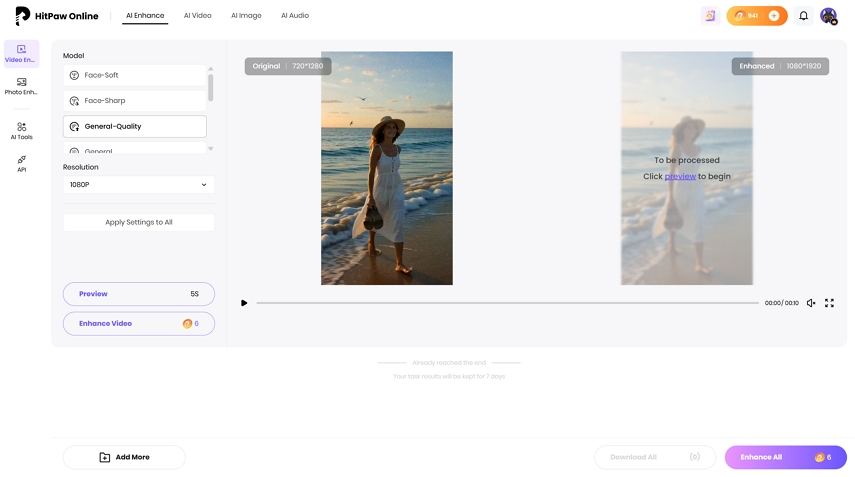
2. HitPaw Online Video Enhancer (Cloud-Based)
If you only have one or two quick clips to upgrade and do not want to install heavy software, HitPaw Online Video Enhancer is an excellent web-based alternative.
This browser-based tool allows you to upload your files directly to HitPaw's cloud servers, where advanced AI algorithms process and upscale your video to 1080p without putting a strain on your own computer's processor.
Pros
- Free trial options available.
- Completely web-based with no software installation required.
- Extremely simple drag-and-drop workflow.
- Processes video in the cloud without consuming local hardware resources.
Cons
- Upload and download speeds are highly dependent on your internet connection.
- Strict file size and video length limits apply to free users.
How to Enhance 360p Video to 1080p Online
- Navigate to the Site: Open the HitPaw Online Video Enhancer page in your web browser.
Upload: Click the upload button and select your 360p video.
Select AI Model & Resolution: Pick your desired AI model and set the output resolution target to 1080p.
Preview& Download: Start the enhancement process, preview the results online, and download your upscaled video.
Part 3. Traditional & Free Video Converters
If your video is already clean and you just want to change the file container, frame rate, or bit rate to match HD standards, use these:
1. HitPaw Univd(Desktop)
HitPaw Univd is a desktop tool built for ultra-fast, traditional conversion. It supports converting files across over 1,000 formats while giving you complete control over resolution, frame rate, and bitrate. Unlike AI tools, HitPaw Univd uses your system's hardware acceleration to rapidly change video formats, adjust video settings, and trim files. It is perfect if you need to convert a 360p file to a 1080p container quickly to make it compatible with a specific player.
Pros
- Extremely fast conversion speeds due to hardware acceleration.
- Supports batch conversion of dozens of files at once.
- Includes handy built-in tools like a video editor, compressor, and GIF maker.
Cons
- Uses traditional upscaling (stretches pixels rather than adding new visual clarity).
How to Convert 360p Video to 1080P with HitPaw Univd:
Step 1. Add Files:Import your video(s) into HitPaw Univd's Converter menu.
Step 2. Set Profile:Click the Convert all to button to open the format list. Choose your desired format (e.g., MP4).
Step 3. Adjust Parameters:Click the edit icon on the target format, you'll enter the format parameters. Select High Quality option, and select 1080p as the target resolution.
Step 4. Convert:Save your settings and back to the main workspace. Click Convert All to start the video conversion process.
2. HandBrake - Best Free Desktop Converter
HandBrake is a popular open-source video transcoder that allows users to convert videos and customize various encoding settings.
It can be used to resize a 360p video to 1080p and export it in a different format. Because it offers detailed control over video encoding, it is popular among users who want to manage technical settings manually.
However, as with other traditional converters, increasing the resolution does not automatically improve the original visual details.
Pros
- 100% free and open-source.
- Provides detailed encoding controls.
- Cross-platform support (Windows, Mac, and Linux).
Cons
- Steep learning curve with a highly technical and complex interface.
- Does not offer AI detail reconstruction.
How to Convert 360p to 1080p Free with HandBrake
- Load Source: Open HandBrake and import your 360p video.
- Select Preset: Choose a fast 1080p preset (like Fast 1080p30).
- Dimensions Tab: Ensure the display width and height are set to .
- Start Encode: Choose your output directory and click Start Encode at the top.
3. FreeConvert - Best for Simple Online Conversion
FreeConvert is an online conversion tool that can be used for a variety of media conversion tasks. It is suitable for users who want to quickly process a video without installing desktop software.
Depending on the available options, users can upload a video, configure the output settings, and export the result online.
Pros
- No software installation or account sign-up required.
- Supports a very wide range of video formats.
- Clean, modern, and simple interface.
Cons
- File sizes and conversion times are heavily restricted for free accounts.
- Large files may take longer to process.
- Simple conversion does not improve the original image details.
How to Convert 360p to 1080p Online:
- Choose Files: Upload your video from your computer, Google Drive, or Dropbox.
- Advanced Settings: Click the gear icon next to "Output" and set the Video Screen Size to 1080p.
- Convert: Click the blue Convert button, wait for processing, and download your file.
Part 4. How to Get Better Results When Upscaling 360p to 1080p
Upscaling low-resolution video is tricky. To get the cleanest possible output, keep these practical tips in mind:
- Avoid Over-Sharpening: When using AI enhancers, turning up the sharpening slider too high can cause a harsh, digital "halo" effect around edges. Stick to default or moderate AI settings first.
- Keep the Original Aspect Ratio: 360p videos are usually wide (). However, if your old video is in a boxy format (like older home movies), do not stretch it to a wide 1080p format. Keep it in a 1080p container (which will be with black bars on the sides) to prevent distortion.
- Stabilize Before Upscaling: If your original 360p footage is shaky, the AI may struggle to track details across frames. Use a basic video stabilization tool before running the file through an AI upscaler.
- Match the Frame Rate: Try to keep the output frame rate (FPS) the same as the source video to avoid choppy playback or audio sync issues.
Part 5. 360p to 1080p Video Converter FAQs
Only if you use AI upscaling. Traditional converters simply stretch the existing pixels to fit a 1080p screen, which often makes the video look blurrier. AI-powered converters actually analyze the frames to predict and draw in missing details, resulting in a cleaner, sharper image.
It depends on your goal. Use a traditional converter if you need to change the format, resolution, bitrate, or frame rate. Use an AI video enhancer if your main goal is to make a blurry or low-resolution video look clearer.
For most 360p videos, 1080p is a more practical target. Upscaling all the way to 4K does not necessarily create more realistic details when the source video is extremely low resolution.
Conclusion
Upgrading your old videos from 360p to 1080p is easier than ever. If you want the absolute best quality where faces and textures look genuinely sharp, go with an AI-powered desktop tool like HitPaw VikPea or its convenient online counterpart. If you simply need to change file formats or prep compatibility for free, open-source options like HandBrake or quick online tools like FreeConvert will do the job beautifully.
Leave a Comment
Create your review for HitPaw articles


