




Blurry Profile Picture? 5 Easy Ways to Fix It
 By Daniel Walker
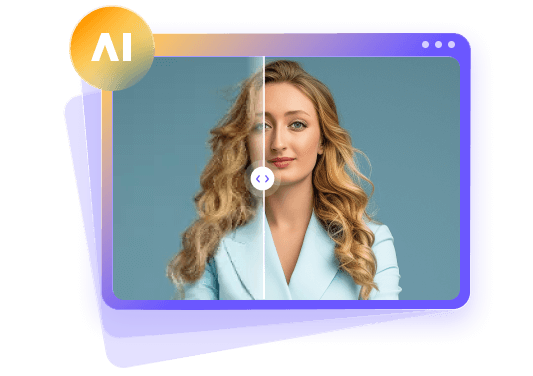
People see your profile picture first when they visit your social media, job, or messaging platform accounts, and a blurry photo gives a poor first impression. It isn't always necessary to replace a picture that has some blur after cropping or that loses definition after uploading. This guide covers ways to enhance facial details, reduce blur and noise and shows how to sharpen and increase the resolution of your blurry profile picture. You will also learn what causes your picture to become blurry, what tools you can use for different situations, and how to make a clearer and sharper picture that you can use for your different online profiles.
Answer Box: How to Fix a Blurry Profile Picture in 5 Simple Steps
To repair a blurry profile picture, you must follow these five steps. First, locate your original full resolution photo. Second, add a face enhancement filter or use a deblur filter to restore face details. Third, remove any image noise. Fourth, adjust the crop to the desired dimensions and resize. Fifth, save the photo in the highest quality and add it to your profile. Try HitPaw FotorPea for an all-in-one solution to facial enhancement, blur correction, noise reduction and upscaling.



Part 1: Why Is Your Profile Picture Blurry? 5 Common Causes
There are a number of reasons why a profile picture may be blurry. Identifying the cause can help select the most useful method of correction.
1. Camera or Subject Movement
Because of movement during capture, facial details can be smeared, even if the background appears clear. For mild blur, try motion deblur. Otherwise, try capturing at a faster shutter speed, if possible.
2. Incorrect Focus
Your camera could have focused on the background instead of your eyes. For a slight lack of focus, try a gentle face enhancement. For better results, try tapping your face before capturing the photo.
3. Low Image Resolution
Because of low resolution, thumbnail images appear pixelated when enlarged. First try to find the original image. If you can't find the original, try upscaling, then check the facial details, and save your changes.
4. Excessive Cropping
Cropping your face from a distant group photograph eliminates a lot of the resolution. Use a closer portrait, or loosen the crop so you don't lose as many original pixels from your photograph.
5. Compression During Saving or Uploading
Soft details can be lost when your picture is saved or uploaded multiple times. If you need to upload a picture for a profile, use the best quality picture and make sure it's the recommended size before uploading, to avoid compression.

Part 2: HitPaw FotorPea - Turn a Blurry Profile Picture into a Clearer Portrait
Best For: Improving soft facial details, image noise, and low-resolution portraits.
Common Uses: Preparing clearer headshots for professional accounts, social profiles, and personal websites.
Platforms: Windows and Mac.
HitPaw FotorPea helps improve a blurry profile picture by sharpening soft facial details, reducing noise, and increasing resolution. Its user-friendly interface and automated AI processing suit both beginners and professionals who want clearer portraits without complicated editing. The software combines several enhancement tools in one workflow, making it useful for professional headshots, social media avatars, and personal profile photos that need better clarity.
Key Features
- Face Restoration Model improves soft facial details in portraits.
- Sharpen Model addresses motion, lens blur, and compression artifacts.
- Denoise Model reduces distracting grain in noisy profile photographs.
- AI Upscale Model increases pixel dimensions for larger portraits.
- Maximum Deblur targets camera, motion, and compression-related image blur.
- General Natural enhances small images while supporting natural textures.
- Low Light Enhancement improves visibility in dimly lit portraits.
- Batch processing lets you enhance several portrait options together.
- Preview comparisons help you review changes before final export.
- 4K/8K upscaling creates larger portrait files when additional resolution helps.
 Pros
- Simple interface makes portrait editing easier.
- Automated processing reduces manual editing work.
- Different models address specific image problems.
- Previews help you inspect facial changes.
- Batch processing handles multiple portrait options.
 Cons
- Requires installation on a compatible computer.
How to Fix a Blurry Profile Picture with HitPaw FotorPea
Step 1:Download HitPaw FotorPea for Windows or Mac, then follow the instructions to complete installation.
Step 2:Launch the program and click Enhance Photos Now on the main screen to begin editing.
Step 3:Upload your original profile picture, then select a suitable AI model for custom editing or switch to Auto Mode and select Maximum Deblur under to make your profile picture crystal clear.
Step 4:Click Preview to compare facial details, clarity, and colors, then click Export to save a separate copy if satisfied.
 Tip:
Part 3: Aragon AI - Fix Blurry Profile Picture into a Professional Headshot
Best For: Improving an existing portrait for a professional profile.
Common Uses: Preparing headshots for business accounts, portfolios, and team pages.
Platforms: Web browsers.
Aragon offers a variety of tools to enhance pictures in web browsers. For general picture quality they have a tool called Photo Enhancer and for blur they have Unblur Image. Improving a picture can make it look more polished and professional; however, lighting and clothes can't be changed digitally to make it look more studio-like.
How to Use Aragon AI
Step 1:Open Photo Enhancer and sign in when prompted.
Step 2:Click AI Tools and select Unblur Image from the drop-down menu.
Step 3:Upload your photo, select AI Auto Unblur, and click Edit Photo to begin processing.
Step 4:Once processing is complete, review the enhanced image, check the details, and download it.
Tip:
Part 4: Picsart - Make a Blurry Profile Picture Clearer in One Click
Best For: Quick portrait enhancement followed by cropping and resizing.
Common Uses: Updating social avatars, personal profiles, and casual headshots.
Platforms: Web browsers, iOS, and Android.
Picsart's AI Enhance tool has several features including sharpness and clarity adjustments. If you have a photograph with low resolution, blur, and pixelation, you can use it to enhance the image. The tool can also be used for other edits on the photo, for example if your profile pic also needs a crop, you can do that after you have enhanced it.
How to Use Picsart
Step 1:Open the official Picsart website and click Image. From the drop-down menu, select Edit & Enhance, then choose Image Enhancer.
Step 2:Upload the profile picture you want to enhance and click Edit Image.
Step 3:Click AI Enhance and wait for the tool to process your photo and display the enhanced image.
Tip:
Part 5: BeFunky - Retouch Your Profile Picture for a Cleaner, Sharper Look
Best For: Combining gentle sharpening with controlled portrait retouching.
Common Uses: Refining headshots, correcting exposure, and reducing small distractions.
Platforms: Web browsers and android.
BeFunky offers different ways to sharpen your photos, including a section titled Touch Up. Basic Sharpen is free, while other tools require a subscription. Use Basic Sharpen to improve edge definition. The AI Portrait Enhancer is also useful to adjust exposure and skin tones. Combine these tools for a photo that's a bit soft and needs a bit of retouching.
How to Use BeFunky
Step 1:Open BeFunky Photo Enhancer and upload the profile picture you want to enhance.
Step 2:Click on Touch Up, then select Portrait Enhancer.
Step 3:Adjust the portrait enhancement level using the slider, then click Save to download the photo.
Tip:
Part 6: 5 Simple Tips to Keep Your Profile Picture Sharp After Uploading
When you upload a photo, there is often a reduction in clarity due to resizing and cropping. To reduce the loss of detail on your profile picture, make sure to follow these five simple tips to keep your profile picture sharp after uploading.
- Check the Platform's Requirements: Find what the current recommended export dimensions are. Be aware that different platforms may require different exports, so you can't assume one export fits all.
- Prepare the Crop Yourself: Keep your head centered with some blank space surrounding it, make sure the head is completely in the frame and that the shoulders are not in it.
- Export a Fresh Copy: Save a high-quality JPEG or supported PNG of your edit and post. Repeatedly opening and resaving compressed files can ruin the quality of your file.
- Upload the File Directly: Once you've finished editing, don't send a screenshot. Export the original copy from your program and upload that.
- Check the Published Version: Check to see if the uploaded image has the same quality as your saved copy. If it doesn't, check the cropping and resizing the image was put through before doing any further edits.
FAQs
Use the original in HitPaw FotorPea, choose a suitable enhancement model, and preview the result. Export a high-quality copy while keeping the original unchanged.
Social media applications can compress the picture and modify the picture size. A smaller original picture can also blur the facial features.
You can try Aragon's free credits, the free enhancement tool in Picsart, or the free Sharpen Tool in BeFunky. Check your access and export limits first.
Yes, the Picsart App offers an AI Enhance tool on both Android and iOS. You may have to check the limits on the free credits available to access the tool to sharpen and improve your portrait before you export.
AI can enlarge the picture and make it look sharper, but sometimes it can't restore a very low-resolution profile picture. For a better result you can try taking a new picture or using the original picture if it is of better quality.
Conclusion
To improve a blurry profile picture, selecting the right tool to get the job done is the first step. Aragon is good for quick, online touch-ups, Picsart is good for editing on-the-go, and BeFunky is good for combining sharpening and retouching in a portrait. If you are on a desktop computer, you should try HitPaw FotorPea to unblur, enlarge and sharpen a portrait, reduce noise, and enhance all in one workflow. The best approach is to use your most original photo, keep your edits as natural as possible, and abide by the upload standards of a social platform to have the best chance at having your portrait come out clear.
Leave a Comment
Create your review for HitPaw articles