




How to Enhance a Hotel Lobby AI Video for Better Quality
 By Daniel Walker
If you're looking for Hotel Lobby AI videos, you can expect them to be worse than you had imagined. You create the clip, download it and the faces turn into smears, the orange wall has all kinds of speckles and the microphone in the middle has soft, wobbly edges. There's a lot of people who post them anyway. You don't have to. While it's wise not to expect it for poor lip-sync or out-of-control fingers and arm movements, the finished video will clearly be an improvement if you run it through the AI before publishing.
If you are looking to improve hotel lobby ai video files, this article will take you through the entire process of how to enhance hotel lobby ai video. It begins with HitPaw VikPea, continues to a couple of easier fixes and concludes with where the trend began.


Answer Box: How to Enhance a Hotel Lobby AI Video
1. Generate at the Highest Resolution: Use the video generator to create the Hotel Lobby clip at the highest resolution available.
2. Import Your Video: Open the generated clip in an AI video enhancer like HitPaw VikPea.
3. Choose the Right AI Model:
- Upscaling: Improve resolution and recover visual details in low-resolution footage.
- Sharpening: Enhance edges and details in blurry footage.
- Denoising: Reduce grain and unwanted noise in the video.
4. Inspect Key Details: Preview the results and zoom in on facial features, clothing textures, and moving objects to check clarity and detail.
5. Export Your Video: Choose a resolution suitable for the platform where you plan to upload the clip.
6. Compare with the Original: Review the enhanced video alongside the original footage.
Noted: Enhancement can improve visual quality, but the original recording remains the reference for evaluating detail accuracy.

Part 1. How to Enhance a Hotel Lobby AI Video With HitPaw VikPea

A large majority of Hotel Lobby clips have the same vulnerabilities. Not very clear, no sharp images. That big orange wall has grain over some of the flat sections of the frame, as well. A fine hotel lobby AI video enhancer addresses these issues straight away, and HitPaw VikPea AI Video Enhancer has exclusive tools for every.
Upscale Hotel Lobby AI Videos to 4K
There are many small export generators. It works in a phone preview, but fails to look good on anything else. As the model is applied, VikPea's AI algorithms upscale the clip and enhance the edges and textures, making the clothing's weave, hair strands and outline of the face look sharper.
But a 4K resolution on the export does not imply that it contains all the details! The computer program is making a best estimate of what the computer thinks the missing pixel should be. Upscaling is a great way to make a good clip look great. It's not a magic pill that can make a bad one good.
Sharpen Blurry Faces and Fine Details
The most common gripe about these videos is soft focus. VikPea also features a Professional Sharpen Model that adjusts its strength, for slightly blurry or out-of-focus footage. The change will first appear on the faces, then on the edges of the jackets, chains and the hanging microphone located in the center of each shot in a Hotel Lobby scene.
The strength slider is more important than you would think. Outline turns brittle and crunchy, and is maximum when made.It turns crunchy and brittle at the outline when made, and is maximum. Begin low, use the preview and adjust the level up by one step at a time until the face is clear, but not etched.
Reduce Noise and Improve Visual Cleanliness
Some clips are grainy with specks of shimmering or blocky patches. It occurs frequently after downloading a video from a social app then saving it to the device. The Professional Denoise Model is designed for just such circumstances. This effect will be most visible on the background of orange colour as all the specks will be very visible in a flat colour background. When the noise finally subsides, so do the people in the frame as well, since there no longer is a picture buzzing around them.
How to Enhance a Hotel Lobby AI Video in HitPaw VikPea
Step 1: Install and Download
Go to the official website and download HitPaw VikPea. After it is installed, start the application and log in when it is necessary.
Step 2: Get Your Footage into Video Enhancer
Click on the left panel to open the Video Enhancer module. Press the icon to import your video file into the interface.
Step 3: Use the Appropriate AI Model
Along with a general model that applies enhancement overall, there are multiple specialized models that can be applied to the video as per particular enhancement needs.
You can apply other models like UHD Restoration Model that will further improve video quality of a high resolution 720p video, enhancing visibility and restoring sharpening.
Choose your preview length (3 or 5 sec). In case you need to improve only a few elements of the video, use the Cut tool. Fix the output resolution and format.
Tips: In case you are not sure what model to use, use AI Pilot. It will automatically examine your video and advise the most suitable enhancement.
Step 4: Preview and Save
After making all necessary adjustments, click on Preview to compare the before-and-after results of your video. This lets you clearly see the difference between the original and the enhanced version before finalizing.
Step 5: Export or Cloud Export
Once satisfied with the preview, select Export or Cloud Export to save your video. Enjoy enhanced videos with stunning clarity.
Part 2. 3 Other Ways to Improve Hotel Lobby AI Video Quality
But there are other options for an enhancer. Some basic precautions are taken before you launch additional software.
Use the AI Generator's Highest-Quality Export
Do the best job you can with the best file you can find. You're polishing lost data, if you improve a compressed preview (or a screen recording of the clip playing on your phone). Save a resolution or quality setting in the generator and choose the highest in order to generate or export. A cleaner source provides an additional tool to an enhancer.
Use a Traditional Video Editor
Brightness, contrast, saturation and simple sharpness are dealt with by a regular video editor. That's helpful if a clip is too boring or dull. However, it does have its limits. Generally, editing tools only edit the content of the frame. They don't restore any missing textures, nor do they put on frames, therefore they are more suitable for a finishing step than as a cure for a blurry source.
Choose the Right Export Settings for Social Media
Do not resize, as it will lose its aspect ratio. Don't keep re-exporting the file, as each is a little loss in quality. Match the resolution and frame rate for the platform that you are posting on. Social apps do squash anything that is uploaded, so if it's a clean file uploaded in, it's a decent file that comes out.
Part 3. Tips for Getting Better Video Enhancement Results
Enhancement tools are easy to use, but there are some choices that will help you go from a nice cut to an overcooked one.
Choose the Right AI Model for the Problem
Low resolution and mild blur and noise are distinct issues and their solutions vary. The noise in a grainy clip must be removed, since sharpening only accentuates the noise. A soft cut requires sharpening. There's no point in upscaling the tiny, pixelated one, unless you're going to do that first. Never set all the settings to 100% on all videos. The tool which you select should correspond to the flaw and the outcome will be far more natural.
Check Faces, Hands, and Motion After Enhancement
Enhancement clarifies details, which includes errors. After processing, play the clip at normal speed and then play it back again, pausing on the weak points: Faces, fingers, the line where the clothes meet the skin, the cable of the microphone. All those are difficult for generative models. If an artifact is on the verge of being found and then it suddenly pops out of the ground, then making it "pop" more won't help. Rather, regenerate the clip.
Avoid Over-Enhancing the Orange Background
The signature of the whole format is that saturated orange wall, which is a piece that can be easily ruined. Excessive sharpening or contrast produces hard edges, color banding or a grated appearance, which is nothing like the original set. Go with something that's smooth and clean, but still recognizable to the scene. When the backdrop starts to look like a fake backdrop, back away from the settings.
Part 4. What Is the Higgsfield Hotel Lobby AI Trend?
There are quite a few people who stumble on this page due to the fact they view the trend and wish to create their own. Some back-up are available, and higgsfield hotel lobby is the term many are looking for.
What Is a Hotel Lobby AI Video?
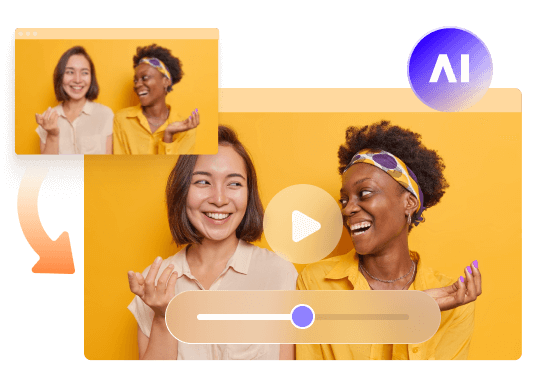
he original scene is quite easy to notice: two actors, a bright orange background and one microphone between the two actors. For the AI versions, the original artists are replaced. Friends come in pairs, fictional characters come in pairs, pets come in pairs, and people come in pairs; all sharing the same mic in the same orange room.
Why Did the Hotel Lobby AI Trend Go Viral?
It was propelled by three factors. There are two: recognition is the first. The set is so unique that it is the orange set and one mic that viewers are able to understand the reference in a second and no caption is needed.
The second is the level of personalization that's easy. You can be any couple, a celebrity couple, two cartoon characters or your dog and your cat. All versions sound like a punch line.
The third is access. Image-based generation tools enable people to recreate the setup without having to book a studio or shoot something. Upload an image or two, write a description and let the tool create the clip.
That also accounts for the fact that a lot of the videos are not very polished. The result of a fast generation and high social compression is soft and noisy clips. When you have created your Hotel Lobby clip you might want to do a final pass after you've created it, before sharing it.
FAQs About Hotel Lobby AI Video Enhancement
Yes. You can use an AI video enhancing software to boost a low-resolution video to 4K resolution if it is compatible with the software. However, the resolution output does not necessarily mean that it will give you the native 4K level of detail. The software completes what it expects to find there, so a plain (non-compressed) source will often give significantly better results than a very compressed source.
Use the best possible copy of the clip available-this is the easiest repair there is. From there, depending on the amount of blurring, select sharpening or a restoration technique. Moderately soft blades can be sharpened to a moderate degree. If the blur is more pronounced, a more robust restoration model will be necessary for a new generation.
It can clear a face, but typically cannot correct a wrongly generated face. If the identity has gone astray, the features are warped or if something is clearly broken, it's better to regenerate the clip. Enhancing works best on videos that have a high level of quality, but are missing a few details.
It is based on the requirement of your clip. Others primarily wish for upscaling. Others wish to sharpen or denoise, some just want some basic color tweaks. If you are looking for AI video improvement for resolution, sharpness, and noise - HitPaw VikPea is one to consider.
Conclusion
The process is brief. Create an AI-generated Hotel Lobby video, download the highest quality video, improve it with VikPea, play it through and export it for social media. All steps help preserve the quality of the previous steps and if the good-source step is not done or if the review step is not done, the quality will likely be reflected in the final result.
HitPaw VikPea boosts video resolution, enhances unnoticed details and resolves noisy backgrounds, adding to the list of useful post-processing features for all those who wish their videos to look crisp and clear before they enter the viral world.
Leave a Comment
Create your review for HitPaw articles