





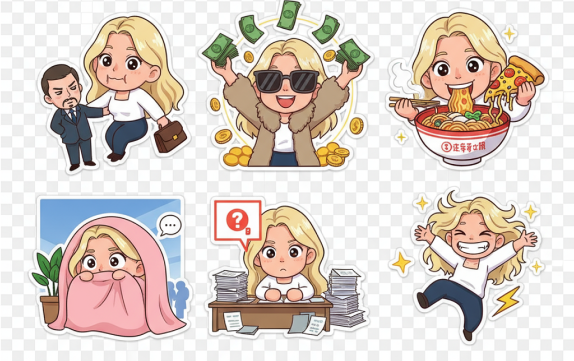
Turn an Image into a Custom Sticker in Seconds | Step-by-Step Guide
 By Daniel Walker
If you have ever wanted to turn your favorite photo, meme, or pet picture into a sticker, you are not alone. Turning an image into a custom sticker has become the new norm, and people use it in many ways. Some make it to use on WhatsApp, while others make it to use for their brand or just for having fun.
Nowadays, you don't need any design skills or expensive tools to do it. All you need are a few free online apps and a bit of creativity. In this article, we will dive deep into how to turn an image into a sticker and what some of the best tools are that you can use to simplify this process.
Part 1: What Does It Mean to Turn an Image into a Sticker?

Turning an image into a sticker means isolating the main subject of the picture and preparing it for digital use or printing on paper.
Mainly, there are two types of stickers:
- Digital Stickers: Digital stickers are the graphics you use in messaging apps like WhatsApp, Telegram, or Discord. These are small PNG files with transparent backgrounds.
- Printable Stickers: Printable stickers, on the other hand, are the physical stickers that you can print and use for labels, laptop covers, packaging, and custom merch. The ideal file format for printable stickers is a high-resolution PNG or PDF with a transparent outline.
Part 2: Best Tools to Turn an Image into a Sticker (Free & Online)
If you are looking to make custom stickers, you don't need any design skills. Additionally, you don't need expensive software like Adobe Photoshop, as numerous free and user-friendly tools are available on the market. These amazing tools allow you to turn an image into a sticker right from your phone or browser.
Let's take a look at these excellent software, one by one.
1. HitPaw FotorPea
HitPaw FotorPea is one of the most comprehensive editing tools available today. Utilizing advanced AI technology, this tool excels at cutting out the subject perfectly, providing a clean edge for your stickers. Once you have removed the background and isolated the subject, you can either download it or add colorful outlines, shadows, or custom text easily to give your sticker a fun or professional look. The best part? You don't need any editing experience. Simply upload your photo, choose "Background Changer," and let the AI do the work. Additionally, you can even enhance low-quality images before converting them into stickers.
Some of the main features of HitPaw FotorPea include:
- Automatic background removal
- Support various image formats.
- High-quality output
- AI photo enhancement
- Batch processing
- Create a sticker using a text prompt
How to turn photos into stickers using HitPaw FotorPea?
Go to the official HitPaw website and download the latest version of HitPaw FotorPea for your Window or Mac. After downloading the file, open the setup file and follow the on-screen instructions to install it.




Once the installation is complete, open the software click on "TollBox". Next choose "BG Remover" to start making the sticker from photo.
Now click the Plus button or drag and drop your photo that you want to convert into a sticker.
The powerful ai of HitPaw FotorPea will automatically detect the background and remove in a second. You can then adjust the size, background color etc. Additionally, you can customize the sticker by using brush and other tools.
Once you are satisfied with the outcome, click on Export button and save the sticker to your computer.
2. Canva
If you want to design beautiful printable or digital stickers without starting from scratch, Canva is a great choice. It's a free, web-based design tool featuring a massive library of sticker templates, graphics, fonts, and clip art. You can upload your own images, remove their backgrounds using Canva's background remover, and then customize your design with text, emojis, or borders. Canva's drag-and-drop interface makes it easy for beginners to use, and you can download your final design in high-resolution PNG format, which is ideal for printing or online use.
 Pros:
Pros:
- Simple drag-and-drop editor
- Thousands of ready-made templates
- Supports transparent PNG
 Cons:
Cons:
- Background removal is often a pro feature.
- Some other advanced features also require the paid version.
3. PicsArt
If you prefer editing on your phone, PicsArt is a perfect option. This all-in-one mobile photo editor lets you make picture stickers in minutes using its built-in cutout tool. Just upload your image, trace or auto-detect the subject, and instantly remove the background. After that, you can add outlines, filters, or fun effects, such as a neon glow, to make your sticker stand out. You can export it as a transparent PNG and use it in WhatsApp, Instagram, or Telegram. The app works smoothly on both Android and iOS, allowing you to design stickers anytime, anywhere.
Pros:
- Comprehensive photo editor
- Easy mobile access
- Built-in background remover
- Lots of filters and effects.
Cons:
- The free version shows ads and watermarks on some tools.
4. Fotor
Fotor is a simple yet powerful online tool that excels in custom sticker making, along with various other features. If you already have a photo and just want to turn it into a clean, cutout PNG sticker, this tool provides the easiest way to do so. You can visit the Fotor.com sticker maker interface, upload your image using the drag-and-drop features, and within seconds, it will separate your subject from the background with near-perfect precision. Once it's done, you can download the transparent PNG and use it wherever you want.
Pros:
- Instant results
- No editing skills required.
- Clean and accurate cutouts
Cons:
- Limited customization options
- Some features require a paid subscription
5. Sticker.ly
Sticker.ly is a dedicated sticker maker app especially designed for creating and importing WhatsApp/Telegram sticker packs. It's a mobile app that allows you to upload photos, automatically remove their backgrounds, and organize them into sticker collections. You can add text, emojis, or decorations, and then export your finished stickers directly into your chat apps. Additionally, the app features a large community where you can share your sticker packs or download trending stickers created by other users.
Pros:
- Dedicated sticker-making app
- Auto background removal
- Free export to WhatsApp/Telegram
Cons:
- Limited advanced editing tools compared to full design apps
Part 3: Creative Ideas for Custom Stickers
The best part about creating your own stickers is the endless creative possibilities they offer. However, if you are stuck and unsure how to make the best and most unique stickers, here are some fun and unique sticker ideas to use.
- Reaction Stickers: Take a picture of yourself making a shocked, happy, or confused face to use as a hilarious reaction sticker.
- Meme Stickers: Turn the trending and famous memes into funny stickers so you can use them in chat with your friends or family.
- Brand Logo Stickers: You can also create high-quality, ready-to-print stickers for your small business packaging or hand them out at events.
- Couple & Friendship Stickers: You can use the memorable or silly photos of your friends, family, or loved ones and create personalized digital stickers for group chat.
- Pet Stickers: Make adorable stickers from your pet's photos. Whether it's a dog, a cat, or any other pet, you can turn their photos into a full WhatsApp pack.
- Seasonal Stickers: Create sets for holidays, birthdays, or events.
Part 4: Tips for Printing or Sharing Your Stickers
Once you have created a perfect sticker pack, it's time to use it. Here is how you can turn it into a tangible or shareable sticker.
If you're planning to print your stickers, make sure to:
- Use glossy or matte sticker papercompatible with your printer.
- Print at 2-3 inchesfor best clarity.
- Keep resolution at 300 DPI or higherfor sharp results.
- Manually cut them out with scissors or use a cutting machine like a Cricut or Silhouette for a perfect die-cut shape.
For digital sharing:
- Use lyor WhatsApp Sticker Maker to create sticker packs.
- Save your stickers in PNG formatfor transparent backgrounds.
- You can even upload them to Telegram or Discordfor fun group chats.
Conclusion
Turning an image into a sticker has never been this simple. Now you don't need any design skills or professional software to turn an image into a sticker. By simply using tools like HitPaw FotorPea, Canva, and Sticker.ly, anyone can transform a regular image into a fun and unique sticker with ease. So, whether you're looking to upgrade your messaging chats with funny new digital stickers or create a professional print-ready label, the process is fast, simple, and straightforward.
So what are you waiting for now? Try the HitPaw FotorPea Background Changer today and turn your favorite photos into high-quality stickers in seconds.
Leave a Comment
Create your review for HitPaw articles



