



How to Improve the Quality of Animated Educational Videos
 By Daniel Walker
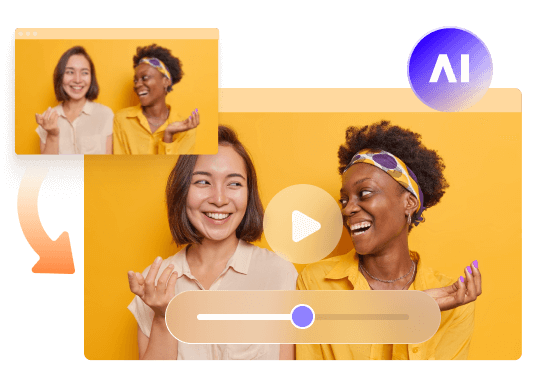
Educational animations help explain complex topics through moving illustrations, diagrams, and visual demonstrations. However, animated educational videos can look blurry when exported at a low resolution, compressed for online sharing, or enlarged for classroom displays. Lost edges, unclear labels, and softened details can make lessons harder to follow.
AI video enhancement can help improve the clarity of animated educational videos without recreating the entire animation. This guide explains how to upscale educational animations, improve their visual quality, and prepare them for platforms like YouTube and online learning courses.

Quick Answer: To improve animated educational videos, start with the highest-quality source file available, use an AI animation upscaler to enhance details and reduce noise, and export at the resolution required for your platform. Tools such as HitPaw VikPea can help upscale low-resolution animations to 4K.
Common Quality Problems in Animated Educational Videos
Animated educational videos can lose visual clarity for several reasons. Identifying the problem first helps you choose the right enhancement method.
Blurry Lines and Shapes
Educational animations often use outlines, geometric shapes, arrows, and diagrams to explain concepts. When a video is compressed or enlarged, these elements may look soft or jagged, making the animation less polished.
Unclear Text and Labels
Labels, equations, captions, and small annotations are essential in educational content. Low-resolution exports can make these elements difficult to read, especially when students watch videos on large screens.
Loss of Fine Details
Scientific animations, 3D models, and animated illustrations may contain small textures and intricate structures. When the original video has limited resolution, these details can become indistinct.
Noise and Compression Artifacts
Repeated exporting, downloading, or uploading can introduce visual artifacts. These may appear as grain, blocky areas, or inconsistent edges, reducing the overall quality of animated educational videos.
Resolution Requirements for Educational Videos
The right resolution for an educational video depends on how it will be viewed and how much visual detail it contains. Simple animated lessons may look clear at 1080p, while detailed scientific animations and diagrams can benefit from 4K playback.
720p: Basic Online Lessons
720p can work for simple animated explainers viewed on mobile devices. However, fine lines, small labels, and detailed illustrations may appear blurry on larger screens.
1080p: Standard Educational Content
1080p is a practical choice for most online courses, classroom lessons, and animated educational videos on YouTube. It offers a good balance between visual clarity, file size, and production requirements.
4K: Detailed Animations and Large Displays
4K (3840 × 2160) provides more pixels for intricate 3D models, scientific demonstrations, and animations containing detailed diagrams. It can also improve the viewing experience on large displays, provided the source footage has sufficient detail.
If your existing animation looks soft at 720p or 1080p, AI upscaling can help prepare it for higher-resolution playback. However, increasing resolution alone does not guarantee sharper details, so preview the enhanced result before publishing.
How to Upscale Educational Animations with HitPaw VikPea
If your educational animations look blurry or lack detail at their original resolution, HitPaw VikPea can help enhance their visual quality. Its AI enhancement models support animation restoration and higher-resolution output, making it a useful option for preparing educational videos for YouTube, online courses, and classroom displays.
Step-by-Step Guide
Step 1: Download HitPaw VikPea and Import Your Educational Animation
Open HitPaw VikPea and import the animation you want to enhance.


Step 2: Select the Enhancement Model
Choose the enhancement model to enhance animated footage.
Step 3: Preview the Enhancement
Preview the processed video and compare it with the original.
Step 4: Export in Higher Resolution
Choose your desired output resolution, such as 1080p or 4K (3840 × 2160), depending on your project needs. Export the video and review the final result before publishing.
AI Educational Animation Costs: Generate in 4K or Upscale Later?
AI video generators such as Kling 3.0 Omni, Seedance 2.5, Google Veo 3.1, and Runway Gen-4.5 can create educational animations from text prompts or images. However, generating videos at higher resolutions can increase costs. For existing 720p or 1080p animations, HitPaw VikPea offers an alternative by upscaling footage without regenerating the entire video.
AI Educational Animation Generation Costs
| Model Name | 720p/min ($) | 1080p/min ($) | 4K/min ($) |
|---|---|---|---|
| Kling 3.0 Omni | $7.56 | $10.08 | $25.20 |
| Seedance 2.5 | $13.56 | $33.55 | Not Supported |
| Veo 3.1 Standard | $24.00 | $24.00 | $36.00 |
| Runway Gen-4.5 | $7.20 | Not Supported | Not Supported |
| Vidu Q4 Preview | $5.70 | $7.20 | $23.40 |
| Wan 3.0 Video | $4.95 | $9.90 | Not Supported |
| Grok Imagine Video 1.5 | $8.40 | $15.00 | Not Supported |
| PixVerse V6 | $3.60 | $6.90 | Not Supported |
| Luma Ray3.2 | $5.40 | $21.60 | Not Supported |
HitPaw VikPea Animation Upscaling Costs
| VikPea Plan | Monthly Plan | Yearly Plan | Perpetual Plan |
|---|---|---|---|
| Estimated Daily Cost | $1.43/day | $0.27/day | Less than $0.02/day |
If you already have educational animations, VikPea can help upscale existing footage without generating a new video from scratch.
Common Mistakes When Enhancing Educational Animations
- Upscaling low-quality footage too aggressively: Increasing resolution cannot fully restore details missing from the original animation. Start with the best source file available.
- Choosing the wrong AI model: Animation-specific models may work better for illustrated characters, outlines, and stylized scenes than general-purpose enhancement settings.
- Over-sharpening details: Excessive enhancement can create unnatural edges, distort text, or make diagrams look artificial.
- Ignoring small text and labels: Check scientific diagrams, captions, and on-screen annotations to ensure they remain clear and readable.
- Skipping the preview: Compare enhanced footage with the original, especially around moving objects and fine lines, before exporting the final video.
- Exporting at an unsuitable resolution: Choose 1080p or 4K based on your publishing platform and source quality rather than selecting the highest resolution by default.
FAQs About Enhancing Educational Animations
Use the highest-quality source file available and an AI video enhancer to reduce noise, sharpen details, and upscale resolution. Preview the result to ensure text, illustrations, and animated objects remain clear.
Yes. AI video enhancers such as HitPaw VikPea can upscale existing animations to 4K, depending on the available output settings. Results depend on the original video's quality and level of detail.
1080p is suitable for most online lessons and educational videos. 4K is useful for detailed scientific animations, complex diagrams, and large classroom displays.
AI enhancement can improve perceived sharpness and reduce some visual imperfections. However, it cannot always recover details that are missing or severely degraded in the original footage.
It can be. If you already have a usable animation, upscaling it with a tool like HitPaw VikPea may cost less than generating a new high-resolution video. The actual cost depends on the generation platform, video duration, and enhancement plan.
Conclusion
High-quality educational animations make lessons easier to follow, from animated explainers to detailed scientific demonstrations. Choosing the right resolution and avoiding excessive sharpening can help keep visuals clear and natural.
If your existing animations look blurry or lack detail, HitPaw VikPea offers a practical way to enhance them and upscale footage to 4K without recreating the entire video. Preview the results before exporting to ensure your educational content looks clear across different screens.
Leave a Comment
Create your review for HitPaw articles